Vacancy and Applications Overview
Follow these steps to understand how vacancies and applications are displayed, filtered, managed, and advanced throughout their lifecycle, leveraging tools such as bulk actions, advanced filtering, AI-driven scoring, and internal notifications.
Understanding the Vacancy Grid
The vacancy grid in XandaPay allows you to monitor and manage all open positions effortlessly. From here, you can select multiple vacancies and perform group actions to efficiently move roles through their lifecycle.
- Select rows in the grid to apply group actions such as closing, opening, or extending vacancies by a week.
- Filter vacancies to display only internal, external, or both types of positions.
- Filter vacancies by manager to see who is responsible for each role.
- Review if candidates have been shortlisted or not for each vacancy.
- Check on a vacancy to see if there are applicants or offers have been extended.
- See at a glance if anyone has been hired, if interviews have occurred for each vacancy, and their respective statuses.
To open a vacancy, simply click the Eye icon or click the hyperlink on any listed record.
Filling Out Vacancy Details
Upon opening a vacancy record, you’ll find several tabs to input and review details, ensuring every position is accurately described and tracked.
- Work within the tabs: General, Requirements and Benefits, and Questions to enter all necessary vacancy details.
- The General tab includes the auto-generated vacancy number, opening date, closing date, and number of open positions you wish to fill.
- Indicate whether the role is internal, external, or accessible to both.
- Select a hiring manager. This auto-assigns the department and location (head office or branch).
- Enter the job title and write a detailed description for the vacancy.
- Use Maximize to expand the editor for easier input, and Minimize to collapse it again when finished.
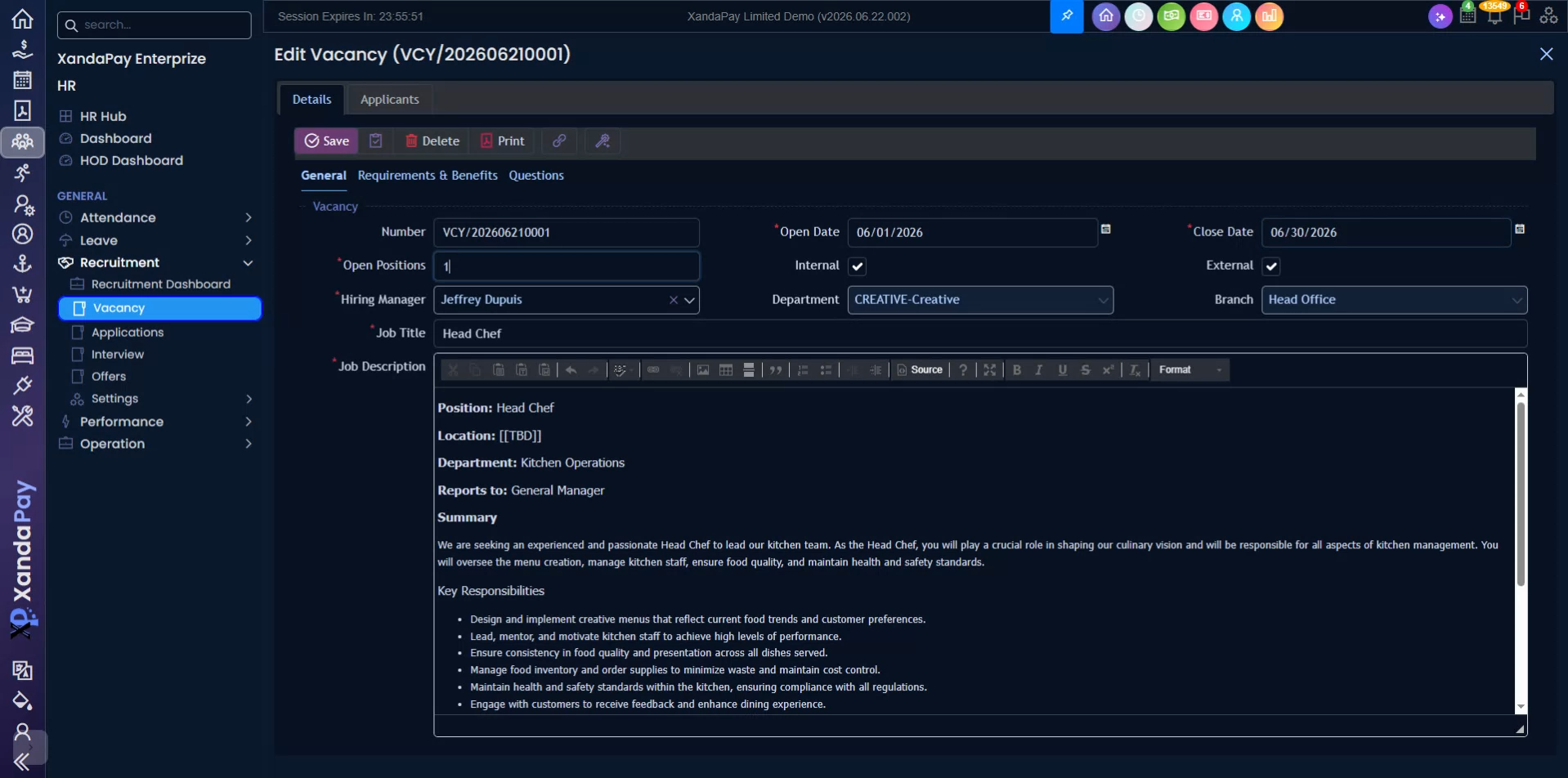
This section offers a feature-rich word editor for polished vacancy descriptions.
Configuring Requirements, Benefits, and Questions
- Within the Requirements and Benefits tab, specify all key requirements and communicate standout benefits of the role.{marker_29}
- Add custom screening questions for candidates. Assign weights to prioritize specific questions.
- Choose question formats: single choice, multiple choice, or text-based to capture quantitative or qualitative responses.
Leveraging AI Features for Vacancy Enhancement
- Utilize built-in AI to update or generate the job description, requirements, benefits, and auto-generate questions with weights applied.
Reviewing and Managing Applicants
- Access the Applicants tab to see all candidates who have applied to the vacancy.
- Select multiple applicants to use bulk actions, like advancing applicants to the next recruitment stage.
- Specify reasons for any bulk action to maintain an audit trail and transparency.
- If necessary, assign a hiring manager.
- Utilize the Nudge feature to resend notifications and reminders to applicants.
- Review existing offers issued for the vacancy.
Advanced Filtering for Applicants
Take advantage of the flexible filter section to efficiently locate and evaluate candidates.
- Filter candidates by their application to internal or external roles.
- Filter by specific vacancy.
- Filter by shortlisting status, interviewed or not, and stalled applications.
- Filter by assigned hiring manager.
- Filter by vacancy status and current recruitment stage.
- Track application progress through stages like Applying, Assessment, Hire, Interview Scheduled, and Interview. This visual pipeline helps manage each vacancy efficiently.
- Filter candidates by applicant score—for instance, only view scores above a particular threshold to focus on top candidates.
Reviewing Applications in Detail
- Open a candidate’s application to access comprehensive details.
- The General tab displays application number, candidate name, date of birth, country, gender, and a summary extracted from their resume, along with address and contact details.
- If provided, view the applicant’s photo, uploaded resume, and details about the corresponding vacancy.
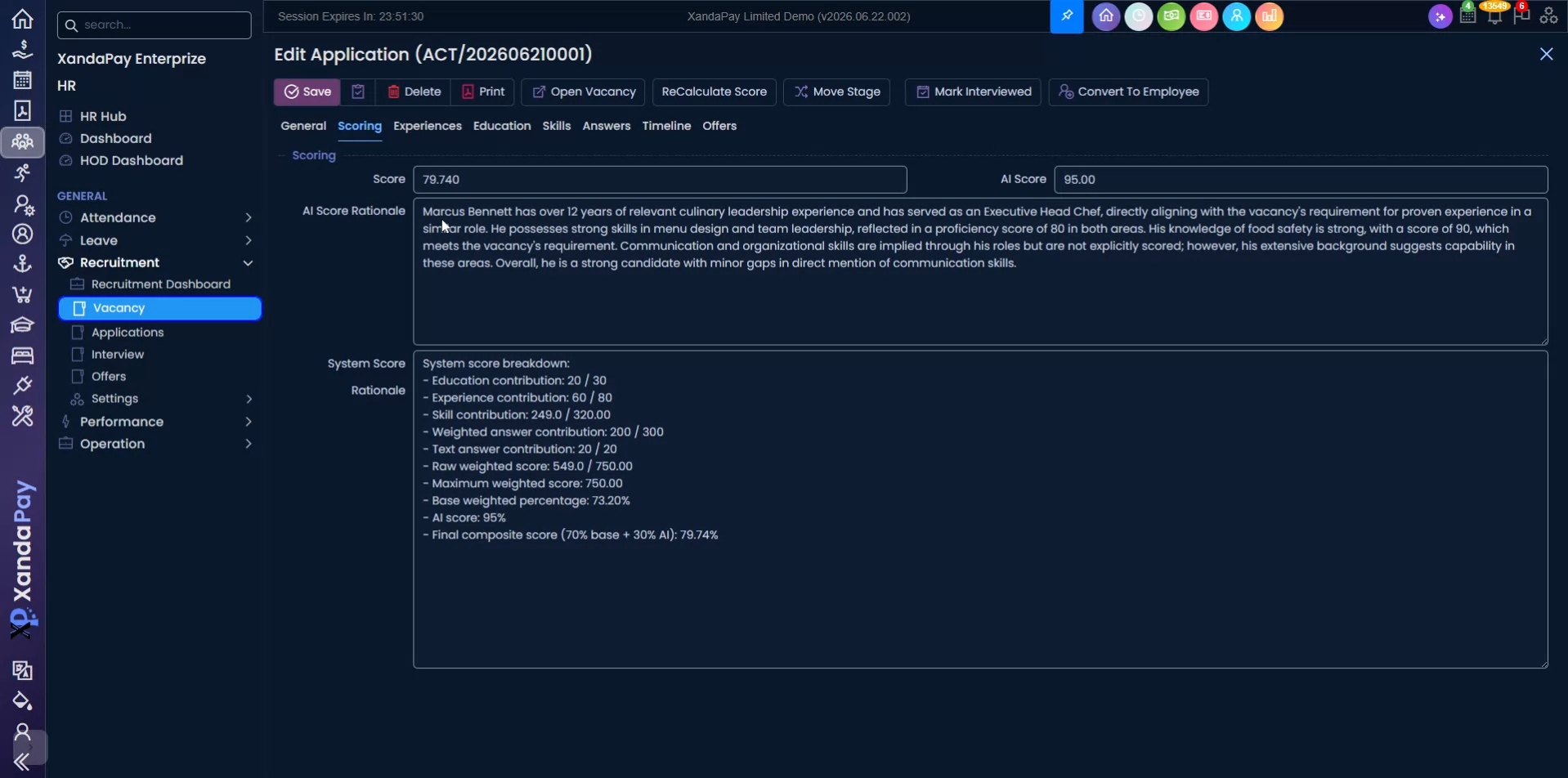
- In the Scoring tab, evaluate the overall score—a composite of both AI and system-generated scores with detailed rationale.
- The Experience tab summarizes employment and educational background, skills, and all answers given to screening questions.
- Review the applicant’s timeline, which logs events such as vacancy creation, application submission, and scoring updates.
- See any offers made to the candidate within this view.
- Use quick action buttons to recalculate scores, move the application forward, mark as interviewed, or convert to employee as necessary.