
How to Add Pay Defaults
The Pay Defaults tab in XandaPay allows you to set up predefined payroll rules for employees, ensuring consistency in allowances, deductions, and other payroll-related items.
Step 1: Navigate to the "Pay Defaults" Tab
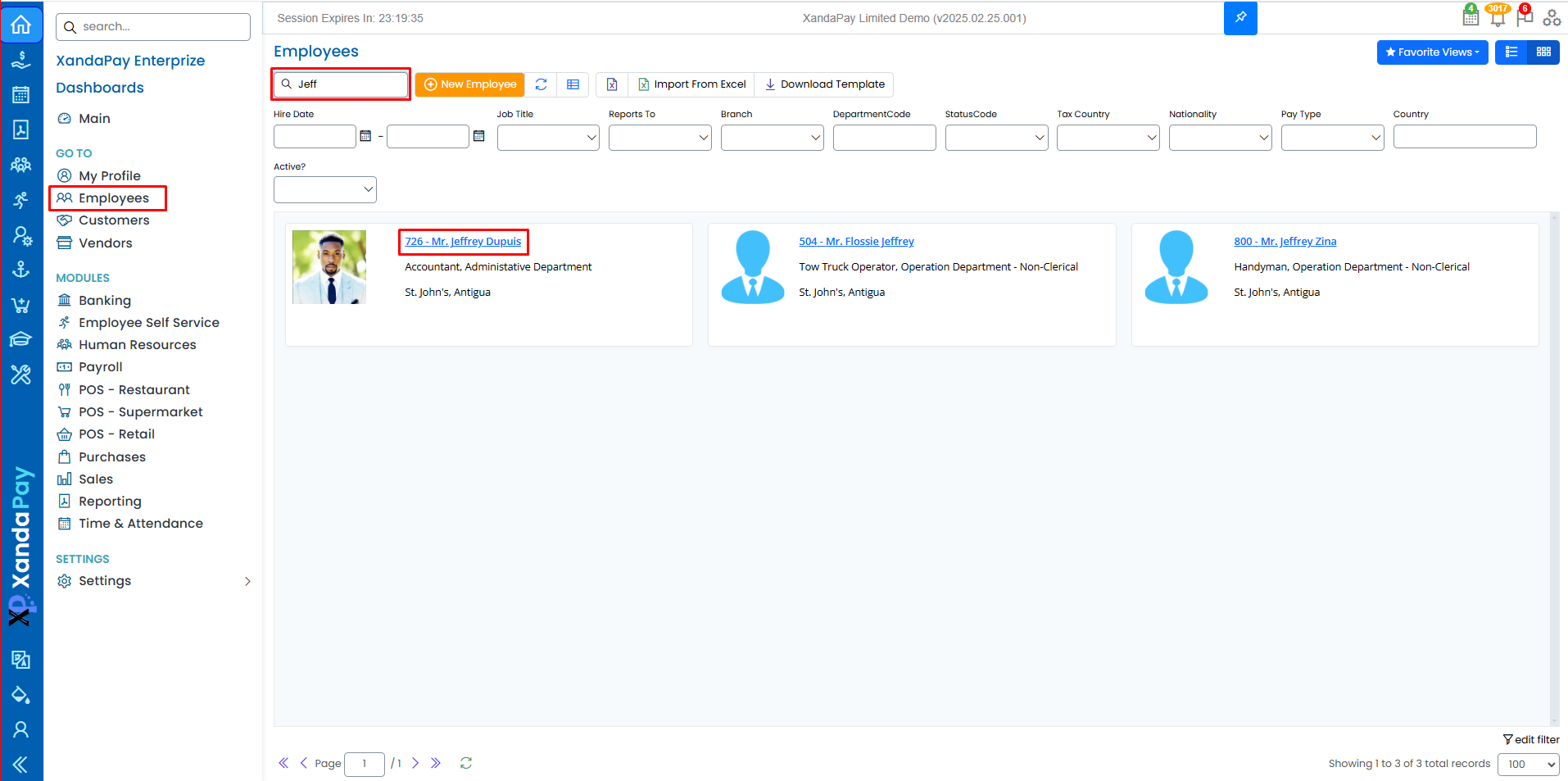
- Log in to your XandaPay portal.
- Open the Employees module.
- Select the employee you want to Edit or add a New Employee.
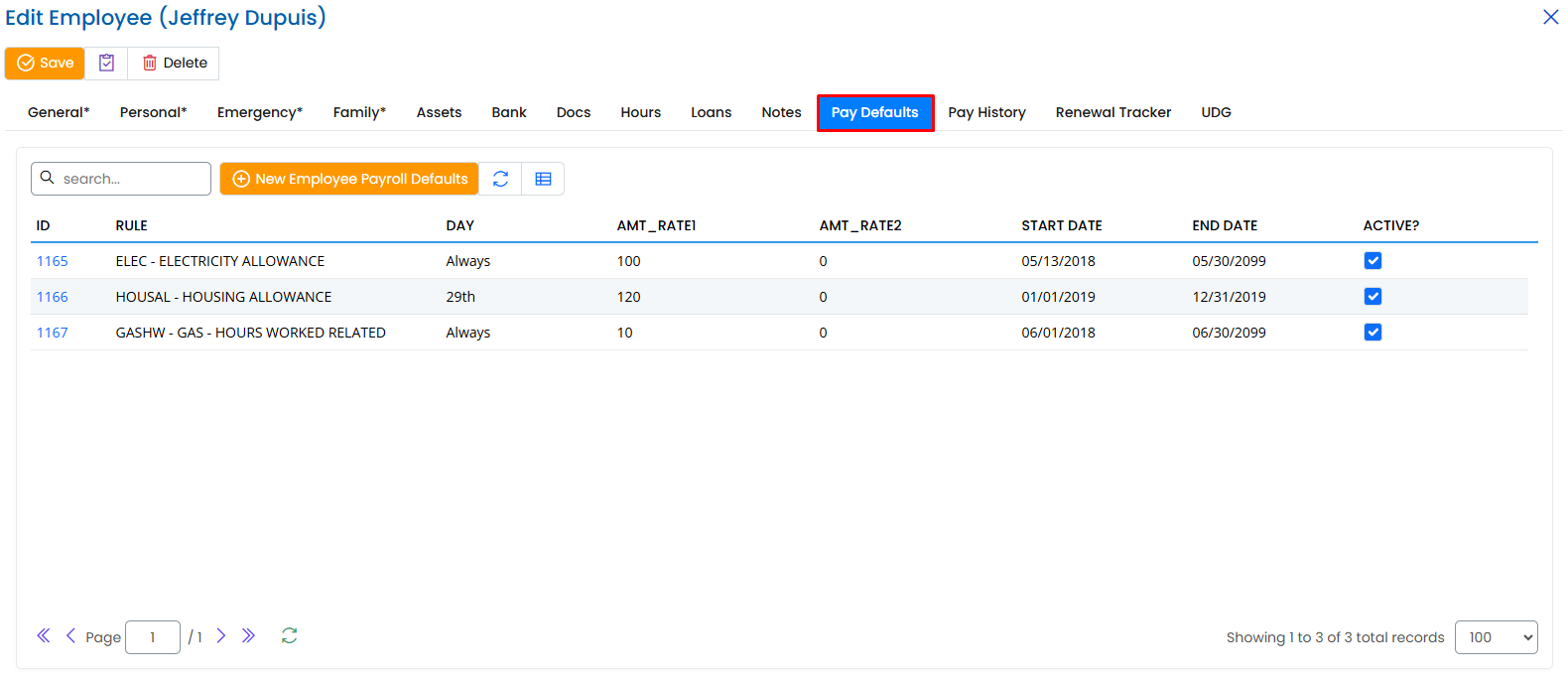
- Click on the "Pay Defaults" tab at the top.
Step 2: Enter Payroll Rule Details
Click the “New Employee Payroll Defaults” button.

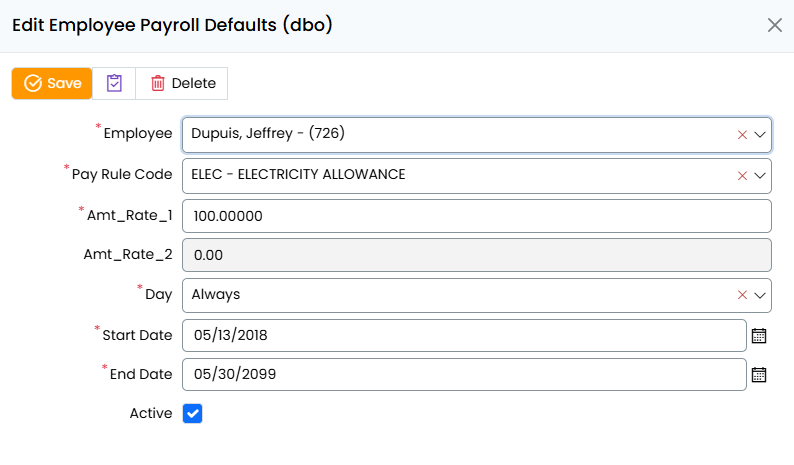
- Select the Rule:
- Choose the applicable rule (e.g., Housing Allowance, Electricity Allowance).
- Choose the Day:
- Select the applicable day for the rule (e.g., Always, a specific date).
- Enter Amount Rate 1 and Amount Rate 2 (if applicable):
- Amount Rate 1 is the fixed rate for the rule.
- Amount Rate 2 is optional and is used when there is a split, where Rate 1 is fixed, and Rate 2 is an additional amount based on the employee's preference.
- Set the Start and End Dates:
- Pick the start and end dates for the rule using the calendar.
- Activate the Pay Default:
- Ensure the "Active?" checkbox is selected if the rule should apply immediately.
Step 3: Save the Pay Default
- Click "Save" to apply the changes.

Step 4: Verify Payroll Application
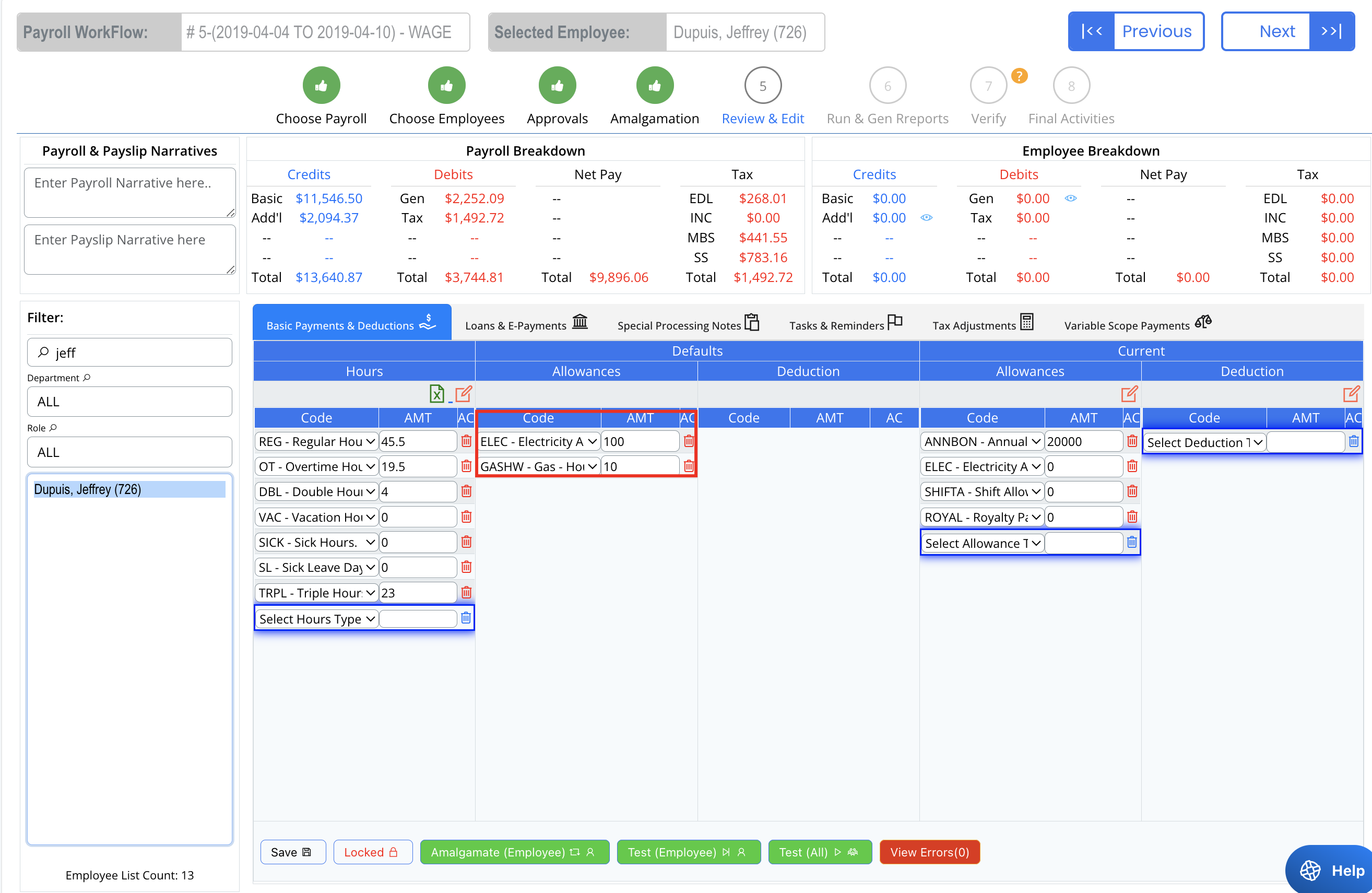
- Navigate to the Payroll Processing section.
- Ensure the newly added pay defaults are correctly applied to the employee’s payroll.
- If there are discrepancies, review the entered details and make corrections.
Additional Notes
- Pay Defaults can be updated or deactivated at any time by returning to the Pay Defaults tab.
- Employees can have multiple pay defaults active simultaneously.
- Proper setup ensures accuracy in payroll processing and reduces manual adjustments.
Once Pay Defaults are configured, you can proceed to other sections like Pay History or UDG to complete the employee’s profile. 🚀