
Managing Hours Type (Codes)
In XandaPay Enterprise, Hours Type (Codes) define various work and leave hour categories used in payroll processing. Configuring them correctly ensures accurate calculations for wages, overtime, and deductions. This guide walks through accessing, creating, editing, and managing Hours Types effectively.
Accessing Hours Type (Codes)
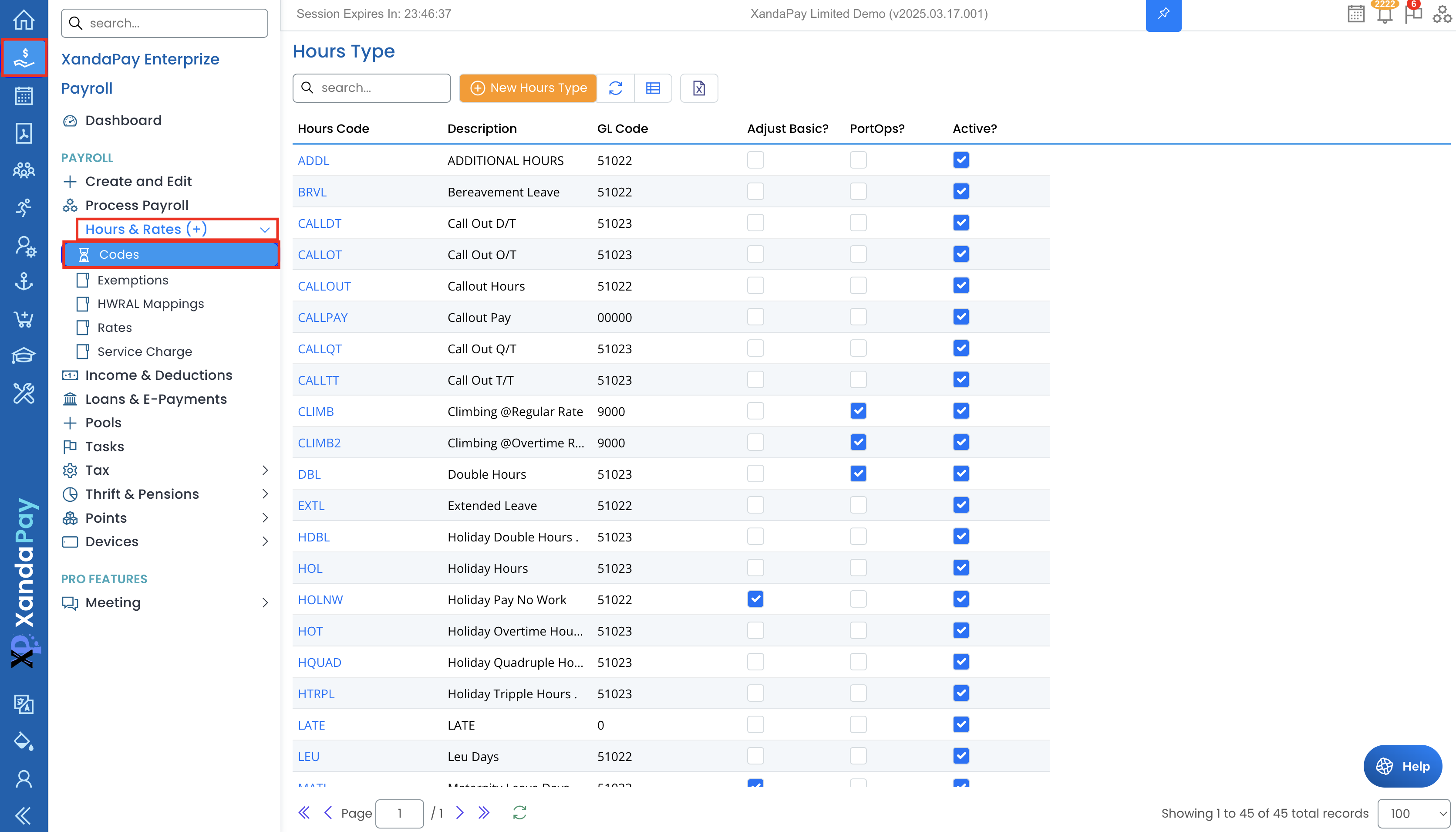
- Log in to XandaPay Enterprise.
- Navigate to the Payroll menu on the left sidebar.
- Expand the Hours & Rates section.
- Click Codes to view the existing Hours Types.
Understanding the Hours Type List
Each Hours Type includes key details:
- Hours Code – A short identifier for the type (e.g., REG for Regular Hours, SL for Sick Leave).
- Description – Name of the hour type.
- GL Code – General Ledger (GL) account linked to the hours type.
- Adjust Basic? – Indicates if hours affect basic salary calculations.
- PortOps? – Specifies if the hours apply to port operations.
- Active? – Marks whether the code is in use.
Creating a New Hours Type
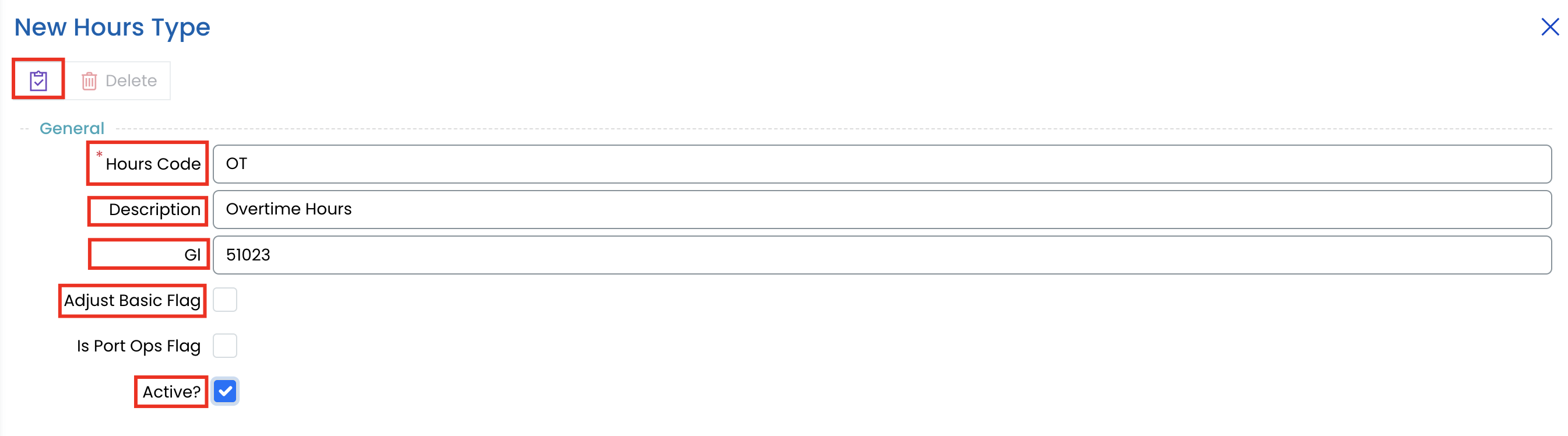
- Click New Hours Type.
- Fill in the required fields:
- Hours Code – Short identifier (e.g., "OT" for Overtime).
- Description – Full name of the type.
- GL Code – Enter the appropriate GL account.
- Check Adjust Basic? if it should affect salaried employees' basic hours.
- Check Active? to enable this hours type.
- Click Save to create the Hours Type.

Assigning Hourly Rates for Hours Types
Each Hours Type can have specific hourly rates assigned:
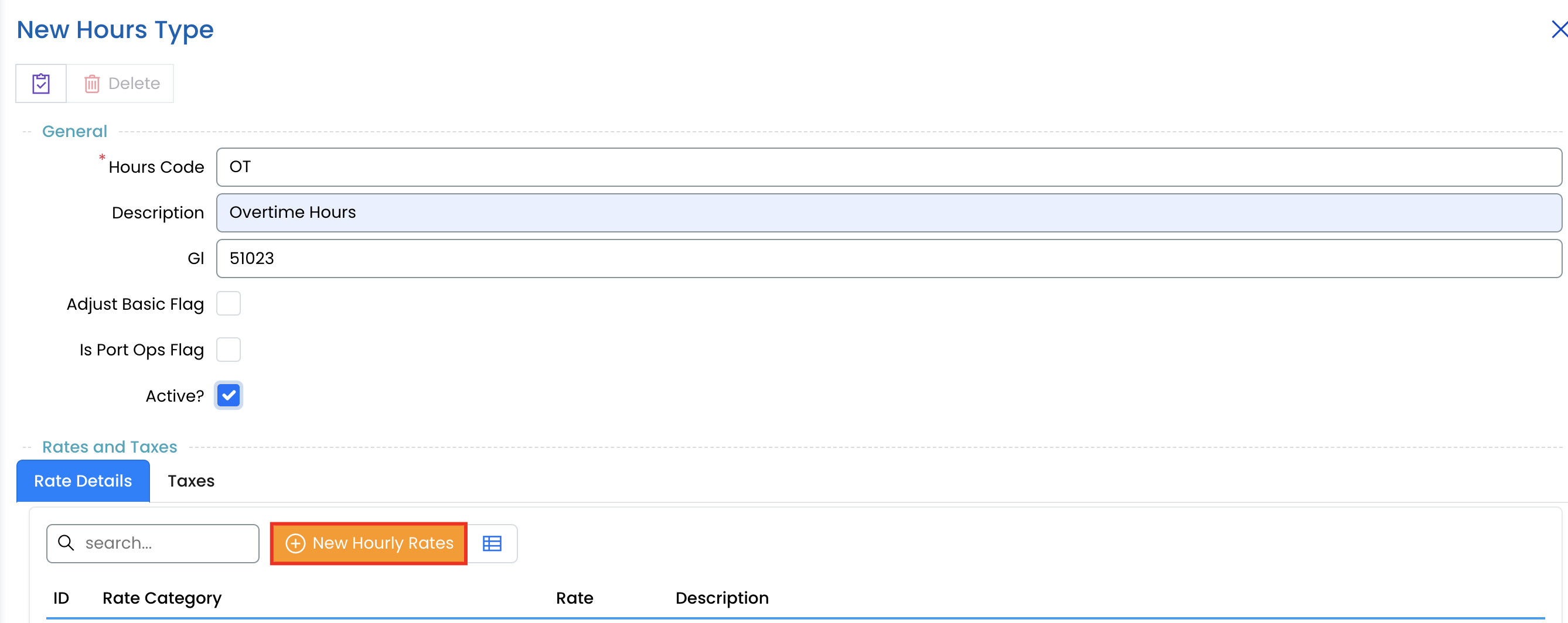
- Open an Hours Type.
- Navigate to the Rate Details tab.
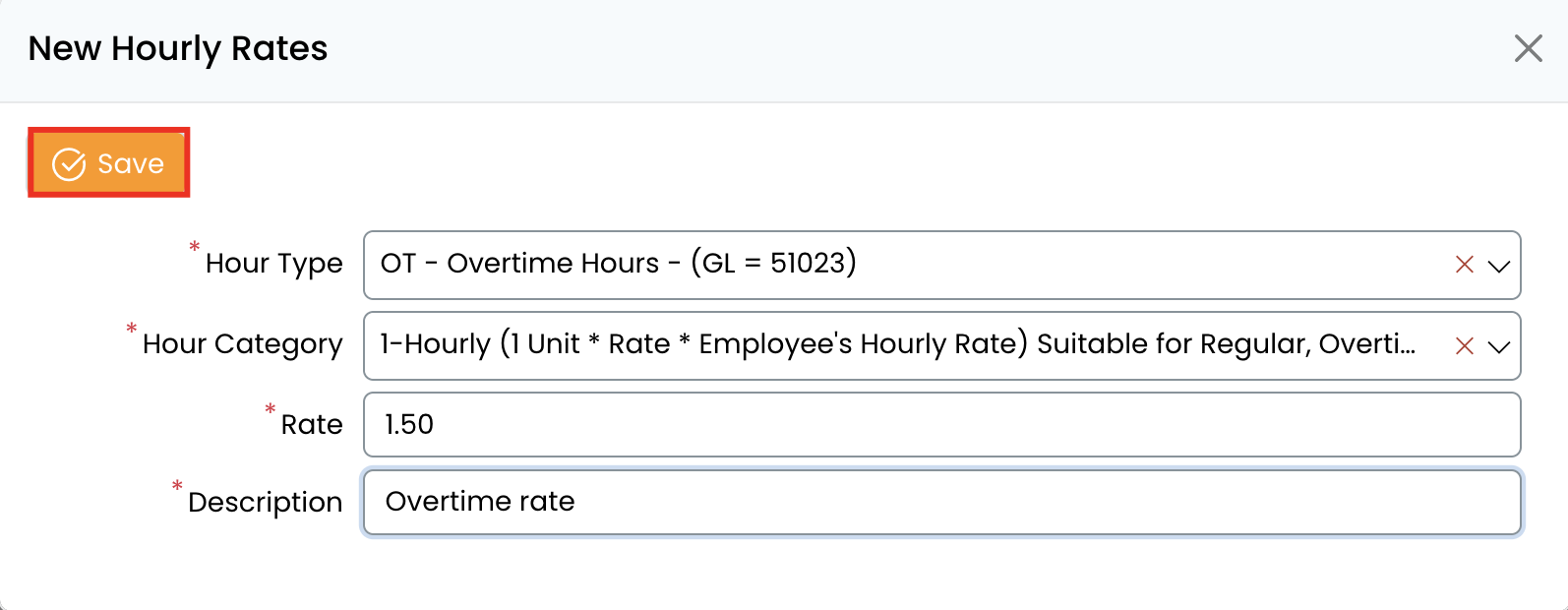
- Click New Hourly Rate.
- Select the Hour Category (e.g., Regular, Overtime).
- Set the Rate (e.g., 1.0 for standard pay).
- Enter a Description (e.g., "Regular hours worked by employees").
- Click Save.
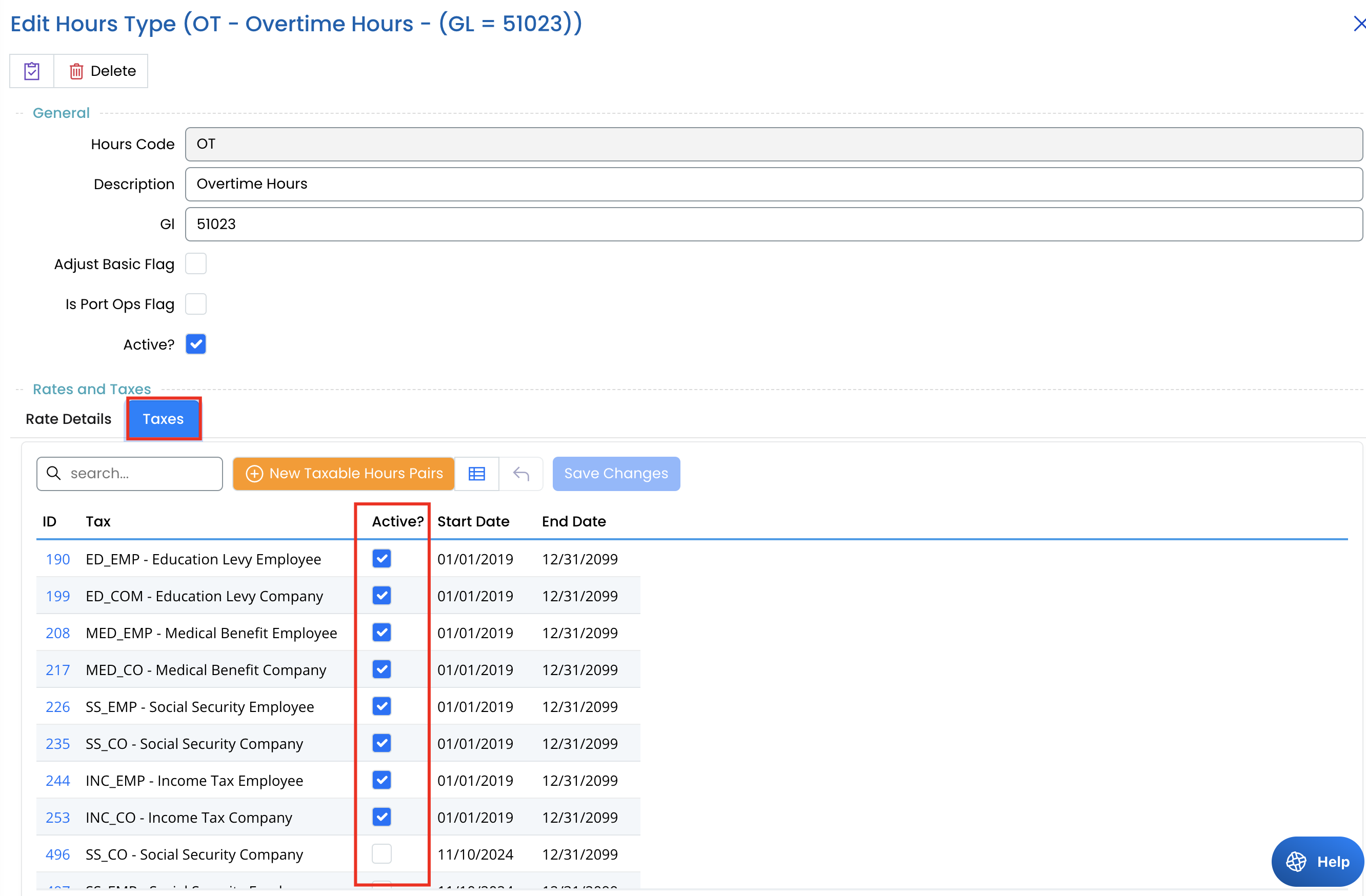
Assigning Taxes to Hours Types
- Open an Hours Type.
- Navigate to the Taxes tab.
- Click New Taxable Hours Pair.
- Select a tax rule (e.g., Social Security Employee).
- Set Start Date and End Date.
- Check Active? if applicable.
- Click Save Changes.
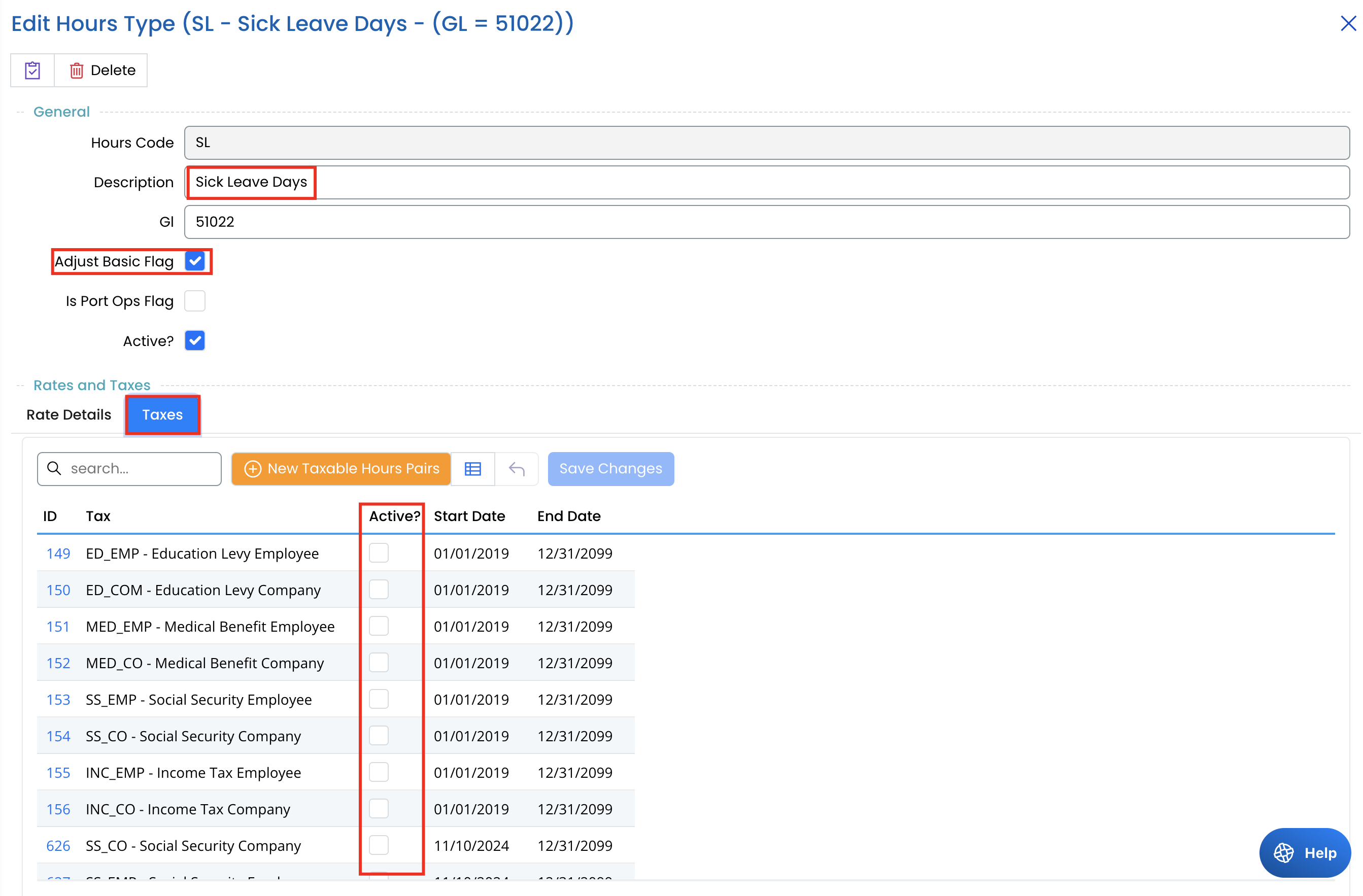
Note: Taxes were not applied to Sick Leave (SL), as seen in the system configuration.
Scenario: Sick Leave & Adjust Basic Flag
In the case of Sick Leave (SL):
- The Adjust Basic Flag is enabled.
- This means that sick leave will reduce basic hours for salaried employees.
- No taxes are applied, ensuring sick leave pay is exempt from deductions.
This setup ensures that employees on sick leave do not accumulate full base hours, which affects salary calculations for salaried workers while remaining untaxed.
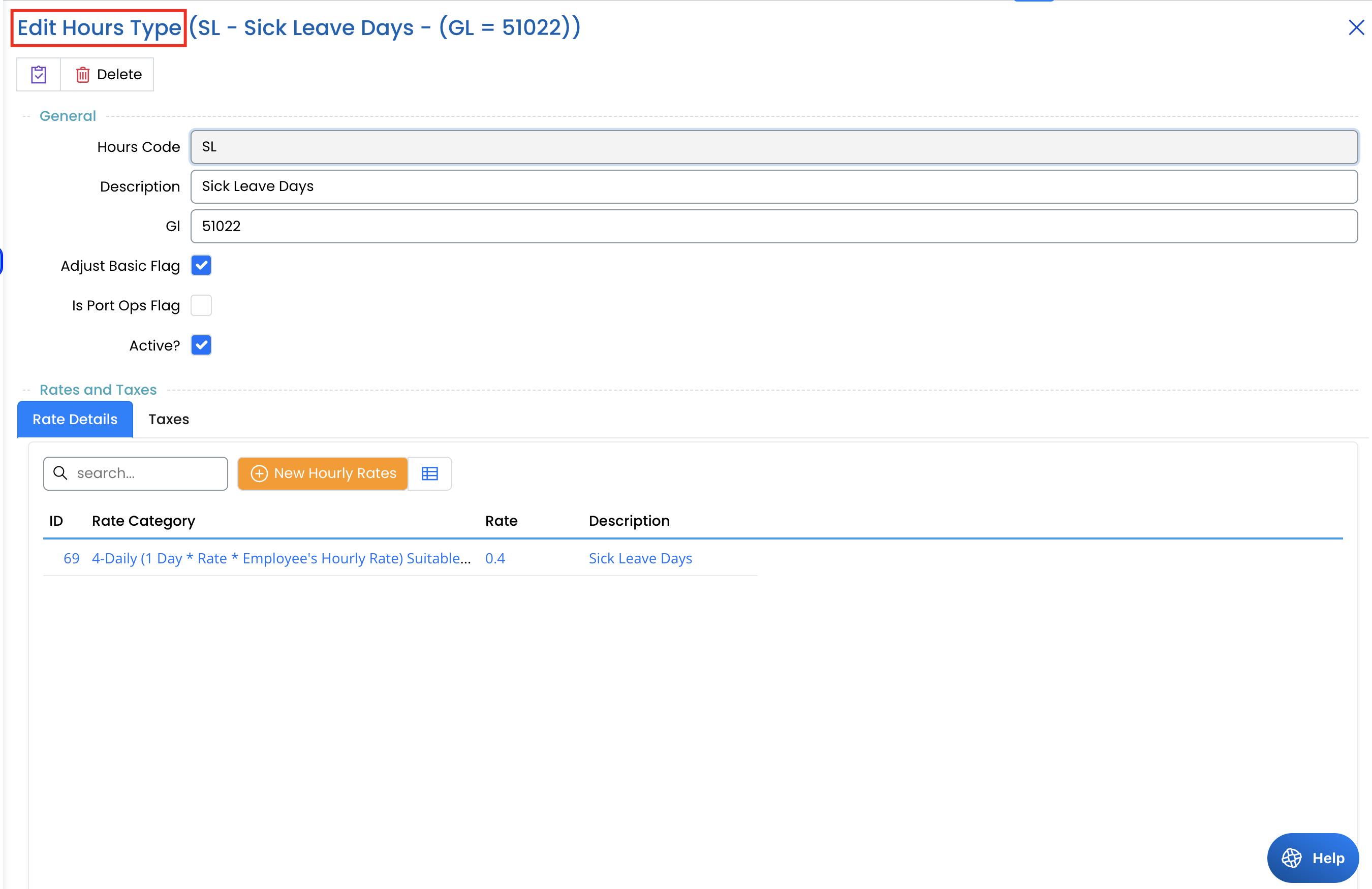
Editing an Existing Hours Type
- Locate the hours type in the list.
- Click on it to open the Edit Hours Type screen.
- Modify fields such as description, GL code, or flags (Adjust Basic, PortOps).
- Click Save to apply the changes.
Best Practices
✔ Ensure GL codes match financial records.
✔ Enable Adjust Basic only for leave types that should reduce salaried employees' base pay.
✔ Keep hourly rates aligned with company policies.
✔ Regularly review and update active Hours Types.
By managing Hours Types efficiently, payroll administrators can ensure smooth calculations and compliance with company policies. 🚀