
How to Create a New Employee
This guide provides step-by-step instructions on how to add a new employee in XandaPay, focusing on the General and Personal tabs. The Personal tab contains mandatory fields (Date of Birth (DOB), Gender, and Nationality) that must be filled before saving in the General tab.
General & Personal Tab
Step 1: Navigate to the Employee Management Section
- Log in to your XandaPay portal.
- Go to the Employees module.
- Click "New Employee".
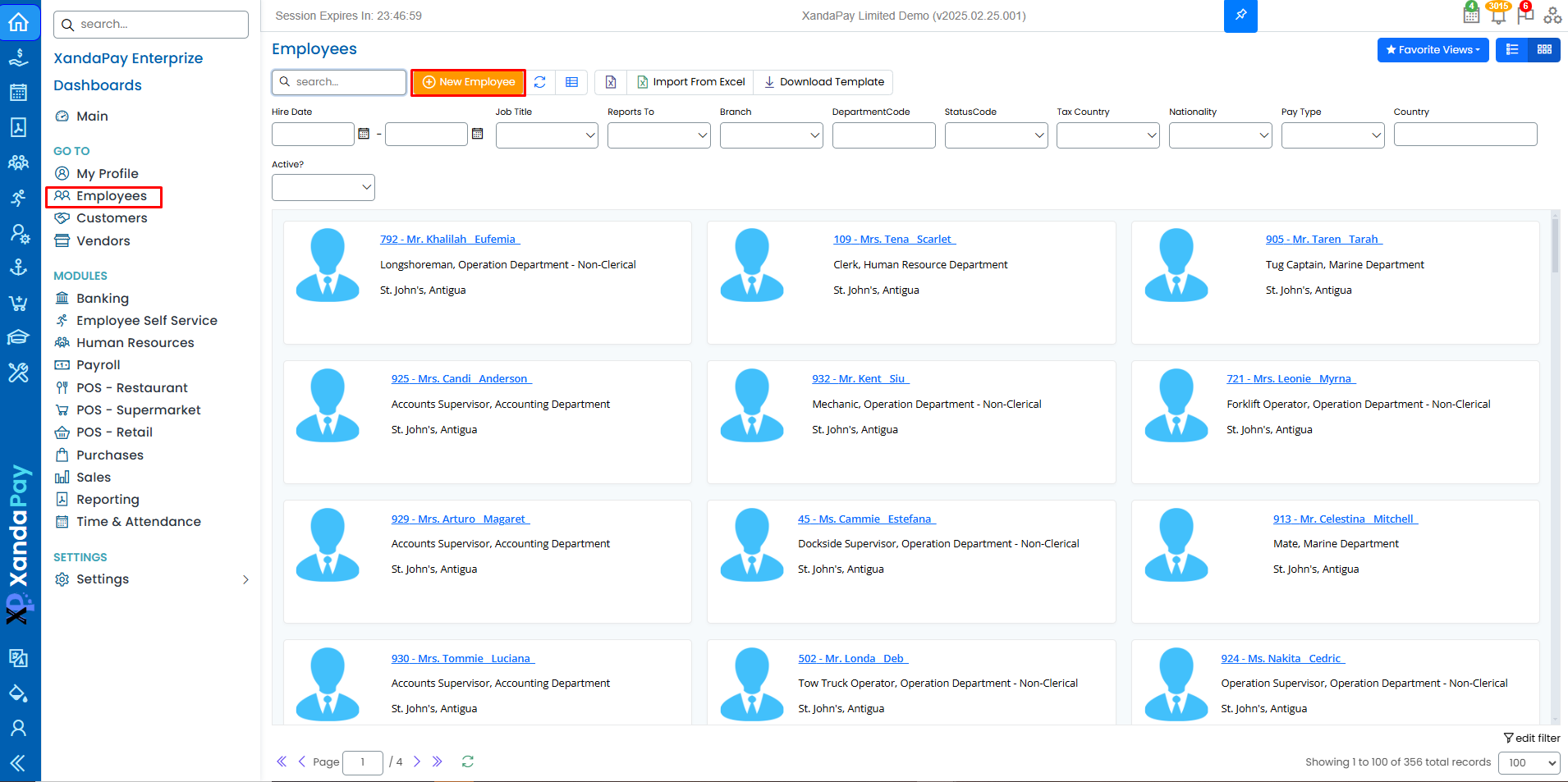
Step 2: Fill in Employee Details
1. General Information
- Picture: Upload the employee’s profile picture by clicking "Select File".
- Title: Select the appropriate title (e.g., Mr., Ms., Dr.).
- Employee ID: This is usually auto-generated but can be manually entered if necessary.
- Staff Number (Optional): Enter the internal staff number if applicable.
- First Name: Enter the employee’s first name.
- Last Name: Enter the employee’s last name.

2. Organization Details
- Role: Select the employee’s job title from the dropdown list.
- Reports To: Select the supervisor or manager this employee reports to.
- Branch: Choose the branch/location where the employee is assigned.
- Department: Select the department where the employee works.
- Status: Set the employment status (e.g., Full-Time, Part-Time, Contract).
- Pay Type: Choose WAGE or SALARY, depending on how the employee is paid.
- Manage Payment Profile: Click this option to configure salary details and payment settings.

3. Dates
- DOH (Date of Hire): Enter the employee’s hiring date.
- Leave Date (If Applicable): Leave this blank unless setting a future termination date.

4. Tax Information
- Tax Country: Select the country for tax calculations.
- Social Security (SocSec): Enter the employee’s social security number (if applicable; otherwise, use 0).
- Medical Benefit (MedBen): Input the employee's medical benefit number (if applicable; otherwise, use 0).
- Education Levy (EdLevy): Input the employee's education levy number (if applicable; otherwise, use 0).
- Income Tax Number: Enter the employee’s tax identification number (if applicable; otherwise, use 0).

5. Additional Options
- Global ID: Typically auto-assigned; leave it as is unless required for specific tracking.
- Add to Payroll: Ensure this option is checked to include the employee in payroll processing.
- Add to Devices: If using biometric or attendance tracking, click the dropdown to assign devices.
- Link System User: If the employee needs system access, click to link their system user profile.

Step 3: Fill in the Personal Tab (Mandatory Before Saving)
Since DOB, Gender, and Nationality are required fields, follow these steps before attempting to save:
1. Address Details (Optional)
- Address: Enter the employee’s street address.
- City: Input the city name.
- Region: Specify the region or state.
- Country: Select the country from the dropdown.

2. Birth Information (Mandatory)
- Date of Birth (DOB) *: Use the date picker or manually enter the birth date (MM/DD/YYYY format).
- Gender *: Select the employee’s gender from the dropdown list.
- Nationality *: Choose the nationality from the dropdown.

3. Contact Information (Optional)
- Email Address: Enter the employee’s primary email address.
- Cell Phone: Input a mobile phone number.
- Home Phone: Provide a landline number if applicable.
- Extension: If the employee has an internal phone extension, enter it here.

4. Notes (Optional)
- Notes: Add any additional comments or relevant details about the employee.

Step 4: Save the Employee Record
- Ensure that Date of Birth (DOB), Gender, and Nationality are populated in the Personal Tab.
- Click the "Save" button at the top left of the screen.

You have now successfully added a new employee in XandaPay, ensuring all mandatory fields are completed! 🚀
Next Steps
Once the General and Personal tabs are completed, you can proceed to other tabs such as Emergency Contacts, Family, Education, and Pay Defaults to add more details.
Troubleshooting & Tips
✅ Ensure all required fields (DOB, Gender, Nationality) are filled before saving.
✅ If an error occurs, review the fields and check for missing or incorrect information.
✅ To edit later, go to Employee List, find the employee, and click "Edit".