
How to Add Notes
The Notes tab in XandaPay allows HR to record and track important employee-related information. Notes can be used for payroll adjustments, performance records, or any relevant remarks for future reference.
Step 1: Navigate to the Notes Tab
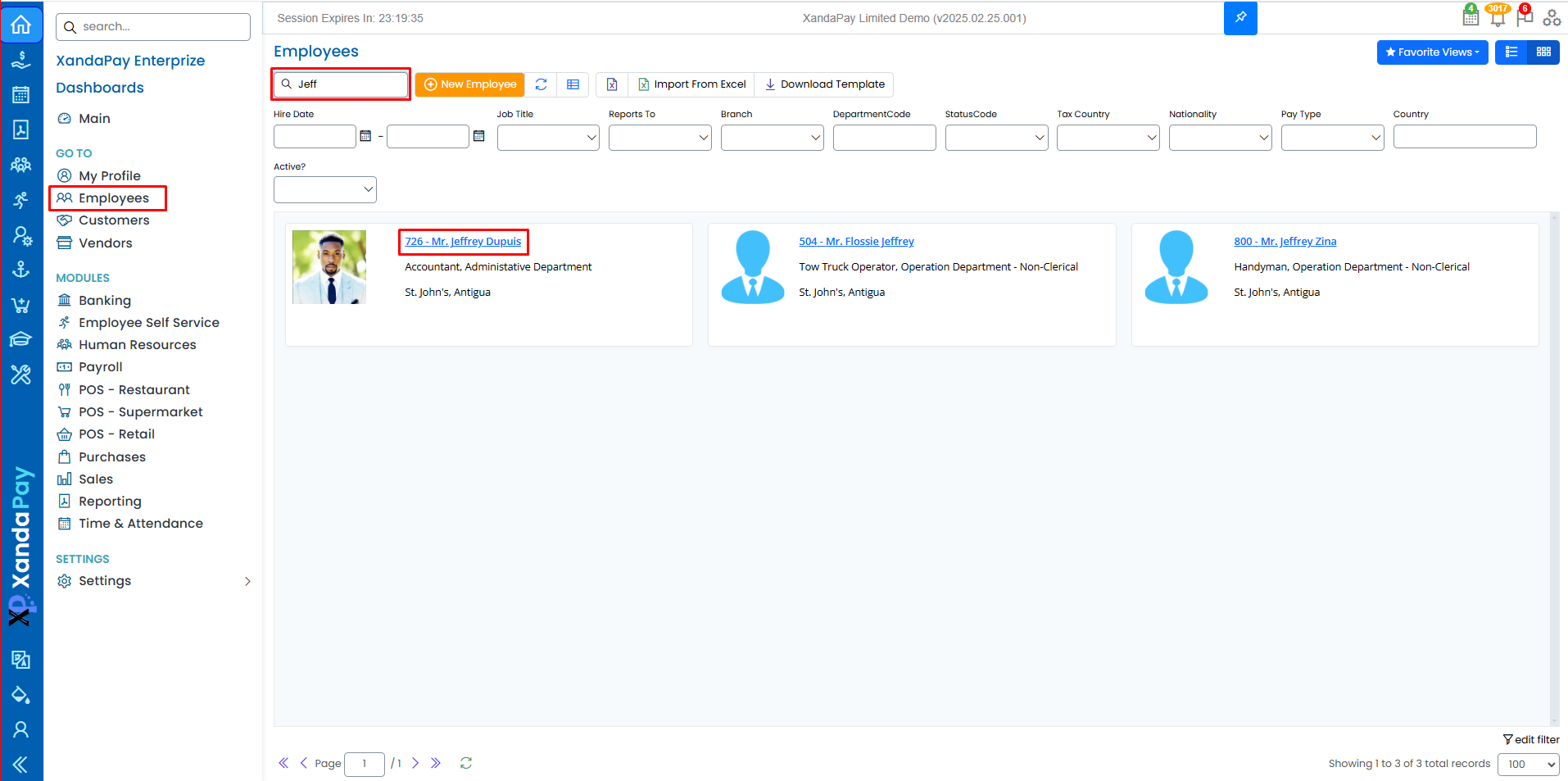
- Log in to your XandaPay portal.
- Open the Employees module.
- Select the employee whose notes you want to manage or add a New Employee.
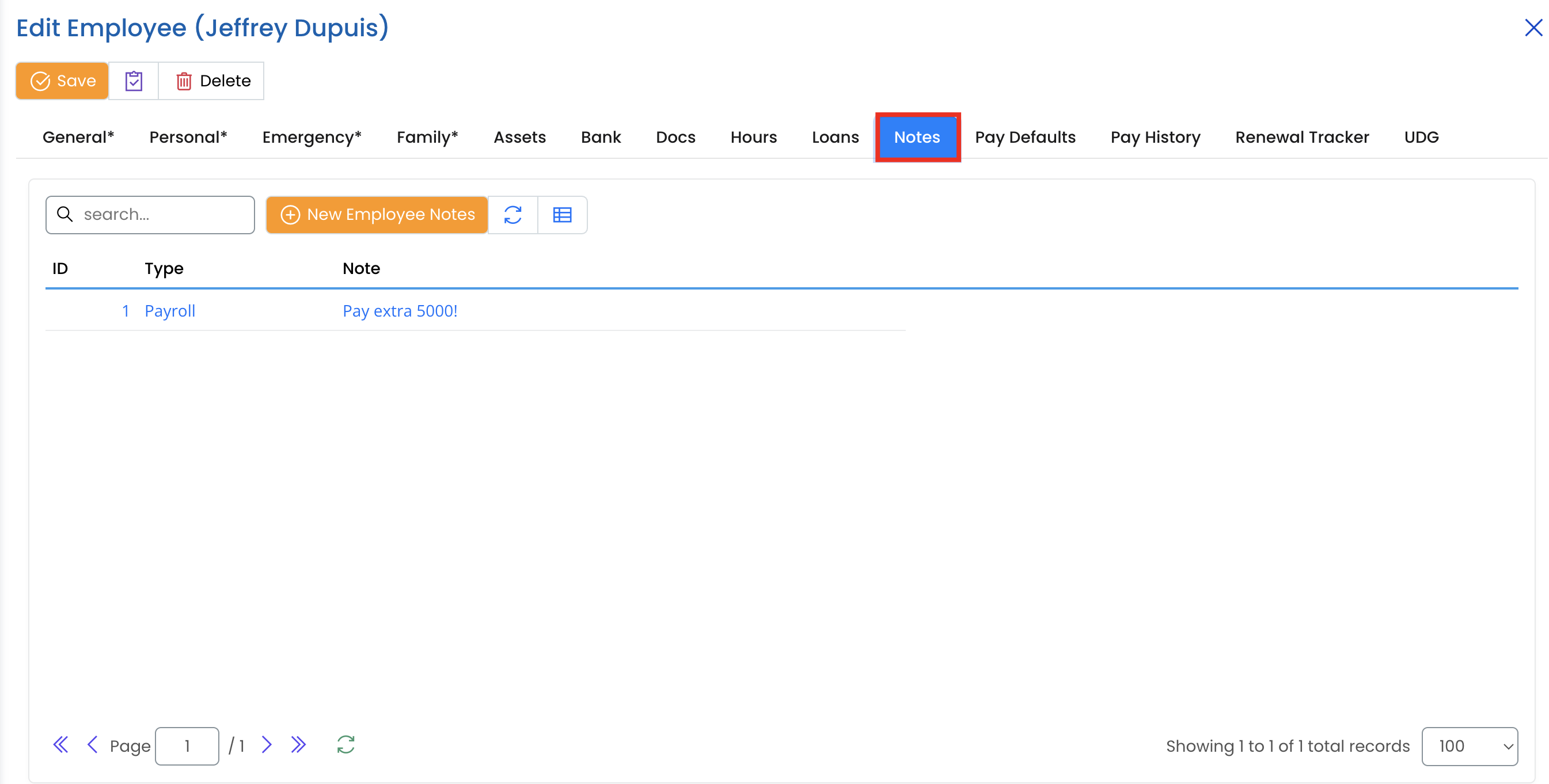
- Click on the Notes tab at the top.
Step 2: Add a New Note
Click the + New Employee Notes button.

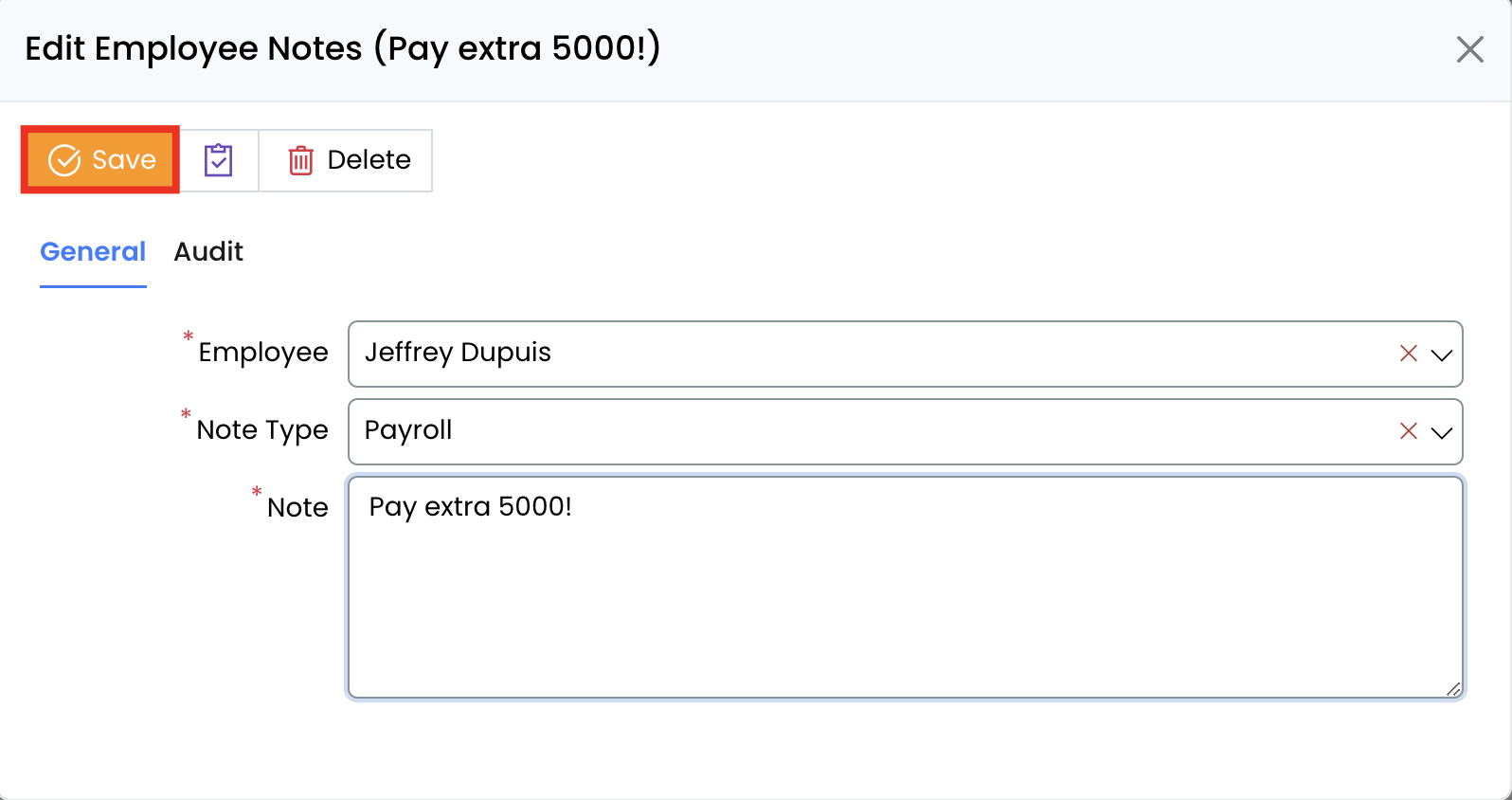
Enter the following details:
- Type: Specify the category of the note (e.g., General, Medical, Payroll, etc.).
- Note: Provide a detailed description of the note (e.g., "Pay extra 5000!").
Step 3: Save and Manage Notes
- Review the entered details for accuracy.
- Click the Save button to store the note.
- The note will now appear in the Notes tab list with its corresponding ID, Type, and Note Description.
Additional Notes
- Notes can be searched using the search bar.
- Notes provide an easy way to track employee-related updates and reminders.
- The notes list can display up to 100 records per page.
- Once notes management is complete, you can proceed to other sections like Bank, Assets, Docs, Hours, Loans, and Pay Defaults to further build the employee’s profile. 🚀