
How to Add Assets
The Assets tab in XandaPay allows HR to store and manage company assets assigned to employees. Tracking assets helps ensure proper allocation, record-keeping, and retrieval when necessary.
Step 1: Navigate to the Assets Tab
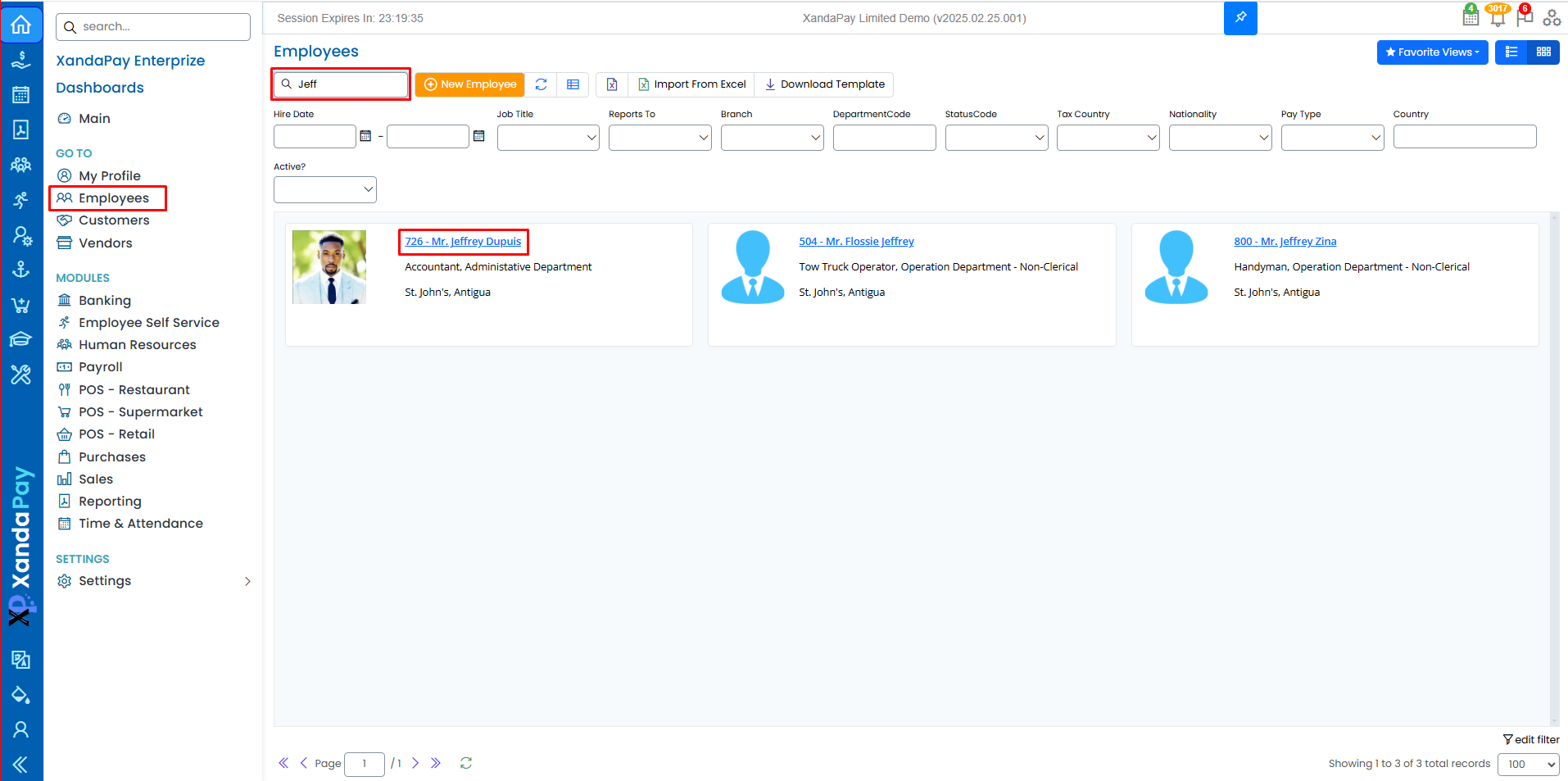
- Log in to your XandaPay portal.
- Open the Employees module.
- Select the employee you want to Edit or add a New Employee.
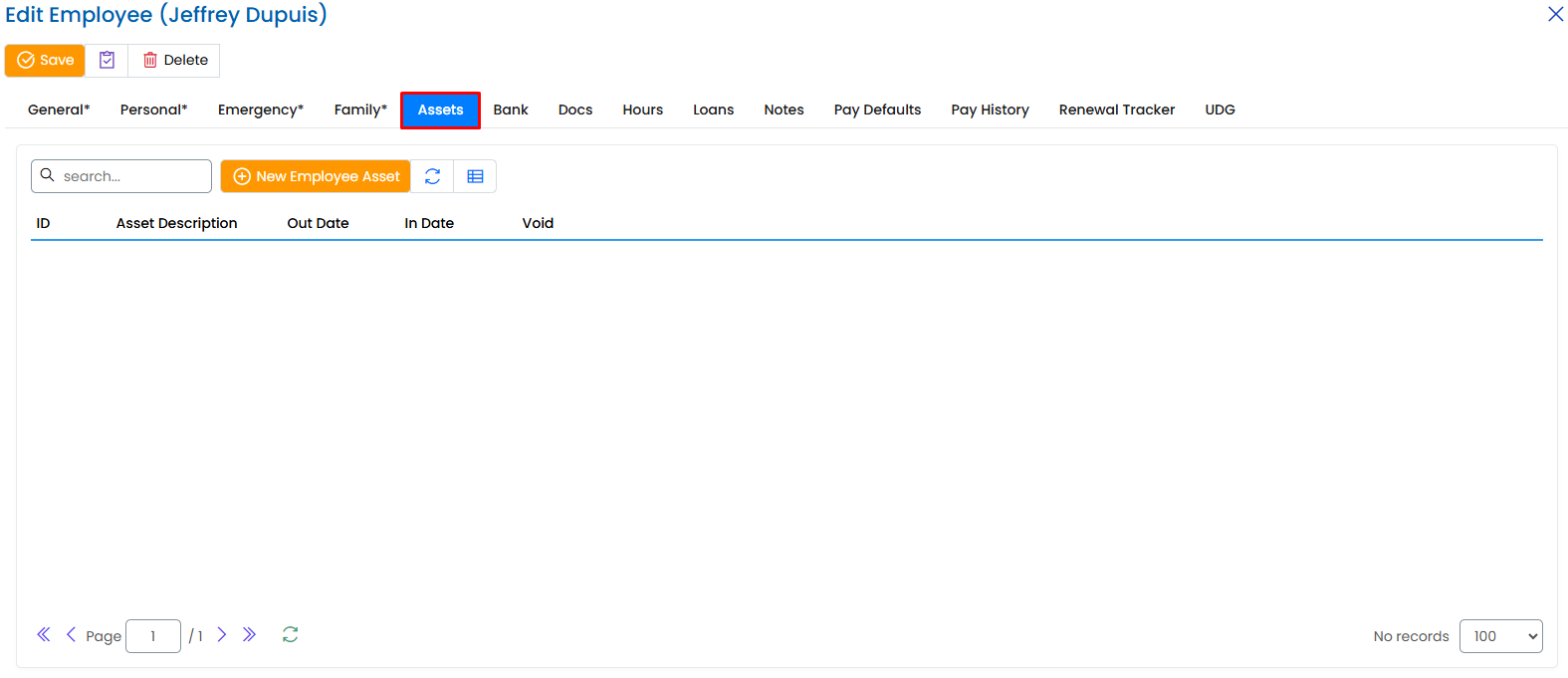
- Click on the "Assets" tab at the top.
Step 2: Add a New Asset
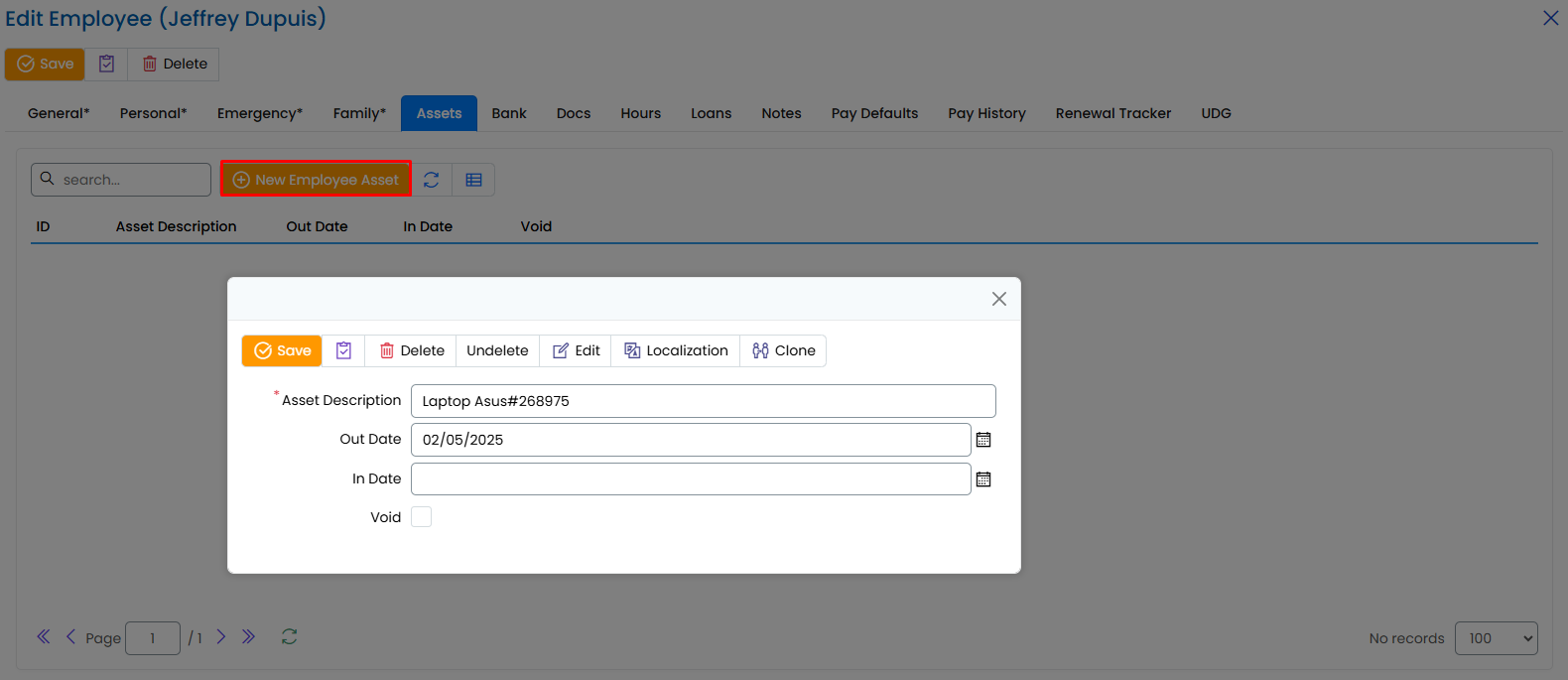
Click the + New Employee Asset button.
Enter the following details:
- Asset Description: Provide a brief description of the asset.
- Out Date: Select the date the asset was issued to the employee.
- In Date: If applicable, enter the date the asset was returned.
- Void: Check this box if the asset record is no longer valid.
Step 3: Save the Asset Record
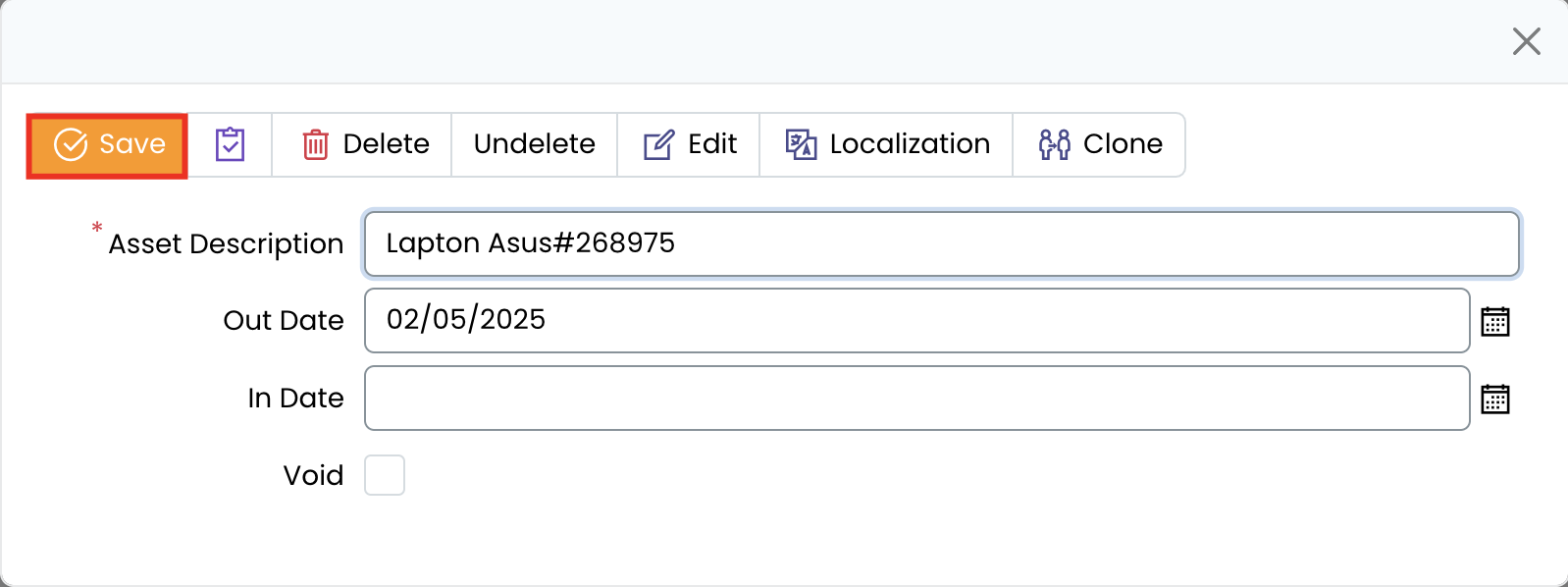
Review all entered details for accuracy.
Click the Save button to store the asset record.
Additional Notes
- If an employee has no assigned assets, this tab can be left blank.
- Asset records can be edited later by returning to the Assets tab.
- Proper tracking helps in managing company property and reducing losses.
Once the Assets tab is completed, you can proceed to other sections like Banking, Documents, Hours, Loans, and Notes to further build the employee’s profile. 🚀