
How to Add Exemption Hours
The Hours tab in XandaPay allows you to track employee work hours, including exemptions from paid hours. Recording exemption hours ensures accurate payroll processing and compliance with company policies.
Step 1: Navigate to the "Hours" Tab
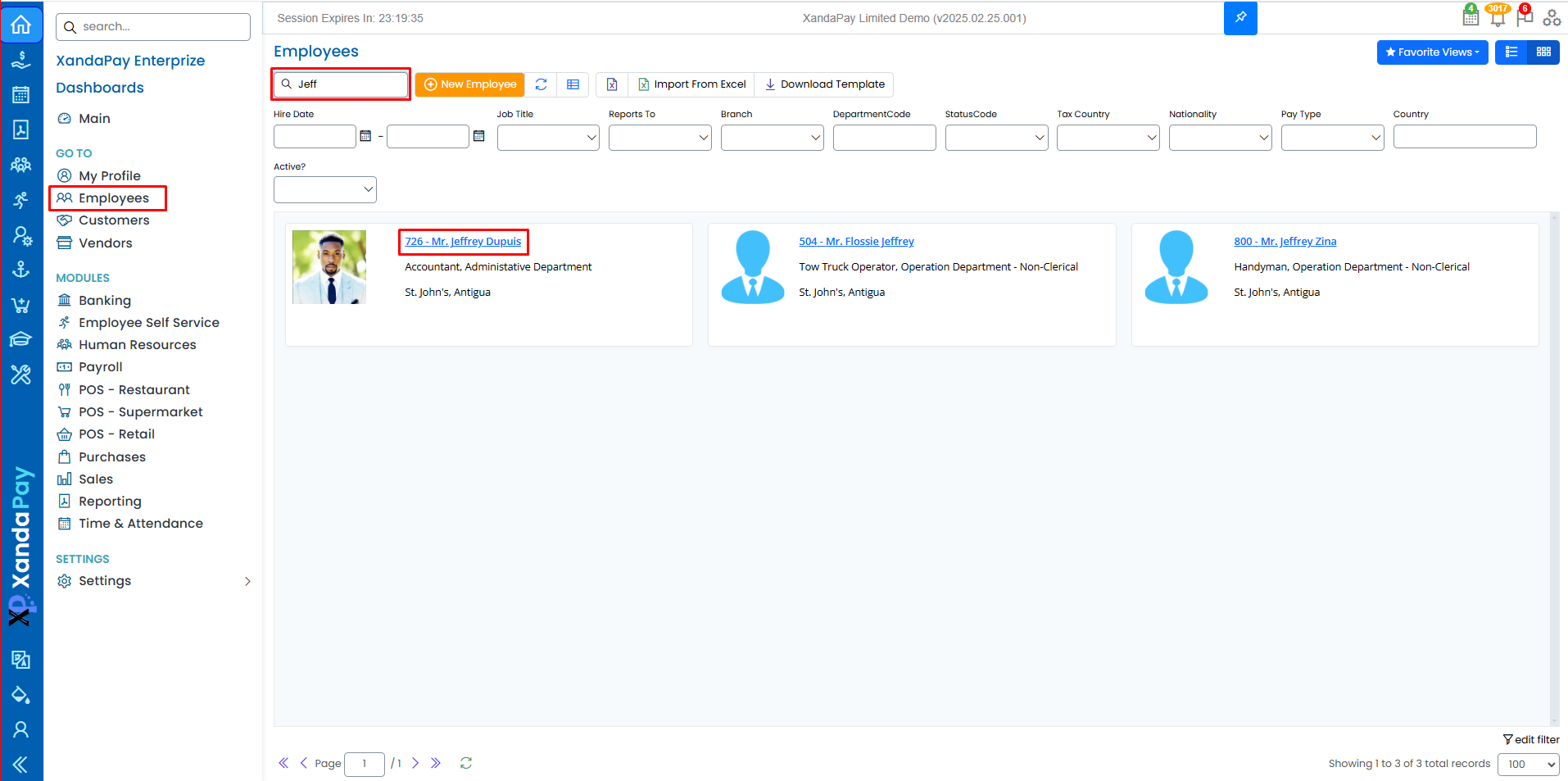
- Log in to your XandaPay portal.
- Open the Employees module.
- Select the employee you want to Edit or add a New Employee.
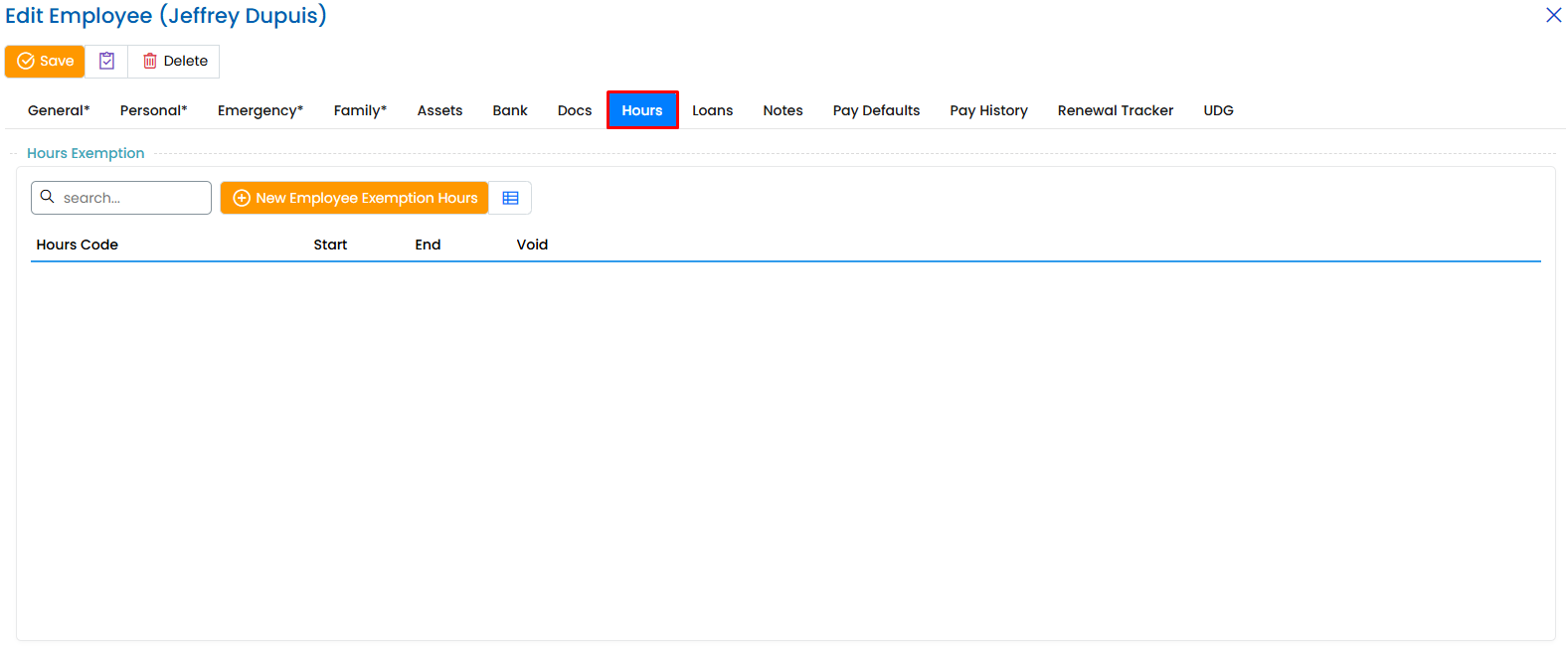
- Click on the "Hours" tab at the top.
Step 2: Add a New Employee Exemption Hour
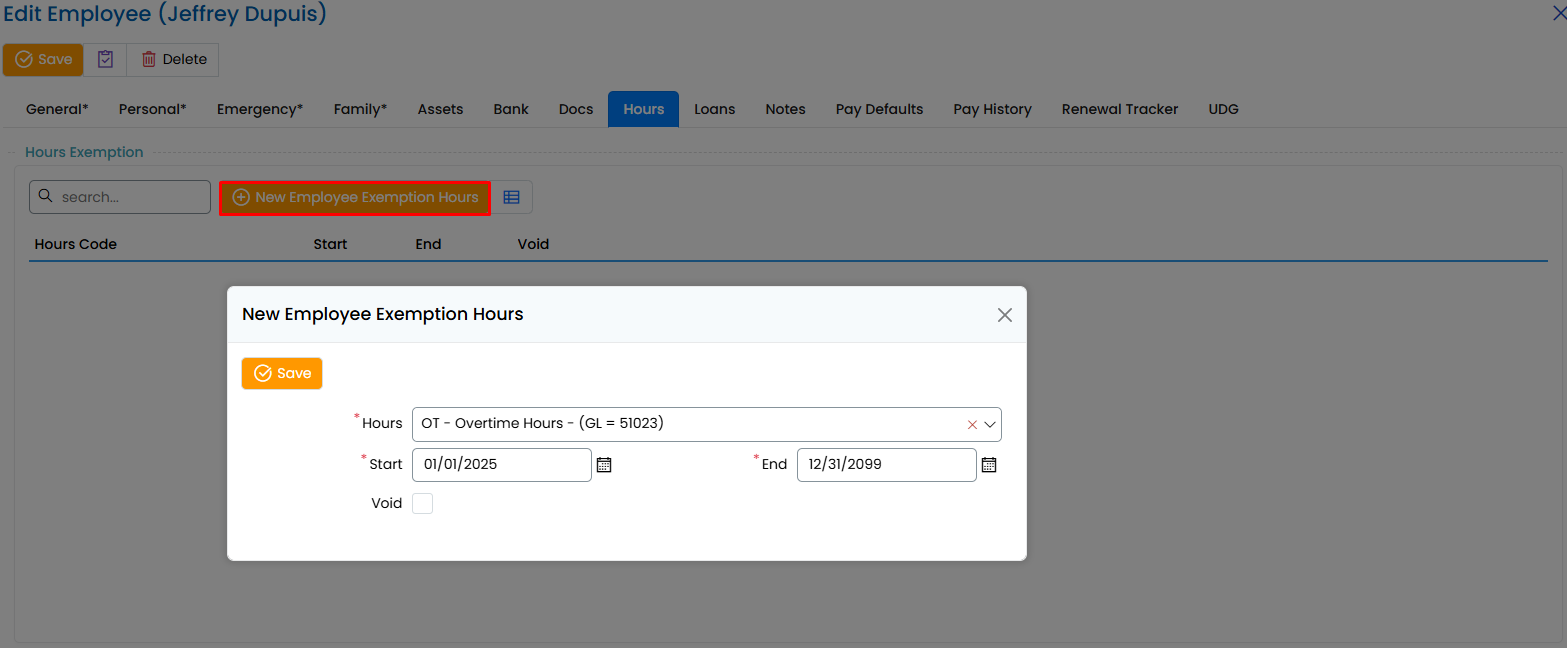
- Click the “New Employee Exemption Hours” button.
- A pop-up window titled "New Employee Exemption Hours" will appear.
Step 3: Enter the Required Details
1. Select the Hours Code
- Click on the dropdown menu labeled "Hours"
- Choose the appropriate exemption code (e.g., OT - OVERTIME HOURS).
2. Enter the Start and End Date
- Click the Start field and select the start date using the calendar.
- Click the End field and select the end date using the calendar.
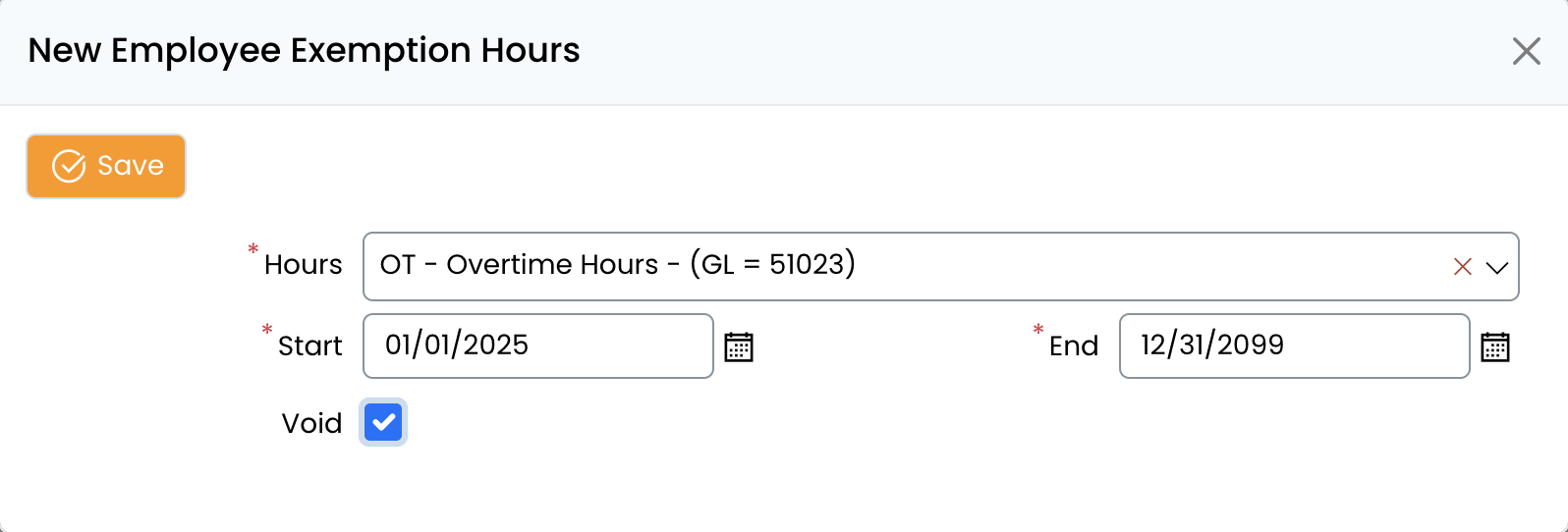
3. (Optional) Mark as Void
- If the entry needs to be voided, check the Void box.
Step 4: Save the Entry
- Click the Save button.
- The new exemption hours will now be recorded for the employee.

Step 5: Edit or Delete an Exemption Entry (If Needed)
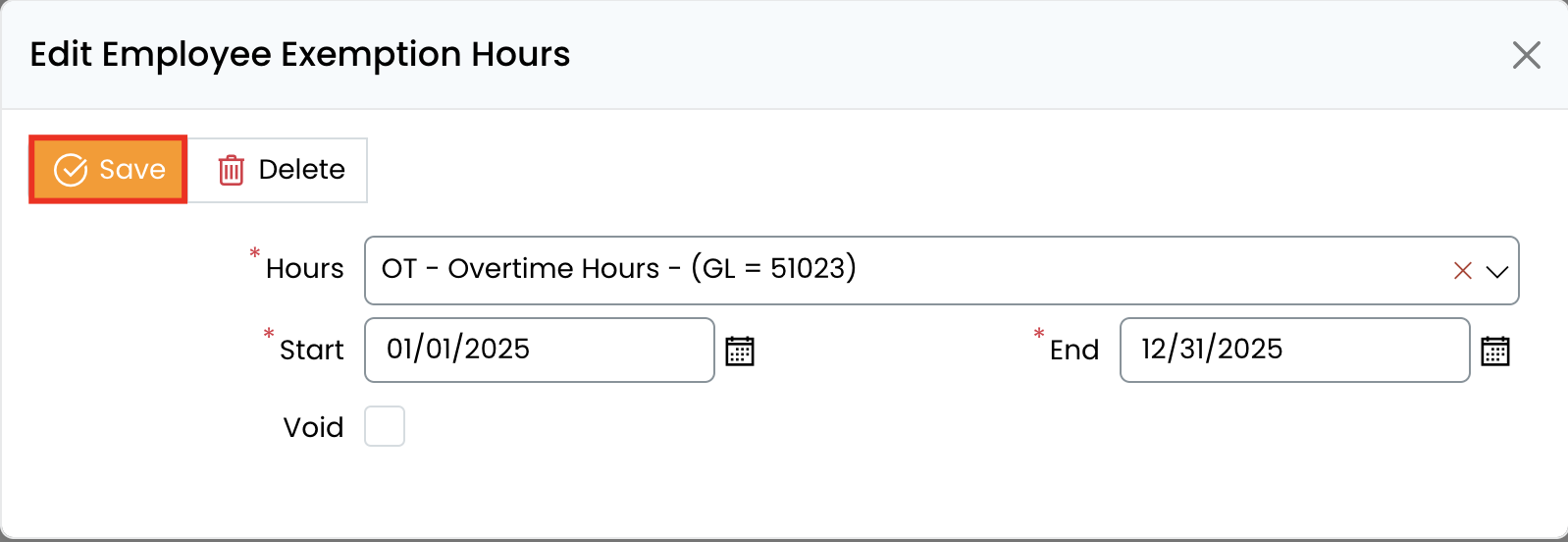
Editing an Entry:
- Locate the exemption entry in the Hours Exemption list.
- Click on the entry to open it.
- Make the necessary changes.
- Click Save to update.
Deleting an Entry:
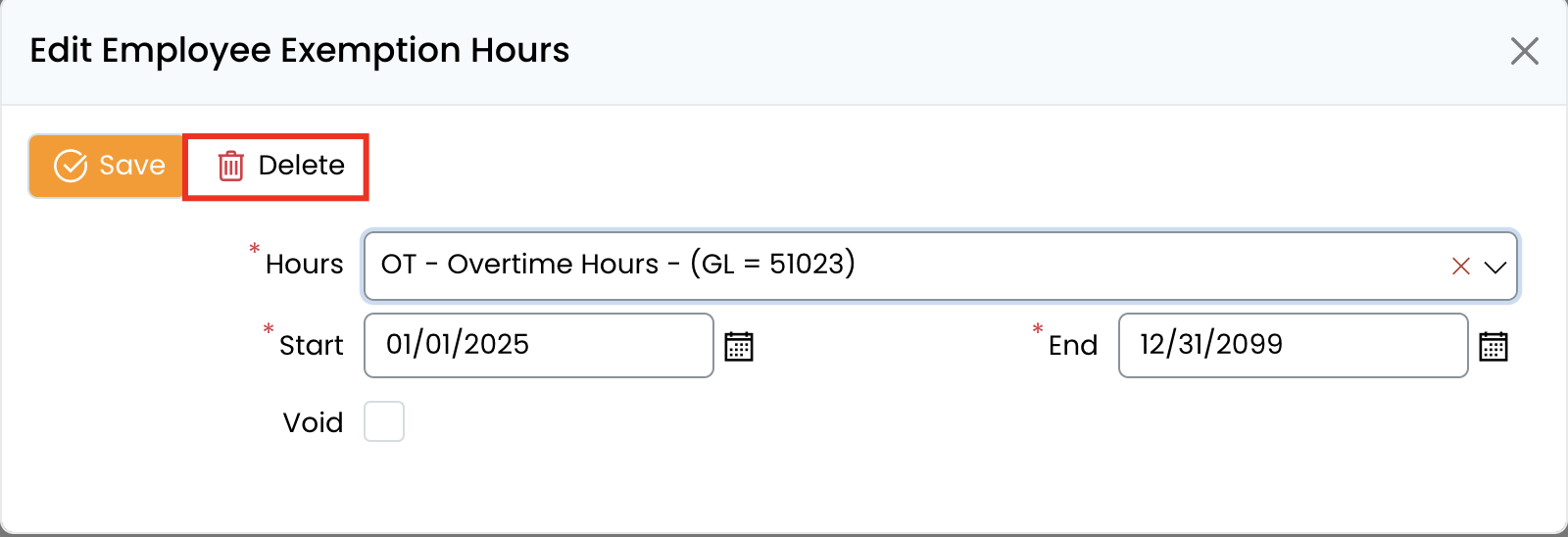
- Locate the exemption entry in the Hours Exemption list.
- Click on the Delete button.
- Confirm deletion if prompted.
Step 6: Verify Payroll Calculations
- Navigate to the Payroll Processing section.
- Check that the exempted hours are correctly excluded from the employee’s paid hours.
- If the employee is still being paid for exempted hours, review the entered details and make corrections.
Additional Notes
- If an employee has no exemption hours, this tab can be left blank.
- Exemption records can be edited later by returning to the Hours tab.
- Proper tracking ensures accurate payroll processing and compliance with labor regulations.
- Once the Hours tab is completed, you can proceed to other sections like Loans, and Notes to further build the employee’s profile. 🚀