
Understanding the Day End (Compact) Interface
The Day End (Compact) Interface provides an enhanced way to review and resolve attendance conflicts over multiple days. It includes advanced navigation, filtering options, and bulk actions, making it easier to manage employee attendance efficiently.
Accessing the Day End Management Module
- Navigate to Time & Attendance in the left menu.
- Click Day End (Compact) to open the interface.
Understanding the Day End (Compact) Interface
This guide follows the numbering in the provided image.
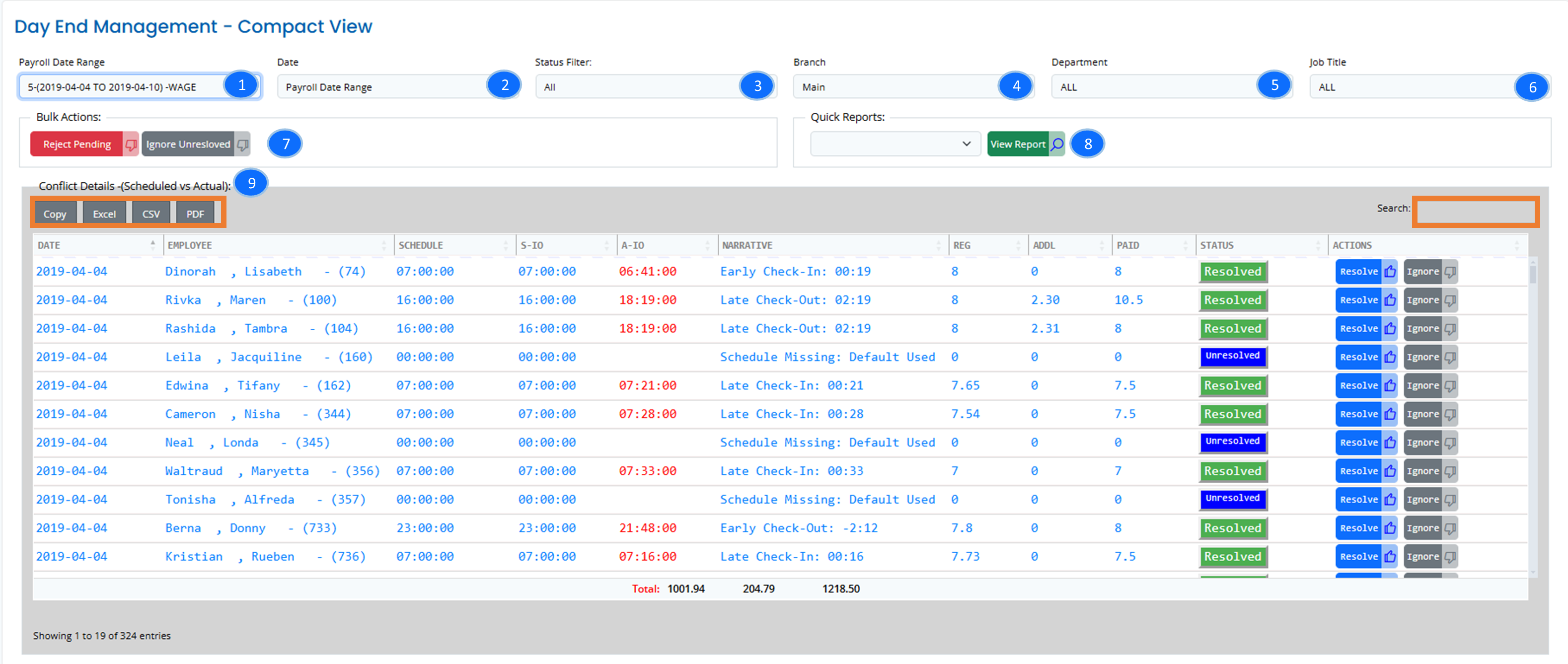
1️⃣ Payroll Date Range Selection
- Allows users to select the payroll period they wish to review.
- The conflicts displayed will be limited to this payroll cycle to ensure accuracy.
2️⃣ Date Selection Within Payroll Range
- Users can view all dates in the selected payroll range or filter by specific days within that range.
- This allows for a focused review of particular days instead of scanning the entire payroll period.
3️⃣ Branch Selection
- Enables users to filter conflicts by branch, making it easy to focus on specific locations.
4️⃣ Department Selection
- Filters attendance records by department, ensuring users can quickly manage attendance for a specific team.
5️⃣ Job Title Selection
- Allows filtering by job title, making it easier to resolve conflicts for a specific role.
6️⃣ Quick Reports
- Provides predefined attendance reports that can be generated daily or based on custom parameters.
- Clicking "View Report" displays a detailed breakdown of the attendance data.
7️⃣ Bulk Actions
- Reject Pending – Declines all pending conflicts in bulk.
- Ignore Unresolved – Marks unresolved conflicts as ignored without requiring further action.
8️⃣ Conflict Details (Scheduled vs. Actual)
This section provides detailed insights into attendance discrepancies.
🔹 Exporting Data
Users can export the displayed data using these options:
- 📋 Copy – Copies the data to the clipboard.
- 📊 Excel – Exports data into an Excel spreadsheet.
- 📄 CSV – Saves data in CSV format for use in external applications.
- 🖨 PDF – Generates a PDF report for printing or record-keeping.
🔎 Search Function
- The search box (highlighted in orange) allows users to quickly find specific records by entering employee names, dates, or schedule details.
📊 Breakdown of Conflict Details
The table includes the following columns:
- 📅 Date – The date of the recorded conflict.
- 👤 Employee – Name and ID of the affected employee.
- ⏰ Scheduled Time – The expected clock-in and clock-out time.
- ⌚ S-IO (Scheduled In/Out) – Displays the expected in/out times.
- ❌ A-IO (Actual In/Out) – Shows the actual recorded in/out times.
- Late arrivals or early departures are highlighted in red.
- 📝 Narrative – Describes the discrepancy (e.g., Late Check-in, Early Check-out, Schedule Missing).
- ⏳ Regular & Additional Hours – Provides a detailed breakdown of worked hours.
- 🟢 Status – Displays whether the conflict is Resolved, Unresolved, or Pending.
- ⚙ Actions – Includes two options:
- ✅ Resolve – Marks the issue as reviewed and resolved.
- ❌ Ignore – Dismisses the conflict if no action is needed.
🚀 Enhanced Navigation with Day End (Compact)
The Day End (Compact) Interface is designed to provide a faster and more streamlined way of handling attendance conflicts.
🔹 For even more efficiency, users can navigate to Time & Attendance → Day End (Compact) to explore advanced filtering and multi-day conflict management.