
How to Add Emergency Contacts
The Emergency tab in XandaPay allows you to add emergency contacts for an employee. These contacts are crucial in case of urgent situations where the company needs to reach someone on behalf of the employee.
Step 1: Navigate to the Emergency Tab
- Log in to your XandaPay portal.
- Open the Employees module.
- Select the employee you want to Edit or add a New Employee.
- Click on the "Emergency" tab at the top.
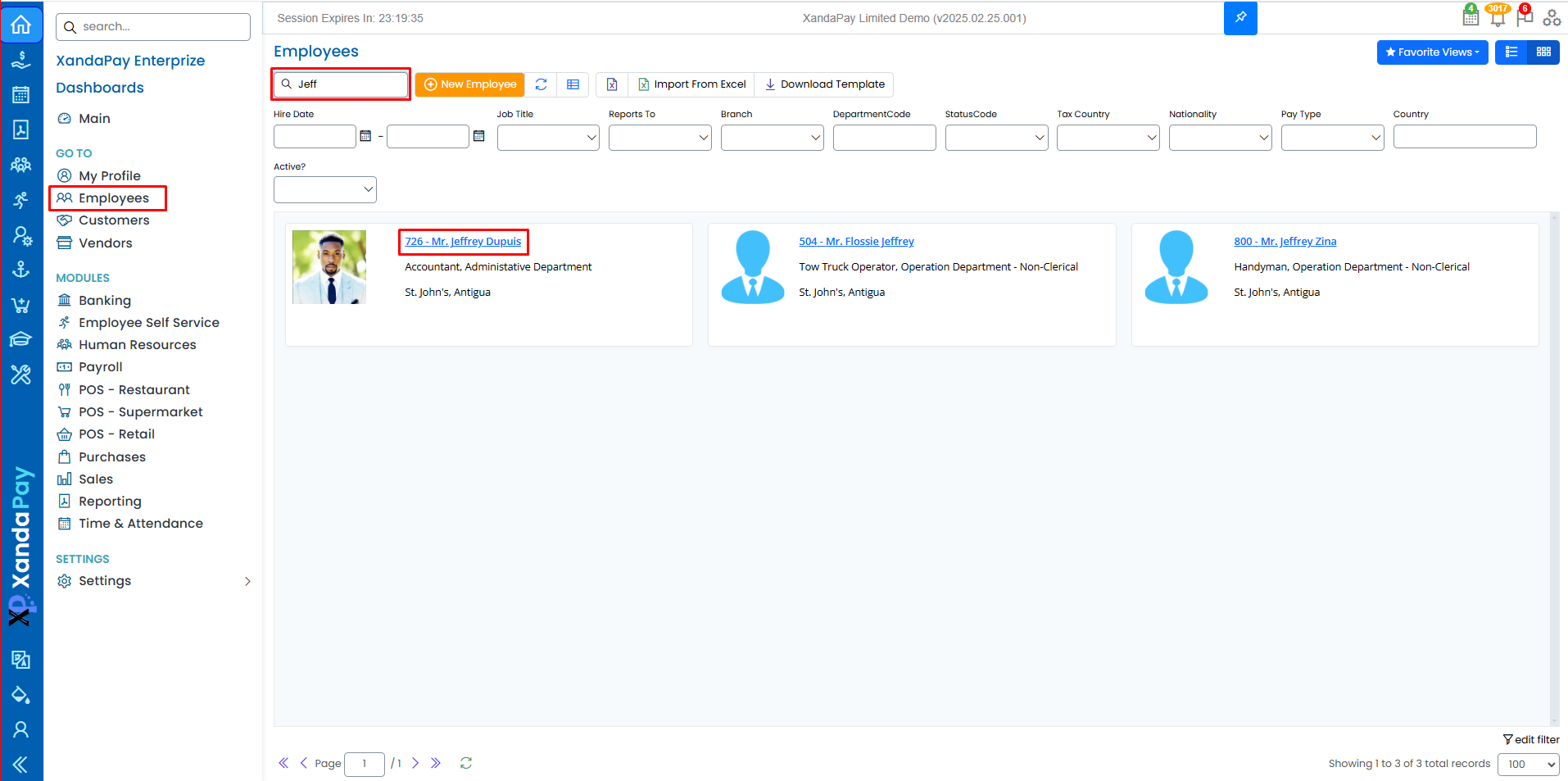
Step 2: Add Emergency Contact Details
Each employee can have multiple emergency contacts. The system allows for at least two emergency contacts.
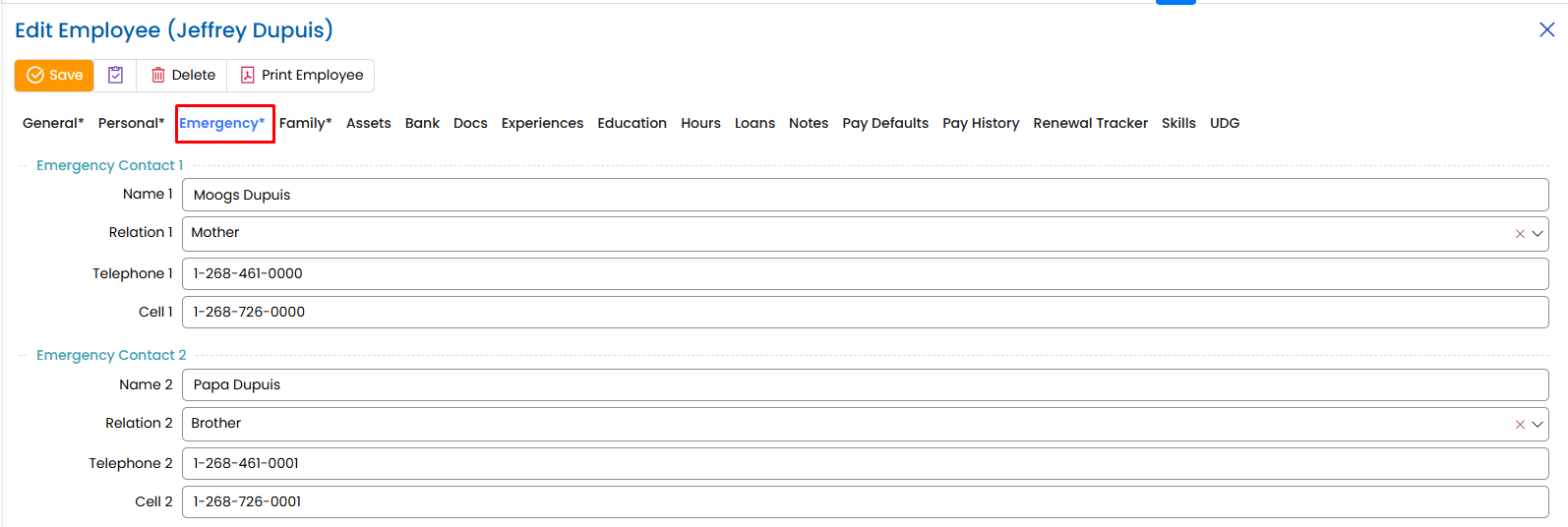
1. Emergency Contact 1 (Primary Contact)
- Name 1: Enter the full name of the primary emergency contact.
- Relation 1: Select or enter the relationship of the contact to the employee (e.g., Mother, Father, Spouse, etc.).
- Telephone 1: Enter the landline number of the contact.
- Cell 1: Enter the mobile number of the contact.
2. Emergency Contact 2 (Secondary Contact)
- Name 2: Enter the full name of the secondary emergency contact.
- Relation 2: Specify the relationship of this contact to the employee (e.g., Brother, Sister, Friend, etc.).
- Telephone 2: Enter the landline number of the secondary contact.
- Cell 2: Enter the mobile number of the secondary contact.
Step 3: Save the Emergency Contacts
- Double-check that all necessary details have been entered correctly.
- Click the "Save" button to store the emergency contact information.
Next Steps
Once emergency contacts are added, you can proceed to other sections like:
- Family Tab: To add dependents or other relatives.
- Bank Tab: To input banking details for payroll.
- Docs Tab: To upload employee documents.
Troubleshooting & Tips
✅ Ensure that at least one emergency contact is added for every employee.
✅ If the contact numbers are incorrect, update them immediately to ensure quick communication.
✅ To edit later, navigate back to the Emergency tab and make necessary changes.
You have successfully added emergency contacts for an employee in XandaPay! 🚀Type your content here.