
Assigning Funds to a Child or Student
Before recording an assignment, review the available balances and confirm the correct student and amount. This helps ensure that the family’s credit totals remain accurate and that the transaction is associated with the intended student.
Review Available Credits
Before we get started, let's look at a few things.First, look at the total credits. It's $412.50. The total unassigned credits are $62.The total assigned credits are $350.50.
The total credit amount represents all credits currently available to the parent or guardian. It includes both credits that have not yet been allocated to a student and credits that have already been assigned to a student but have not yet been utilized.
- Unassigned credits are funds that remain available for the parent or guardian to allocate.
- Assigned credits are funds already placed in a student’s account and still available for use.
- Total credits are the combined value of unassigned and assigned credits.
If you add $62 to $350.50, you will get $412.50, which simply means that the total credits available to the parents are a combination of the unassigned credits and the credits in the student's account that have been assigned but not yet utilized. Reviewing these values before making a change provides a useful baseline for confirming that the assignment is recorded correctly.
Open the Assignment Form
Now, to start the process of assigning funds, click the ASSIGNFUNDS button. The Assign Funds dialog will open with several items pre-populated, including the transaction date, transaction type, payment method, and parent or guardian.
Because these details are pre-populated, you can verify them rather than entering them from scratch. Confirm that the transaction information reflects the assignment you intend to create. In particular, make sure the displayed parent or guardian is correct before continuing, since the funds will be allocated from that account’s available credits.
- Review the transaction date to ensure it matches the intended record date.
- Verify the transaction type identifies the action as a fund assignment.
- Confirm the payment method shown is appropriate for the credit being assigned.
- Check that the correct parent or guardian account is selected.
Select the Student and Amount
Select the studentfrom the DROP-DOWN LISTand enter an amount. In this case, I willenter $10.
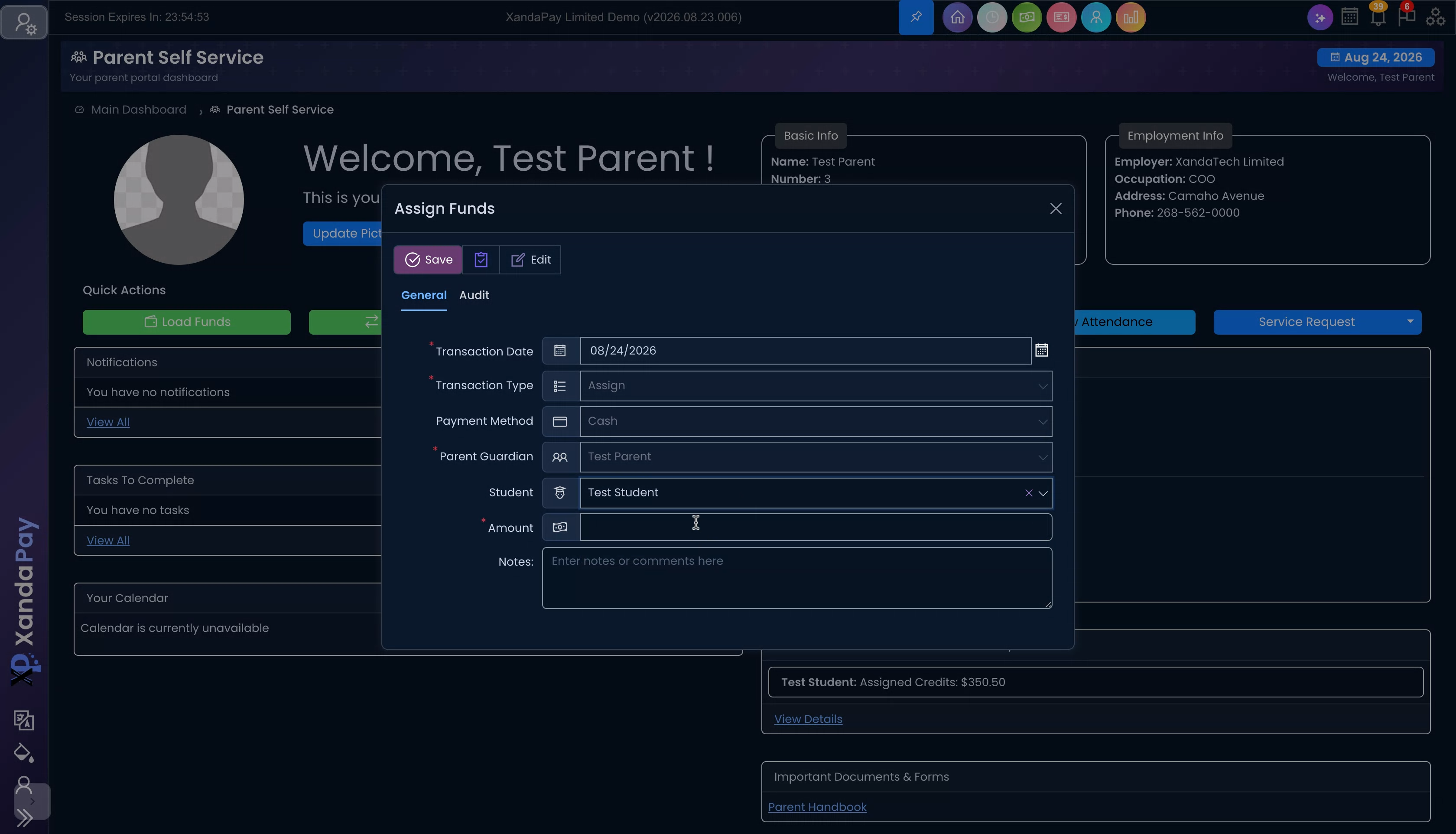
Selecting the correct student is important because the amount entered will be added to that student’s assigned credit balance. If more than one child or student is available, use the list carefully and confirm the selected name before saving the transaction.
- Open the student drop-down list.
- Choose the child or student who should receive the funds.
- Enter the amount to assign, such as $10.
- Check that the amount does not exceed the available unassigned credit balance.
For this example, assigning $10 is valid because $62 is currently unassigned. After the assignment, the available unassigned amount will decrease by $10, while the selected student’s assigned credit balance will increase by the same amount. The overall total credit balance does not change; only the location of the credit changes.
Add a Note and Save the Transaction
Add a note if necessary, then click SAVE.
A note is optional, but it can be useful for documenting why the funds were assigned. For example, you may include a short reference to the student, the purpose of the credit, or an internal reminder that makes the transaction easier to identify later. Keep notes concise and relevant to the assignment.
- Add an optional note if supporting context is needed.
- Review the selected student and entered amount one final time.
- Click SAVE to record the assignment.
Confirm the Updated Balances
Once the transaction has been successfully recorded, the unassigned credits will be updated. As you can see, it is now $52, while the assigned credits have moved to $360.50.
These updated balances confirm that $10 was transferred from the unassigned credit pool to the student’s assigned credit balance. The calculation remains consistent: $52 in unassigned credits plus $360.50 in assigned credits equals the same total of $412.50. If the balances do not reflect the expected change, review the transaction details and verify the selected student, amount, and saved status.
You now know how to assign funds to your child or student.