
Placing a New Order
Before creating an order, review the available credit and confirm the student, item, delivery date, and notes are correct. Completing payment finalizes the order, sends an email notification and receipt, and updates the balance shown on the dashboard.
Review the available credit
Start by checking the amount in the student’s assigned credits. In this example, the available credit is $350.50. Reviewing this amount first helps you confirm that enough credit is available for the item or items you plan to purchase.
- Locate the student’s assigned credit balance on the dashboard.
- Confirm the available amount before beginning the order.
- Keep the balance in mind while selecting products and quantities.
Open a new order
Create an order from the dashboard. The order screen opens with relevant information already filled in, including the parent or guardian and the applicable order dates. Review these pre-populated details before adding an item.
- Click NEW ORDER.
- Review the parent or guardian information displayed in the new order interface.
- Review the order dates shown for the order.
- Select NEW ITEM to add a product.
The New Item dialog opens and lets you choose the student who will receive the item. If the parent or guardian account is associated with multiple students, all eligible students can be selected from this area.
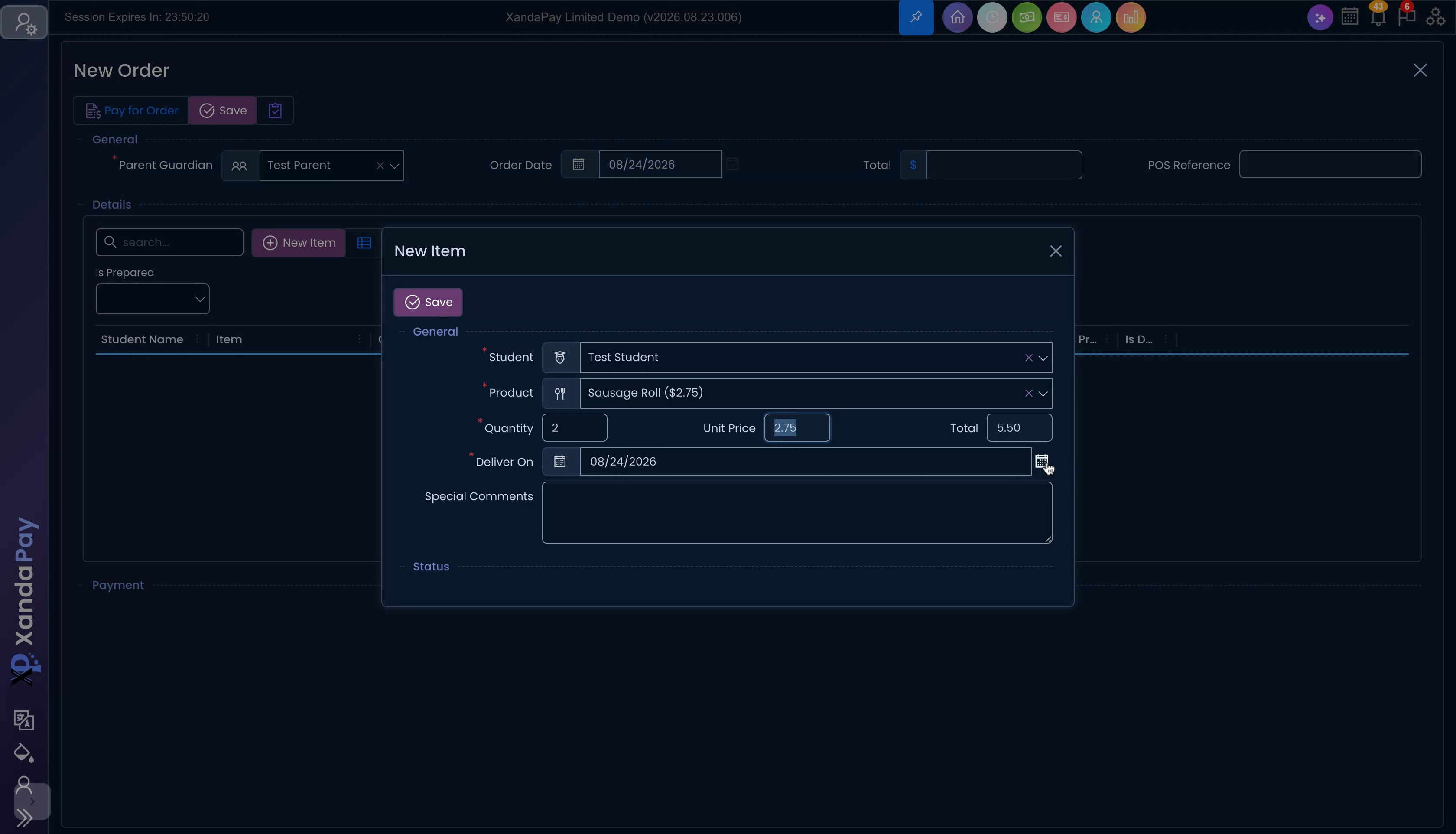
- Select TEST STUDENT in this example, as this is the only student assigned to the test parent.
Select a product
After selecting the student, choose the product to add to the order. You can browse the available products or use search to quickly find a specific item. Make sure the selected product matches the student’s requested meal or order.
- Use the product list or search field to find the item you want.
- Select the desired product from the available results.
For this order, select SAUSAGE ROLL. Once selected, the item details become available in the order dialog. These details include the quantity, unit price, and calculated total for the item.
Set the quantity and review pricing
Use the quantity control to determine how many of the selected item should be ordered. The order total changes according to the quantity selected, so review the pricing before saving the item.
- Review the current quantity for the sausage roll.
- Use the quantity controlto increase the amount if needed.
- Set the quantity to2 to order two sausage rolls.
- Confirm the displayed unit price.
- Confirm that the total reflects the quantity you selected.
Choose a delivery date
Every order item requires a delivery date. The delivery date must be on or after the order date. If you are ordering for the same day, you must also complete the order before the applicable cutoff time. Choosing a future date can help ensure the item is available for delivery.
- Open the delivery date selector.
- ChooseTOMORROW'S DATE for this example.
- Verify that the selected date is on or after the order date.
- If selecting the current day, make sure the order is placed before the cutoff time.
Add special notes
Use special notes to share any important preparation or delivery instructions for the item. Notes should be brief, specific, and relevant to the order. For example, you may need to request that a condiment not be included.
- Click the SPECIAL NOTES field.
- Enter an instruction such as "no mustard."
- Review the student, product, quantity, delivery date, price, and notes.
- Click SAVE to add the item to the order.
After saving, the order is updatedand the order item is displayed. Review the displayed item carefully to make sure it contains the correct sausage roll quantity, delivery date, total, and special note. If something is incorrect, update the item before proceeding to payment.
Pay for the order
When you are satisfied that the order details are correct, complete the order by paying for it. Payment finalizes the order in the system. The system also sends a receipt and notification to the email address associated with the account.
- Confirm that all displayed order items are correct.
- Click PAY FOR ORDER.
- Wait for the order to be finalized in the system.
- Check the account email address for the receipt and order notification.
Confirm the updated balance
After payment is complete, return to the dashboard to verify that the assigned credit balance has changed. Closing the order interface and allowing the dashboard to refresh displays the updated amount.
- Close the order interface.
- Allow the dashboard to refresh.
- Review the updated assigned credit balance.
In this example, the dashboard now shows $345.00. This updated balance reflects the completed order and confirms that the purchase has been processed successfully.