
Reallocate Funds
Before recording a reallocation, review the available balances and confirm the student, amount, and note are correct. The system records the transaction, updates the parent balance, and sends confirmation details to the parent email address.
Understand Assigned and Reallocated Credits
In the previous assigned funds workflow, credits were moved from the parent account to a student account. The reallocate funds workflow reverses that direction. In the assigned funds function,credits move from the parent account to thestudentaccount. With reallocation, credits are returned from the selected student account to the parent account.
This function is useful when a parent wants to take back some credits that were previously assigned to a child. It is also helpful for families with multiple children. For example, a parent can return unused credits from one student to the parent account, then assign those credits to another student through the assigned funds process. Reallocating first ensures the credits are available at the parent level before they are assigned elsewhere.
Review Account Balances Before Starting
Check the displayed credit totals before creating a transaction. In this example, the total credits available are $412.50. The total unassigned credits are $52, and the assigned credits are $360.50.
- Confirm that the total available credit amount is $412.50.
- Confirm that unassigned credits are $52.
- Confirm that assigned credits are $360.50.
- Verify the calculation: $360.50 in assigned credits plus $52 in unassigned credits equals $412.50 in total available credits.
Reviewing these values gives you a clear starting point for the transaction. After the reallocation is saved, the parent account balance will increase by the amount returned from the student account. The student account balance will decrease by the same amount, while the overall total available credits remain unchanged.
Open the Reallocate Funds Form
- Click REALLOCATE FUNDSto open the reallocation form.
The form opens with several details already populated. These default values help ensure the transaction is categorized correctly and associated with the appropriate family account. Review the pre-populated information before continuing, especially if your organization uses specific transaction dates or payment methods for reporting.
The transaction date is filled in automatically, the transaction type is listed as reallocate, the payment method is shown, and the parent guardian is already selected.
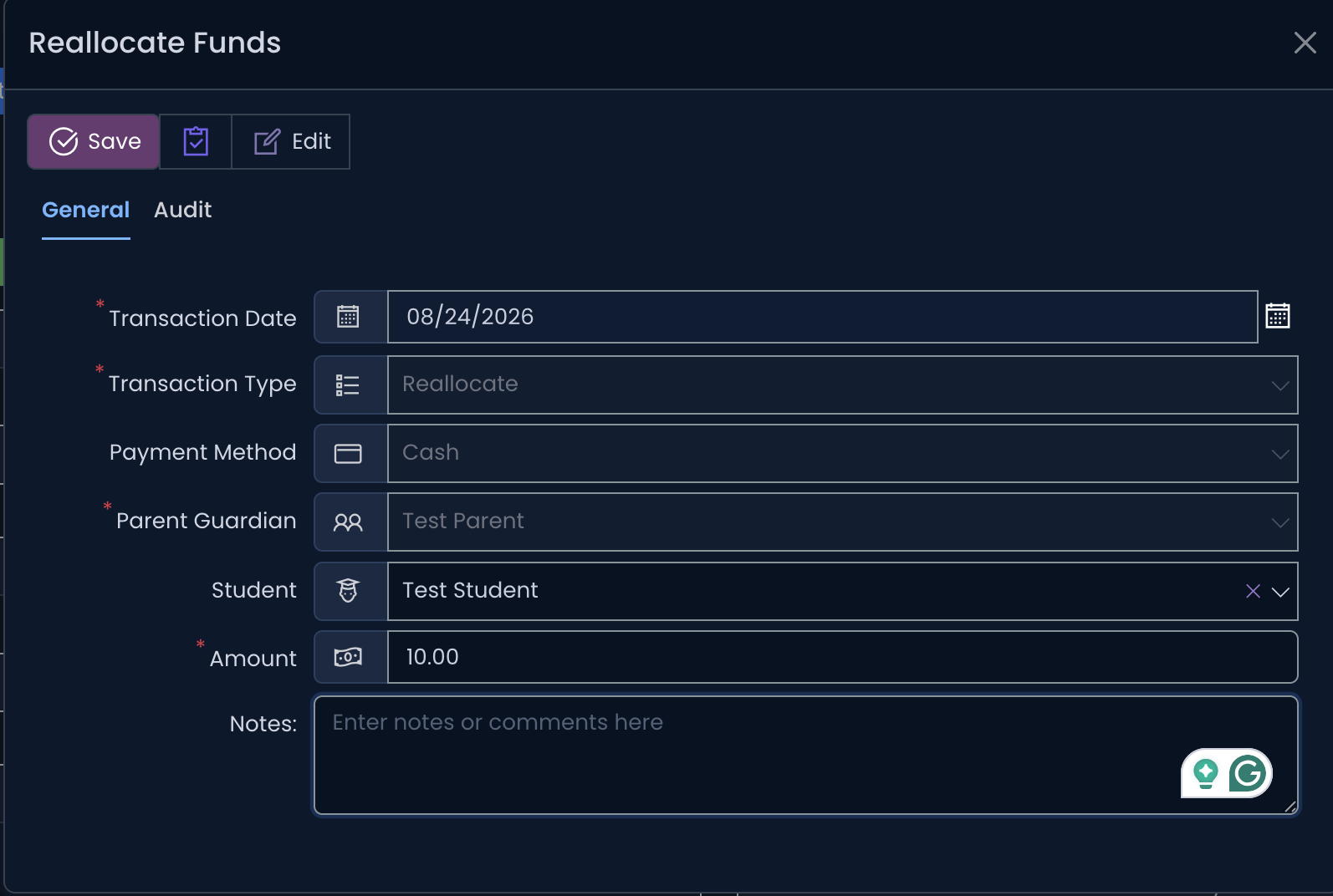
- Open the STUDENT drop-down menu and choose the studentwhose account will return credits to the parent account.
- Enterthe amount to return in the AMOUNT field.
Choose the student carefully, particularly when the parent has more than one child. The selected student account is the source of the credits being moved. Make sure that the student has enough assigned credit available to cover the amount you plan to reallocate.
Inthis example, enter $10.The $10 will be deducted from the chosen student account and returned to the parent account. You can enter a different amount when needed, as long as it reflects the credit that should be returned and is supported by the student’s available balance.
Add a Transaction Note
- Enter a notein the NOTE field.
A clear note creates a useful record for parents and staff. Include the reason for the reallocation when appropriate, such as unused program credit, a change in enrollment, a correction to an earlier assignment, or a transfer intended for another child. Notes can make future account reviews easier and help explain why the balance changed.
Keep the note concise but specific enough to identify the purpose of the transaction. For example, you might note that $10 was returned from a student’s account because the credit was no longer needed for an activity. Review the selected student, amount, and note one final time before saving.
Save and Confirm the Transaction
- Click SAVE.
Saving records the reallocation and sends a notification and receipt tothe parent’s email address.The receipt provides a record of the amount, transaction details, and the account involved. The notification helps the parent stay informed without requiring separate follow-up communication.
Once the transaction is recorded successfully, the balance in the parent account updates to include the returned credits. The student account reflects the corresponding reduction. If the returned funds will be used for another child, they are now available in the parent account and can be assigned through the assigned funds workflow. Confirm the updated balances after saving to ensure the transaction was completed as intended.