
How to Add Bank Accounts (Employee)
The Bank tab in XandaPay allows you to store and manage employees' bank account details for payroll processing. Employees can have multiple accounts with different priorities, amounts, and allocation types.
Navigate to the Employee’s Bank Tab
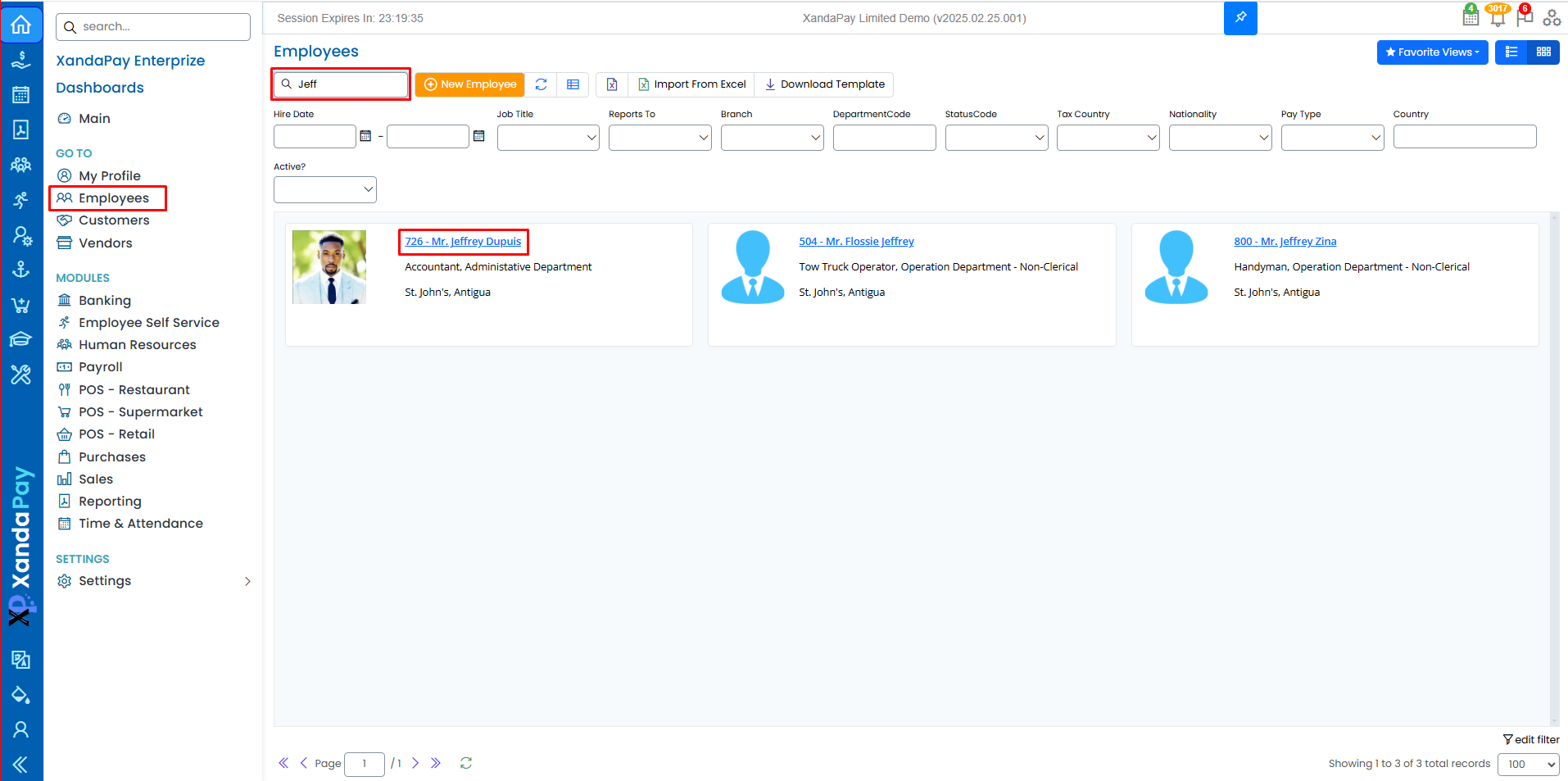
- Log in to XandaPay and navigate to the Employee Management module.
- Select an existing employee from the list or create a new employee.
- Click on the Bank tab in the employee profile.
View Existing Bank Accounts
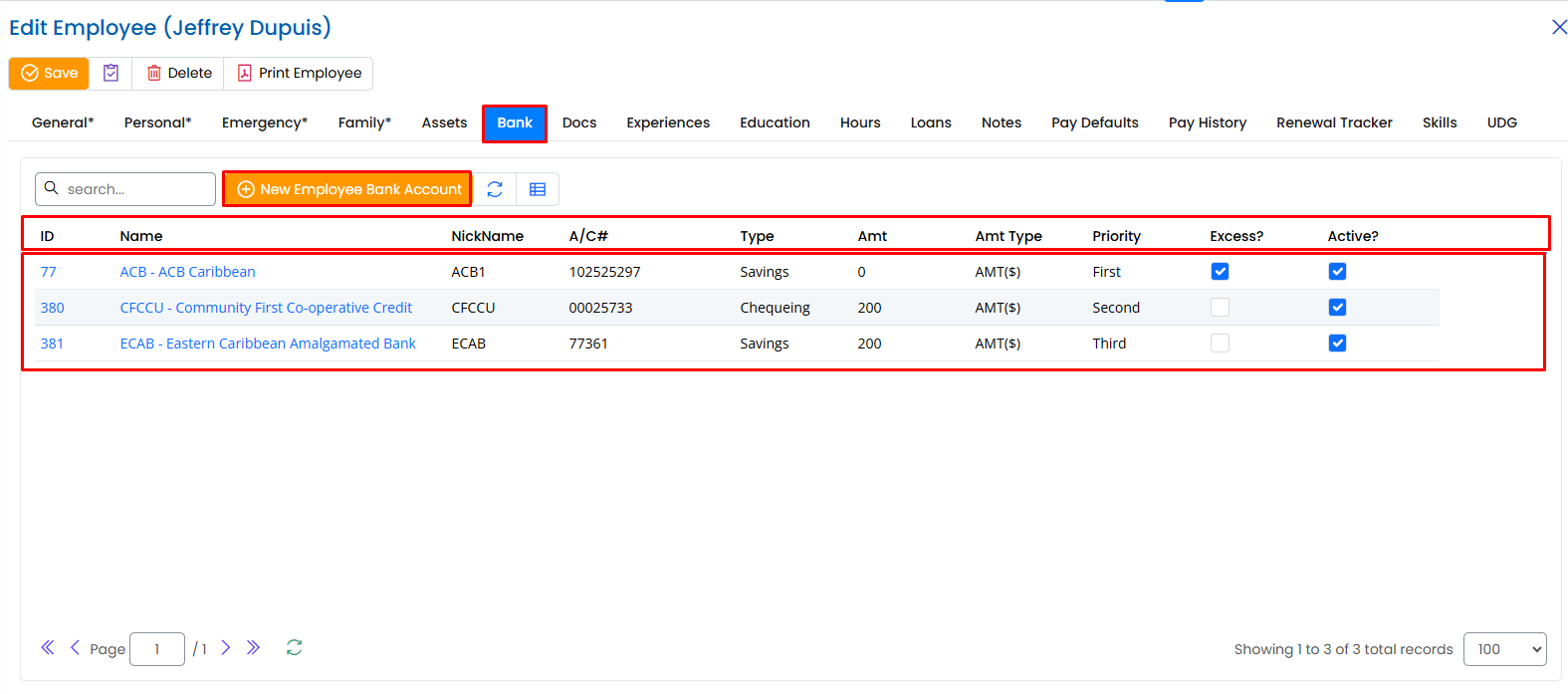
The table displays all bank accounts linked to the employee, showing:
- ID: Unique identifier for the bank record.
- Name: The name of the bank.
- NickName: A short label for easy reference.
- A/C#: The employee’s bank account number.
- Type: The account type (e.g., Savings, Chequing).
- Amt: The amount allocated to this account per payroll.
- Amt Type: Specifies whether the amount is a fixed sum (AMT$) or a percentage (%).
- Priority: The order in which payroll allocations are made.
- Excess?: If checked, this account will receive any remaining balance after primary distributions.
- Active?: If checked, the account is currently in use for payroll.
Add a New Bank Account
Click the "+ New Employee Bank Account" button.

Enter the following details:
- Bank Name: Select the bank from the dropdown list.
- NickName: Assign a short label for easy reference.
- Account Number: Input the employee’s bank account number.
- Type: Choose between Savings or Chequing.
- Amount: Define the amount to be deposited per payroll.
- Amount Type: Select whether the amount is a fixed sum (AMT$) or a percentage (%) of the payroll.
- Priority: Set the account's payout order (e.g., First, Second, Third).
- Excess: Check this box if the account should receive any remaining balance.
- Active: Ensure this is checked to activate the account for payroll.
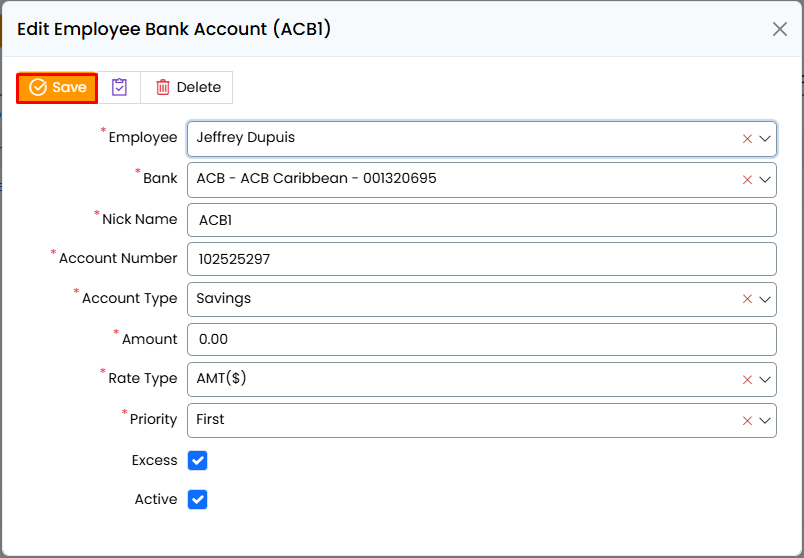
Click Save to store the new bank account.
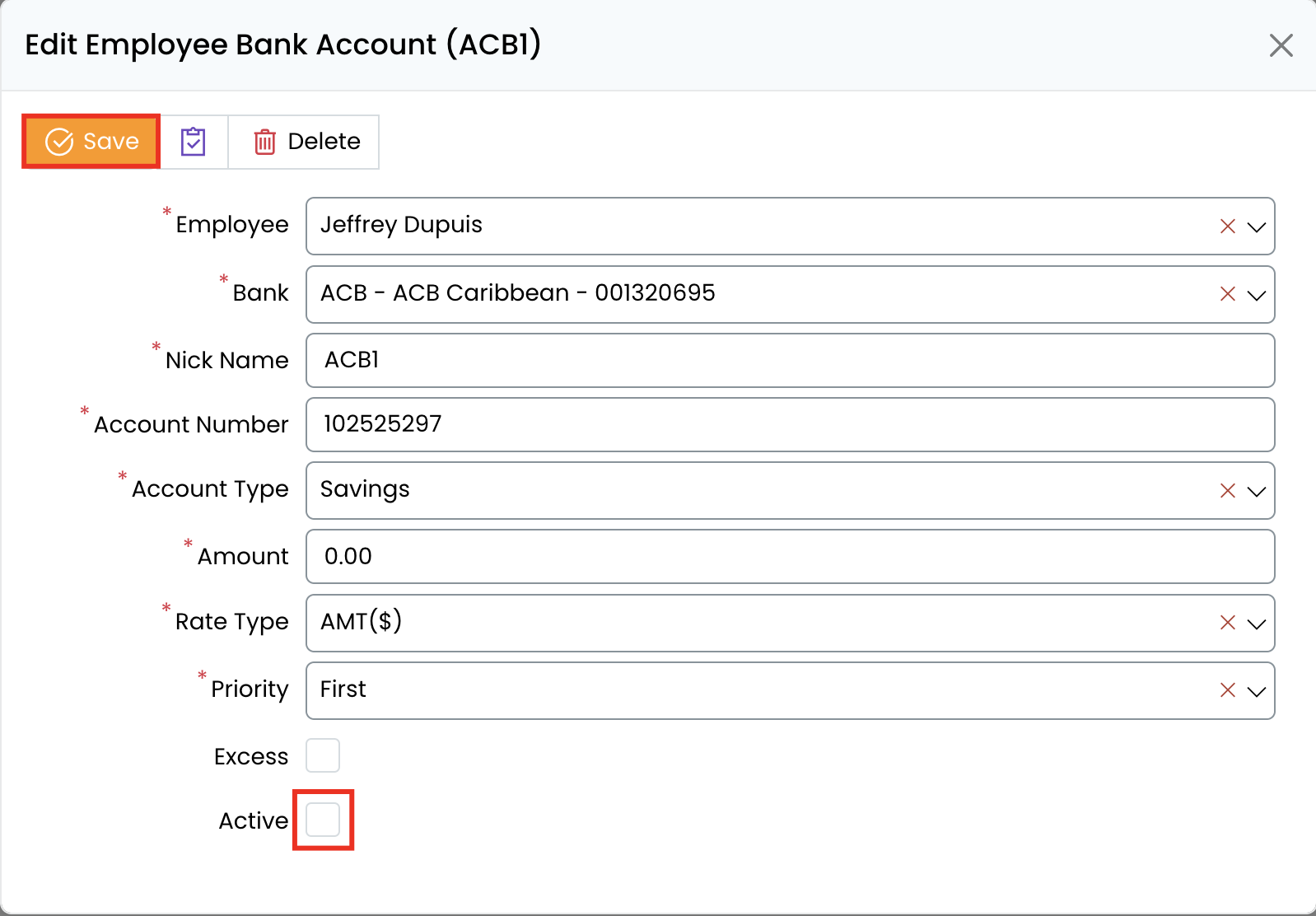
Edit or Deactivate a Bank Account
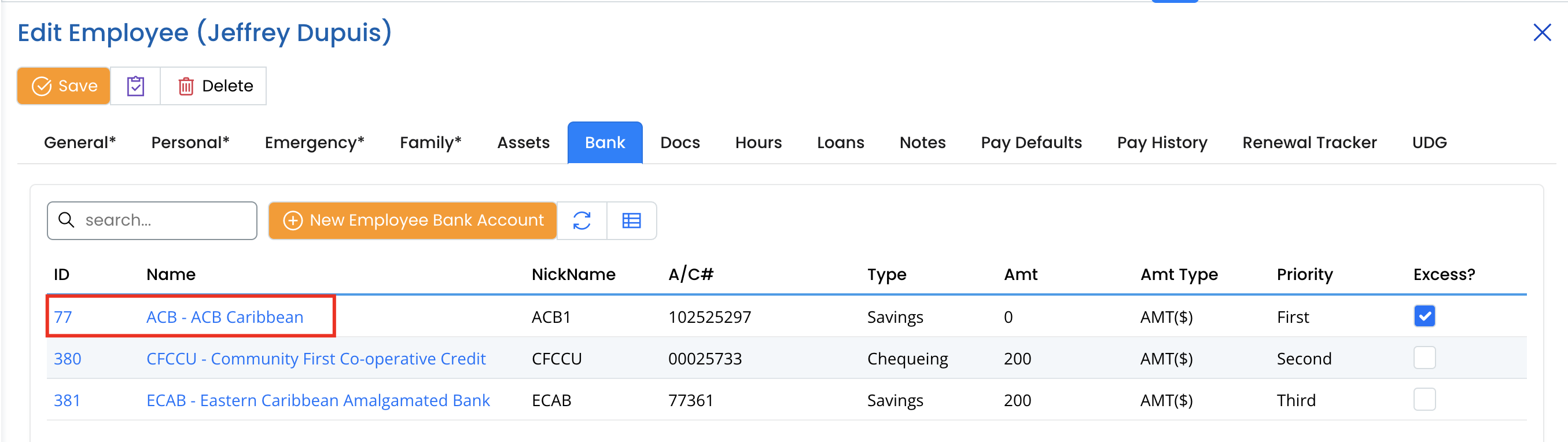
- Locate the bank account in the list.
- Click on the account name to edit details.
- Make the necessary changes, such as updating the amount or priority.
- To deactivate an account, uncheck the Active box.
- Click Save to apply changes.
Delete a Bank Account
- Select the bank account you want to remove.
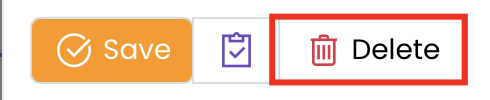
- Click the Delete button at the top of the page.
- Confirm the deletion (Note: This action may not be reversible).
Understanding Payroll Allocation
- The system processes payroll distributions in order of priority.
- The first-priority account receives the allocated amount first.
- If additional accounts exist, funds are distributed based on the priority set.
- If the Excess option is checked for an account, any remaining payroll balance is deposited into it.
Save the Bank Information
- Review all account details for accuracy.
- Click the "Save" button to store the records.

Additional Notes
- Employees can have multiple bank accounts for payroll distribution.
- The Excess checkbox should only be enabled on one account to prevent allocation errors.
- Bank accounts can be modified at any time to reflect payroll changes.
With the Bank tab completed, the employee’s payroll payments are now properly allocated! 🚀