
Understanding the Scheduler Interface
The Scheduler module in XandaPay's Time & Attendance system is a powerful tool that allows HR and managers to efficiently plan and manage employee schedules. It follows an intuitive drag-and-drop concept, where users can assign work schedules and leaves to employees directly from predefined templates. Additionally, it offers features for filtering, cost tracking, reporting and much more!
Accessing the Scheduler Module
- Navigate to Time & Attendance on the left panel.
- Click on Scheduler to open the scheduling interface.
Understanding the Scheduler Interface
This tutorial explains the scheduler's interface and features, following the numbering system in the provided image below.
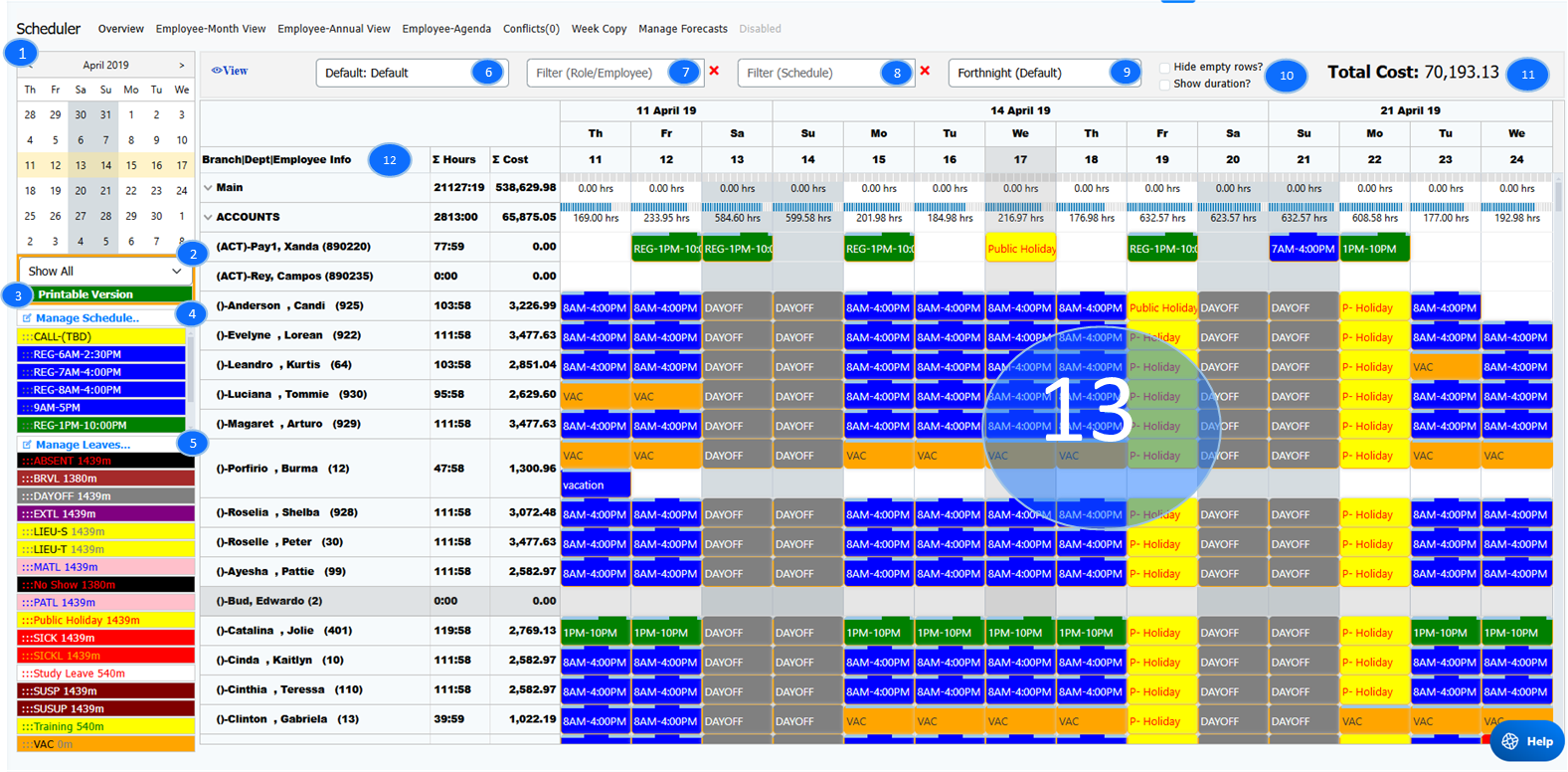
1. Calendar & Date Selection
- Use the calendar to select the date range for scheduling.
- Clicking on a date updates the schedule view to reflect that period.
2. Department & Employee Filter
- Use the "Show All" dropdown to filter employees by department.
3. Printable Version
- Click the "Printable Version" button to generate a printable format of the schedule.
4. Manage Work Schedules (Drag & Drop)
- This section contains predefined work schedule templates (e.g., shift types, regular hours).
- Drag a template onto an employee’s schedule to assign it.
- Double-click an assigned schedule to edit its details.
5. Manage Leaves (Drag & Drop)
- This section contains leave templates (e.g., vacation, sick leave, public holidays).
- Drag a leave type onto an employee’s schedule to assign it.
6. Project Selector
- Allows users to select between different projects when managing schedules.
7. Role/Employee Filter
- This filter enables you to display only specific roles or employees.
8. Schedule Filter
- Filters schedules based on selected criteria (e.g., specific shift types).
9. View Selector (Week, Fortnight, Monthly, etc.)
- Choose how the schedule is displayed:
- Week
- Fortnight
- Semi-Monthly
- Monthly
10. Display Options
- Hide Empty Rows: Hides employees with no assigned schedules.
- Show Duration: Displays total shift durations per employee.
11. Total Cost Calculation
- Displays the total cost for scheduled shifts in the selected period.
- Visible only for users with financial permissions.
12. Employee Schedule Grid
- Shows employees with assigned schedules.
- Displays:
- Total Hours worked.
- Total Cost (if applicable).
- Users can:
- Double-click a schedule entry to edit it.
- Right-click to access additional options like:
- Copy/Edit
- Repeat Options
- Manage Pay Entries
- Delete Current/Future Schedules.
13. Scheduling Grid (Main View)
- Displays assigned shifts, leaves, and holidays in a structured format.
- Color-coded entries indicate different shift types and leave statuses.
- The total cost and hours are updated in real time based on assignments.
Best Practices
✔ Use Templates – Drag preconfigured work schedules and leaves for efficiency.
✔ Apply Filters – Focus on specific employees, roles, or schedules.
✔ Monitor Costs – Ensure accurate budget tracking with the Total Cost feature.
✔ Keep Schedules Updated – Use Manage Schedule and Manage Leaves to modify entries.
✔ Print Reports – Use the Printable Version option to generate reports.
This tutorial provides a structured guide to using the Scheduler in XandaPay Enterprise, ensuring efficient workforce planning and shift management. 🚀