Open your preferred web browser (e.g., Google Chrome, Mozilla Firefox, Microsoft Edge).
In the address bar, type your unique subdomain followed by .xandapay.com Example: If your business name is ABC Corp, your login URL might be: abc.xandapay.com
Press Enter to access your company's XandaPay portal.
Step 2: Locate the Login Button
Once on your subdomain’s homepage, look for the "Login" button in the top-right corner.
Click "Login" to proceed.
Step 3: Enter Your Credentials
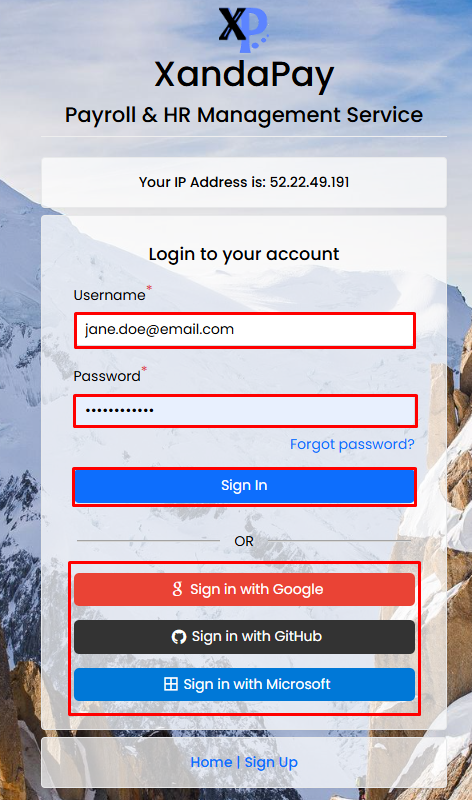
On the login page, enter:
Email Address: Type your registered business email.
Password: Enter your secure password.
Step 4: Click the Sign In Button
After entering your details, click on "Sign In" to access your account.
Step 5: Two-Factor Authentication (If Required)
If two-factor authentication (2FA) is enabled, you may receive a verification code via email or SMS.
Enter the code and click "Verify" to continue.
Step 6: Access Your XandaPay Dashboard
Once logged in, you will be redirected to your personalized dashboard.
You can now manage Payroll, HR, POS, Accounting, and other services.
Troubleshooting Tips:
✅ Incorrect Subdomain?
Double-check that you are using your company’s correct subdomain (e.g., abc.xandapay.com).
✅ Forgot your password?
Click "Forgot Password?" on the login page and follow the instructions.