How to Use Filters and Analysis Features in the Balanced Score Card Dashboard
The Balanced Score Card (BSC) dashboard gives you powerful tools for filtering and analyzing performance data. This guide will help you step through the primary features, so you can efficiently view the information relevant to your needs.
With simple filters and comparative views, the BSC dashboard enables you to explore employee and departmental performance from multiple perspectives. Follow the instructions below to get the most from its filtering and analysis options.
Using Basic Dashboard Filters

- Select your preferred filters. For example, use the Department dropdown to display information for a specific group within your organization.
- Click the Refresh button to update and display the filtered employee data.
Adjusting Timeframes for Analysis
- To change the reporting timeframe, open the Month dropdown once again.
- Select June from the list to view data for another period.
- Click the Refresh button to show the latest results for your selected month.
Switching Between Comparative Views
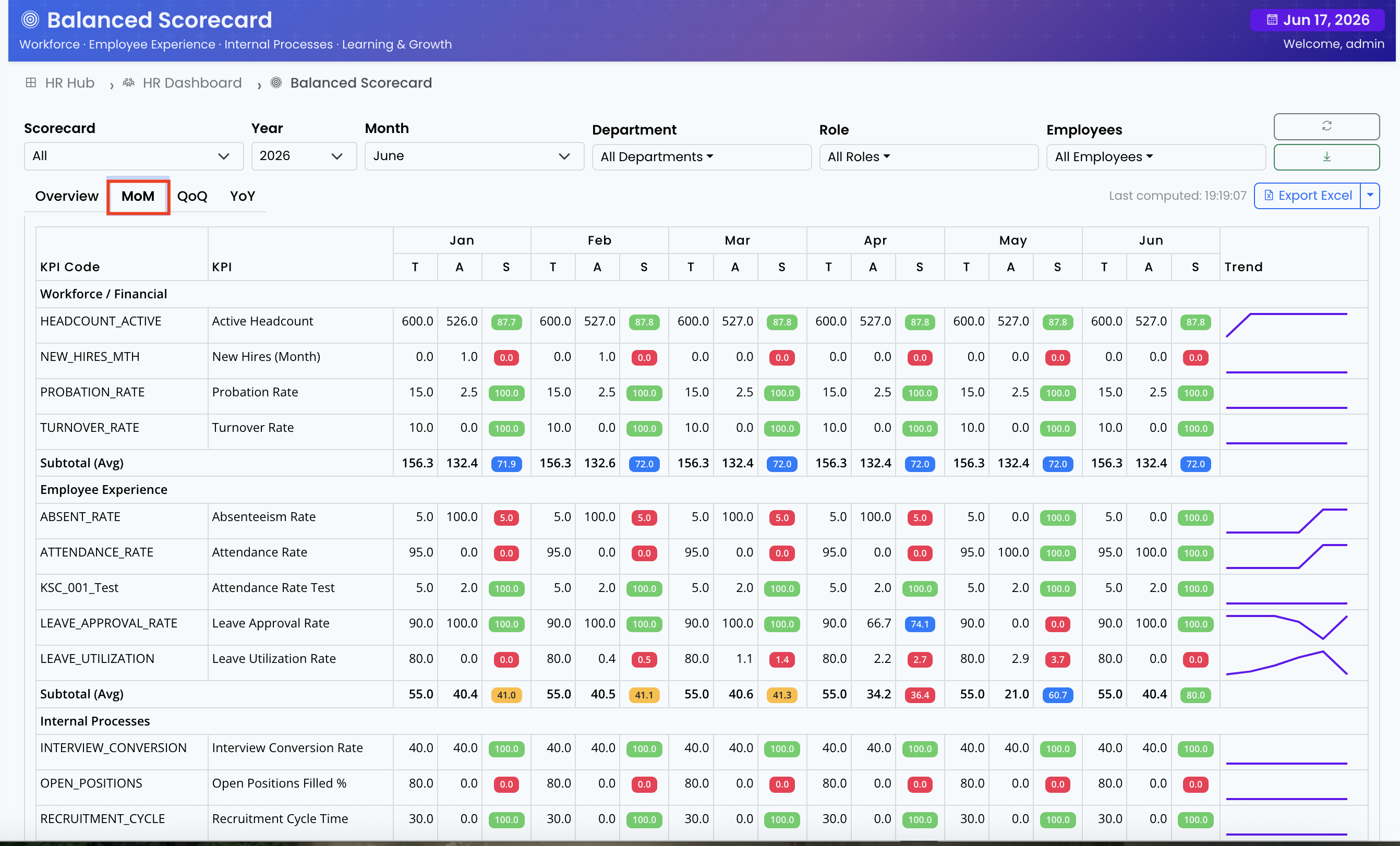
- Navigate to the MoM tab to analyze month-over-month trends in your selected data set.
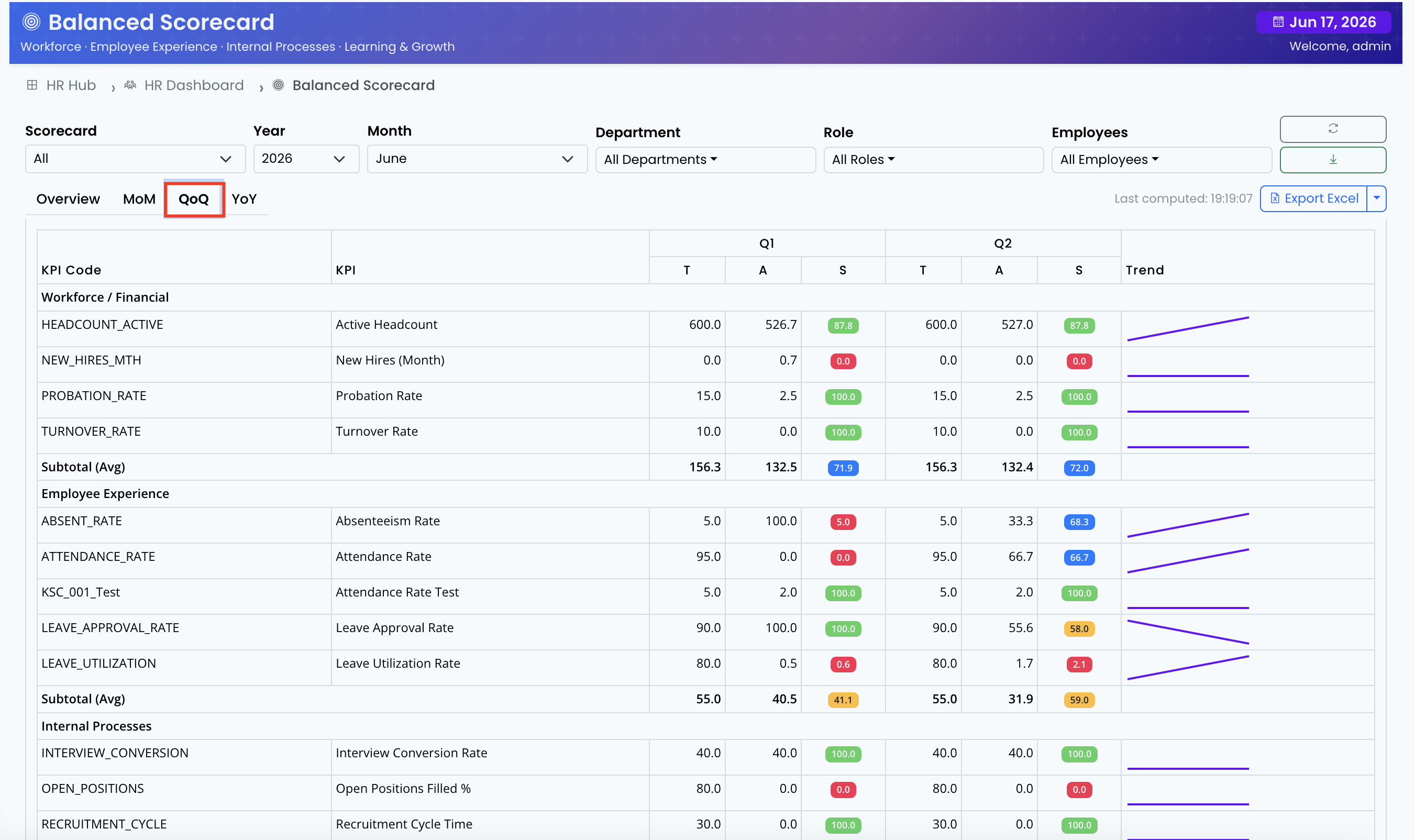
- Switch to the QoQ tab for quarter-over-quarter comparisons, helping you to identify larger performance patterns over time.
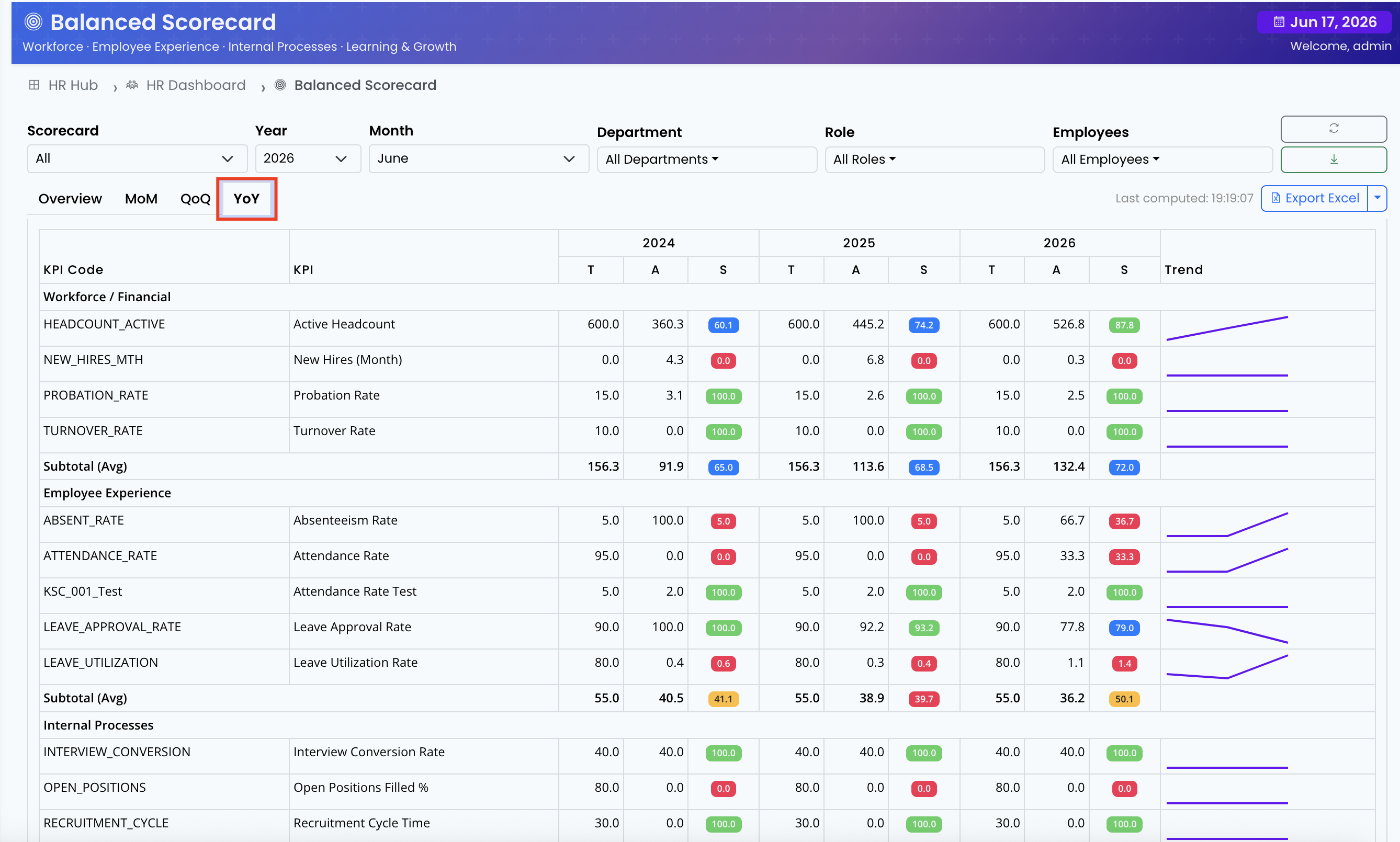
- Select the YoY option to compare year-over-year results and gain a broad perspective on key trends and areas for improvement.