
Interview Overview
This guide provides a comprehensive walkthrough of the interview workflow within your application. Whether you're initiating interviews manually or leveraging automation, following this process ensures a smooth candidate experience and streamlined evaluation for hiring panels.
We’ll cover how to create, manage, and evaluate interviews, as well as how candidates interact with your portal. The following steps will guide you through the essential actions and options available throughout the workflow.
Initiating an Interview
- An interview can be started manually by clicking the Invite for Interview button.
- Provide the following details for the interview:
- Location
- Room
- Date
- Start time
- Duration of the interview
- When finished, click the Create Interview button to schedule it.
- Alternatively, use autonomous mode to allow the system to create interviews automatically, depending on the applicant’s score. In this mode:
- Invitations are sent out based on pre-defined criteria.
- The application’s stage will update to "Interview Schedule" without manual intervention.
Viewing Interview Details
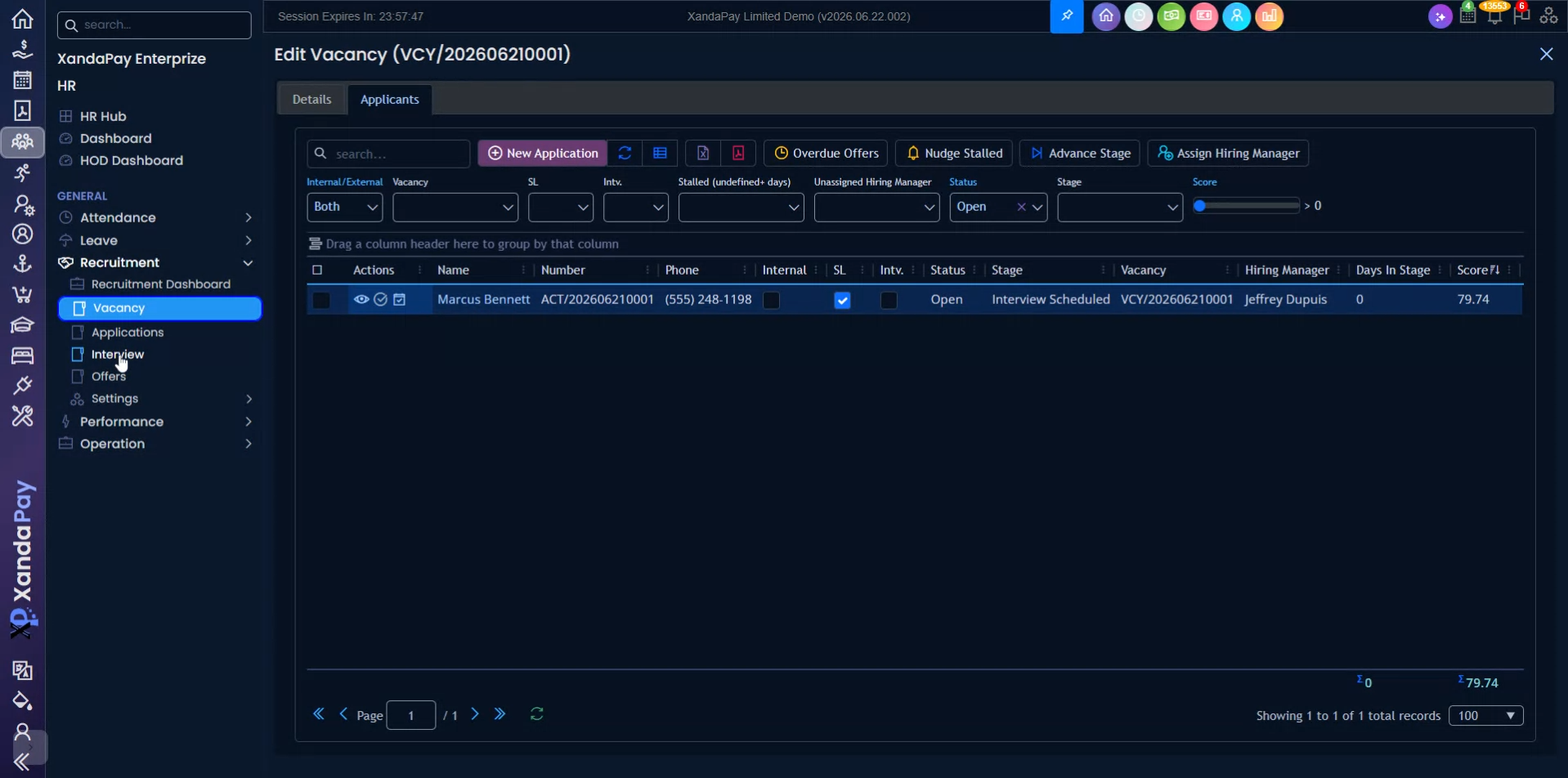
- To view interview details , click on the Interview navigation.
- Select the relevant interview from the grid view.
- The interface will open to the General tab, where you can review:
- The interview’s start date and time
- The interview’s end date and time
Candidate Responses
- In the Description section , you’ll see whether the candidate accepted the interview schedule via the portal.
- Each interview request is sent to the candidate. The invitation includes an access link to the candidate portal.
- Within the portal, the candidate can:
- Accept the interview schedule
- Decline the interview
- Reschedule the interview
Interview Panel Setup and Evaluation
- There are two important tabs for the panel and evaluation processes:
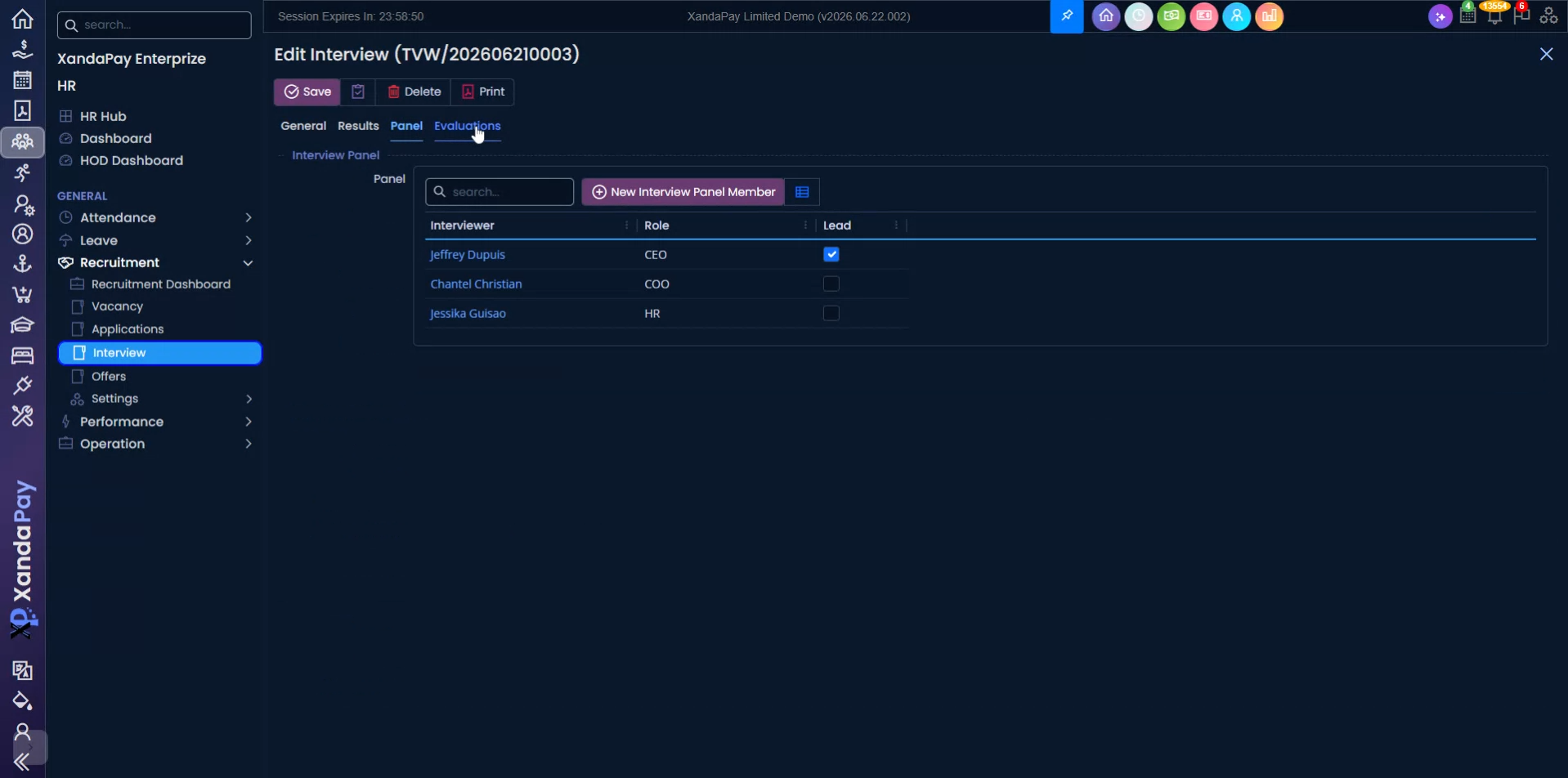
- In the Panel tab, you can:
- Set up the list of interviewers for this candidate
- Specify a lead panel member
- After the interview, panel members may submit their evaluation :
- Submit an overall score
- Make a recommendation
- Leave comments
Managing and Filtering Interviews
- Return to the interview grid to manage multiple interviews at once.
- You have the ability to use bulk actions for efficiency:
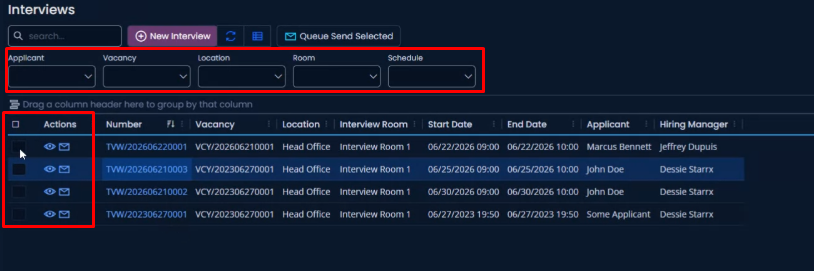
- Select Bulk Actions
- Queue or send unsent invitations
- Use filters to quickly locate specific interviews by:
- Applicants
- Vacancy
- Location
- Room
- Schedule