
Managing Employee Hours Exemptions
Employee hours exemptions allow payroll administrators to exclude specific hours from payroll calculations for designated periods. This is useful for temporary or permanent exemptions from overtime, callouts, or other hour types.
Accessing Employee Hours Exemptions
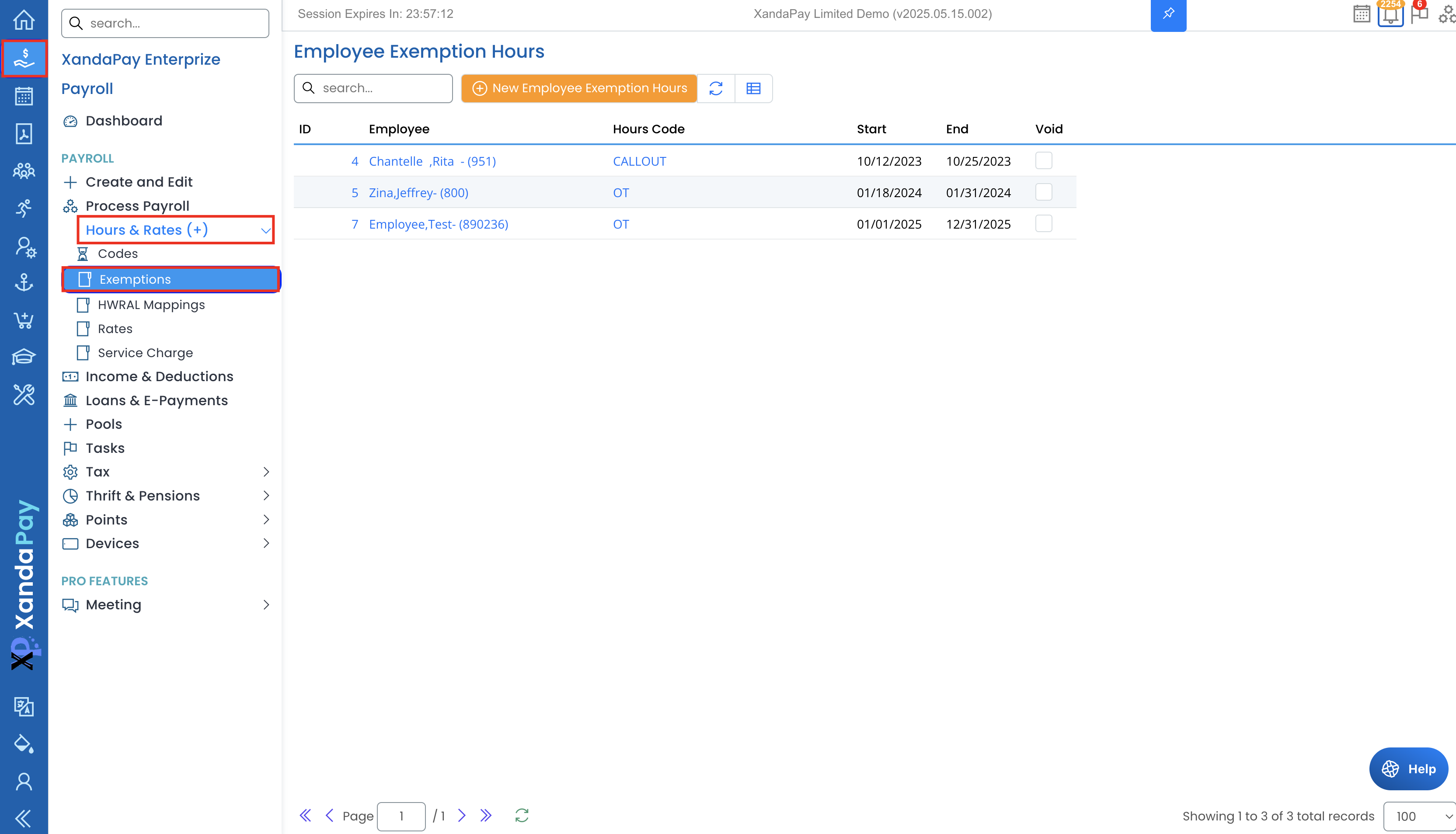
- Log in to XandaPay Enterprise.
- Navigate to Payroll in the left menu.
- Expand Hours & Rates (+) and select Exemptions.
- The Employee Exemption Hours screen will display existing exemptions.
Understanding Employee Hours Exemptions
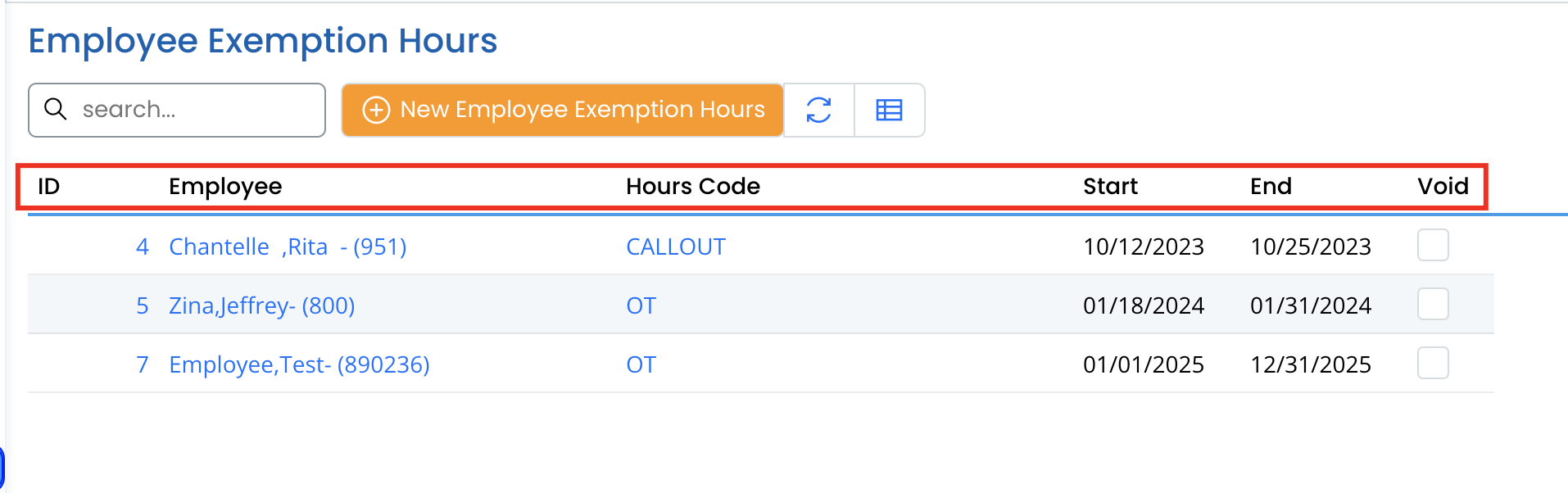
Each exemption entry includes:
- Employee – The exempted employee.
- Hours Code – The type of hours being exempted (e.g., OT – Overtime Hours).
- Start & End Date – The exemption period.
- Void – An option to mark the exemption as invalid.
Creating a New Employee Hours Exemption
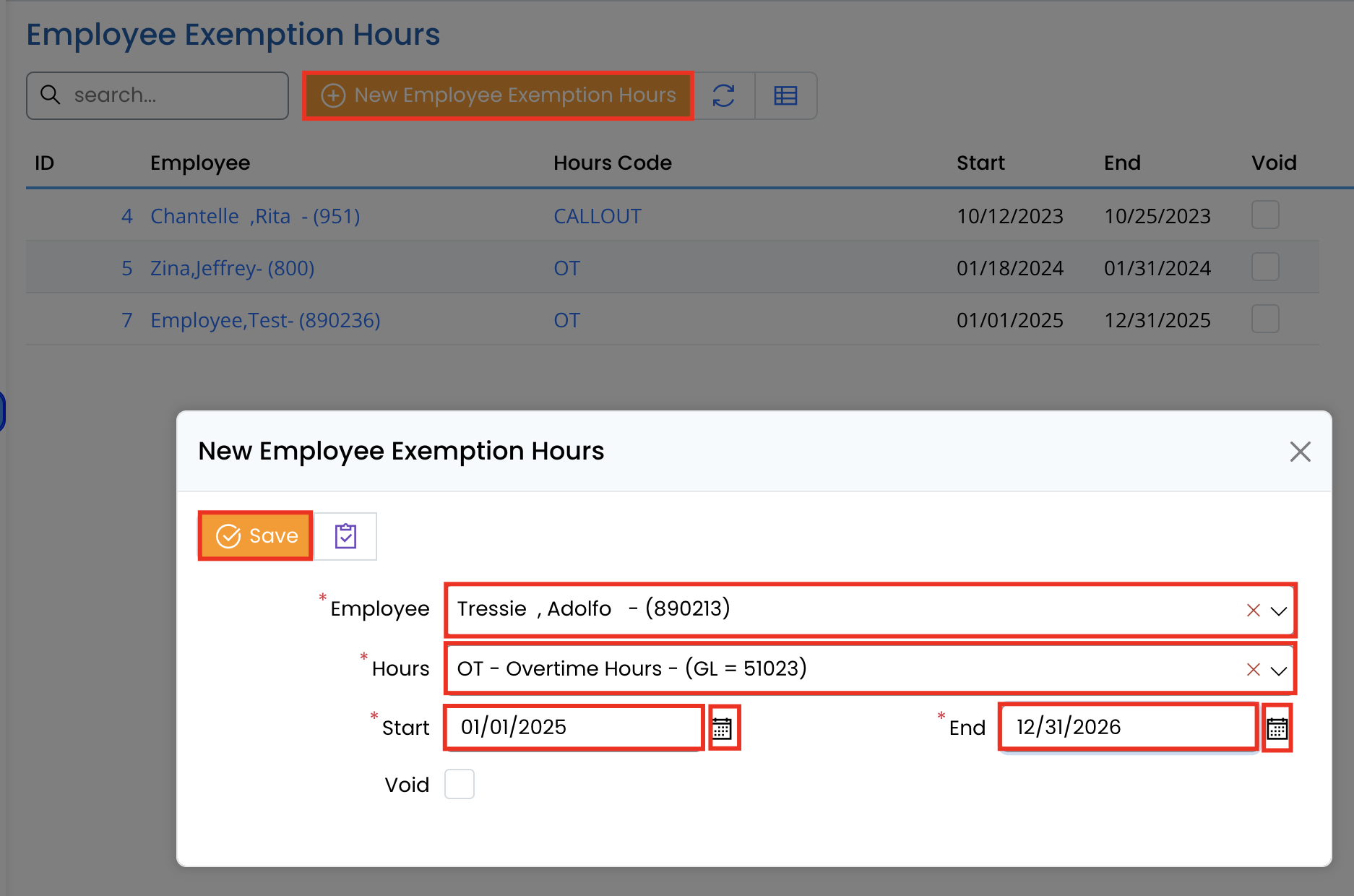
- Click New Employee Exemption Hours.
- In the form:
- Select the Employee.
- Choose the Hours Code (e.g., Overtime Hours).
- Set the Start and End Date.
- Click Save to apply the exemption.
Editing an Employee Hours Exemption
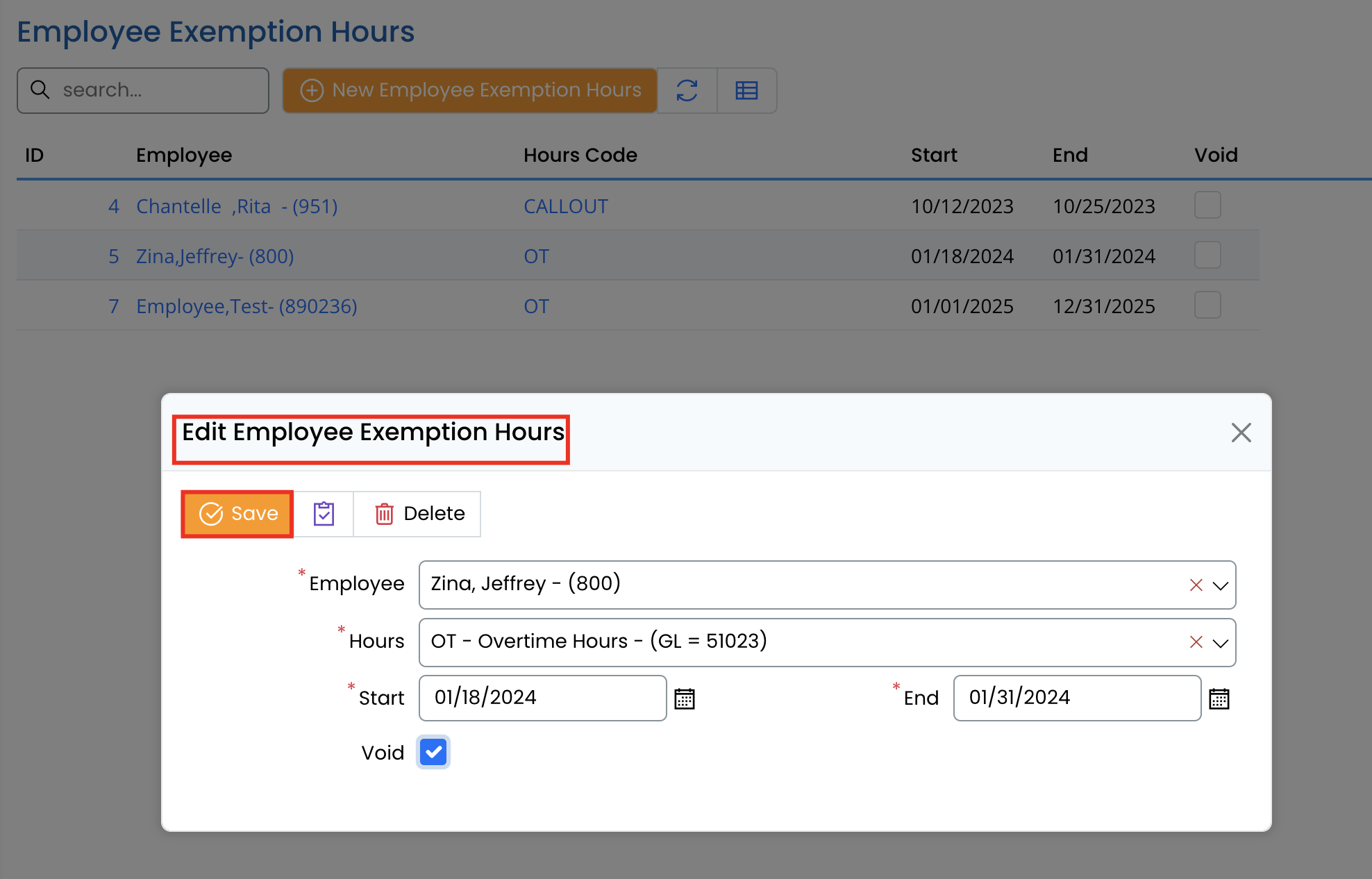
- Click on an existing exemption.
- Modify fields such as Hours Code, Dates, or Void status.
- Click Save to update.
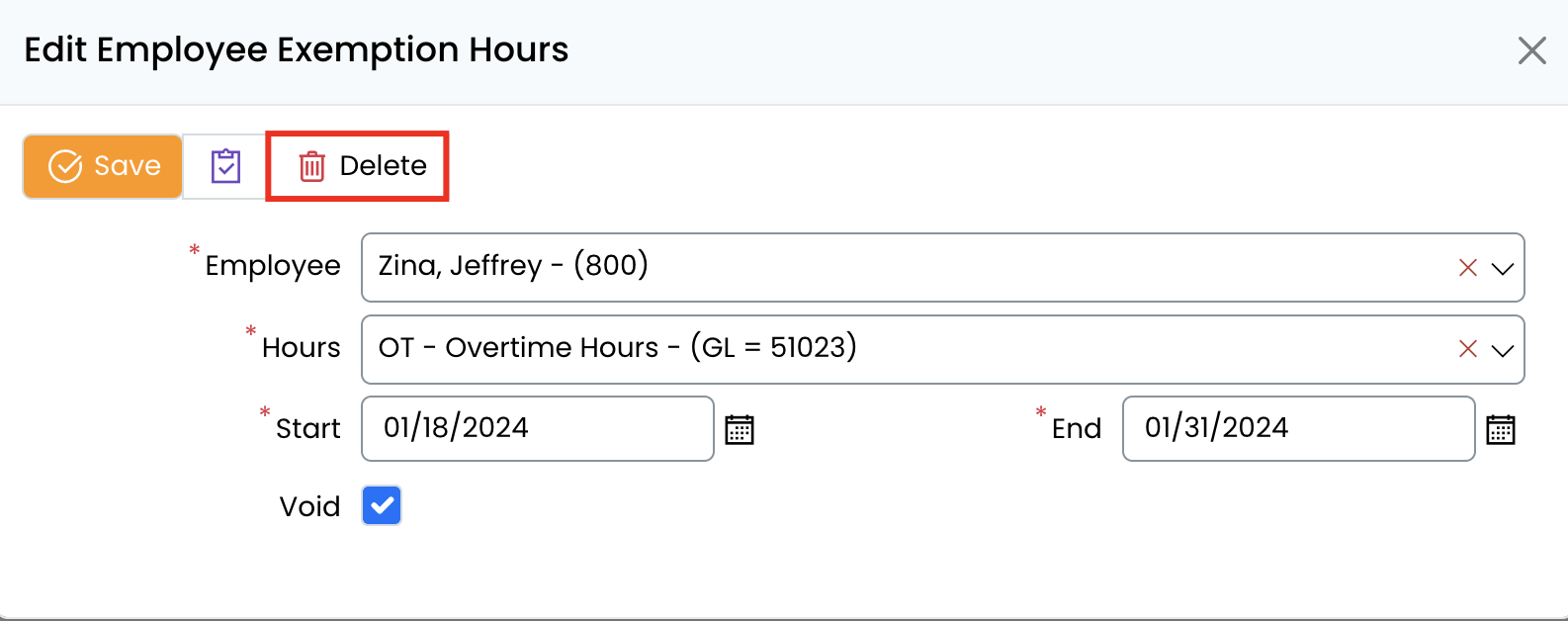
Deleting an Employee Hours Exemption
- Open the exemption record.
- Click Delete and confirm.
Alternative Access via Employee Profile
- Employee hours exemptions can also be managed from an individual Employee Profile.
- Navigate to the Hours tab within an employee’s profile to view or add exemptions.
By properly managing exemptions, payroll administrators can ensure compliance with labor policies while maintaining accurate payroll records.