
How to Add Family Information
The Family tab in XandaPay allows HR to store information about an employee’s spouse, parents, and children. While this section is optional, adding family details can be beneficial for dependent benefits, emergency contacts, and HR records.
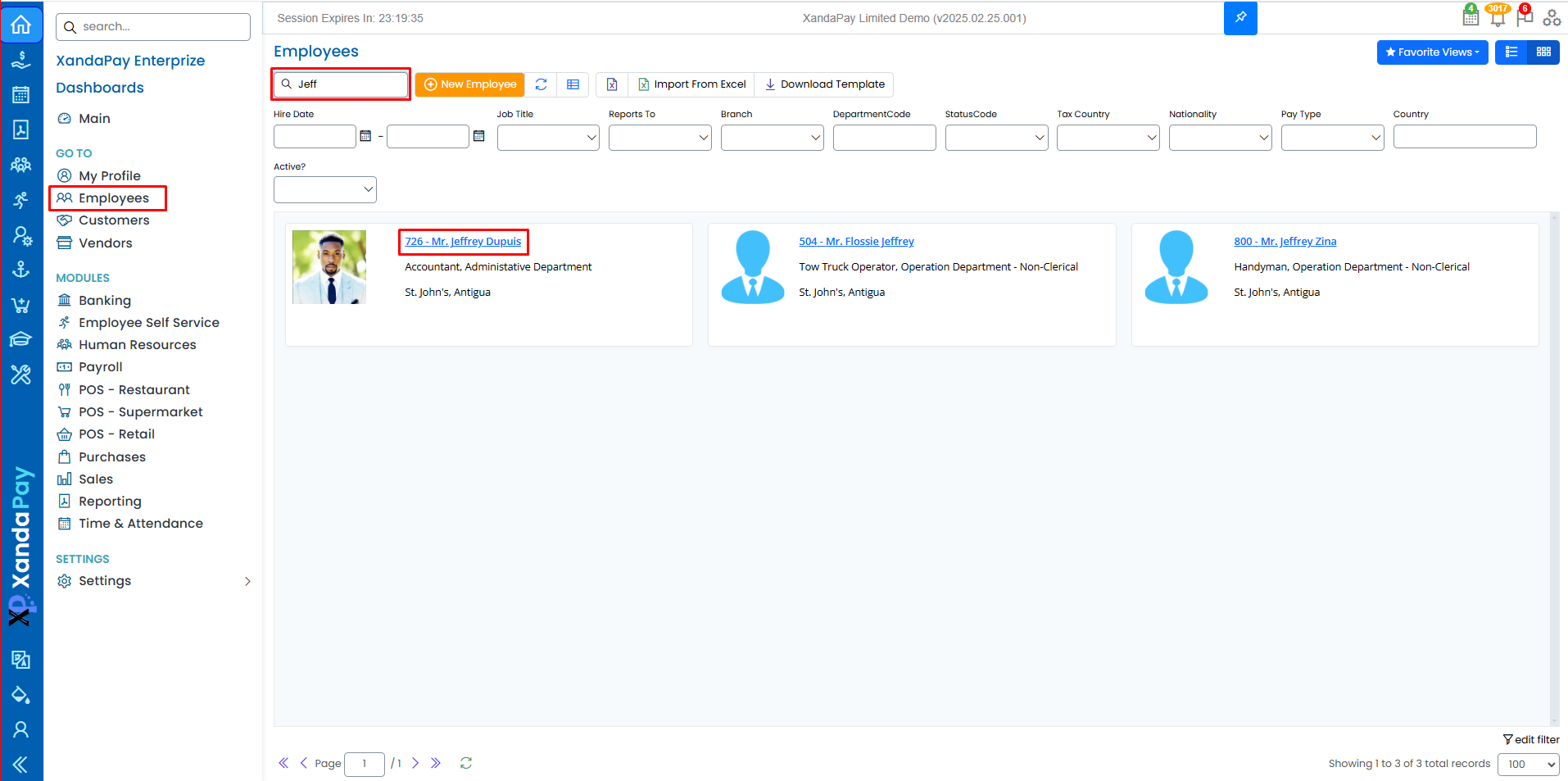
Step 1: Navigate to the Family Tab
- Log in to your XandaPay portal.
- Open the Employees module.
- Select the employee you want to Edit or add a New Employee.
- Click on the "Family" tab at the top.
Step 2: Enter Family Information
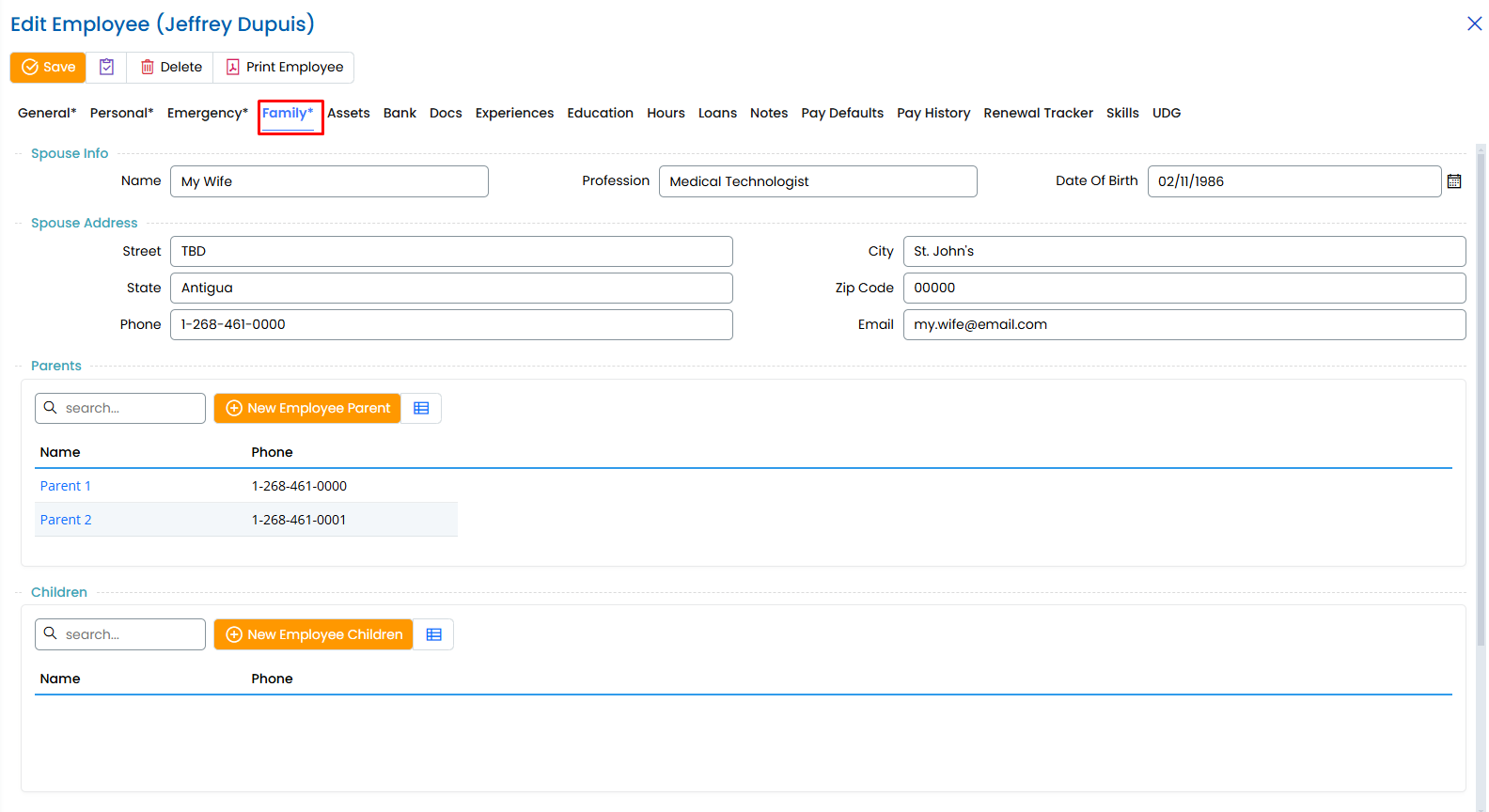
1. Enter Spouse Information (If Applicable)
If the employee has a spouse, their details can be entered under this section.
- Name: Enter the full name of the spouse.
- Profession: Specify the spouse’s job title or occupation.
- Date of Birth: Select the spouse’s birth date using the calendar tool (MM/DD/YYYY format).
2. Enter Spouse Address (Optional)
If the spouse resides at a different address, input the following details:
- Street: Enter the spouse’s street address.
- City: Specify the city.
- State: Input the state or region.
- Zip Code: Enter the postal code.
- Country: Select the spouse’s country if different from the employee's.
- Phone: Provide the spouse’s contact number.
- Email: Enter the spouse’s email address.
3. Add Parent Information
To add an employee’s parents:
- Use the search bar to check if a parent is already listed in the system.
- If the parent is not listed, click "+ New Employee Parent" to add a new entry.
- Enter the Parent’s Name and Phone Number.
4. Add Children Information
To add children to the employee’s profile:
- Use the search bar to check if a child is already listed.
- If the child is not listed, click "+ New Employee Children" to create a new entry.
- Enter the Child’s Name and Phone Number (if applicable).
Step 3: Save the Family Information
- Review all the details entered for accuracy.
- Click the "Save" button to store the family records.

Additional Notes
- If an employee has no spouse, parents, or children, this tab can be left blank.
- Family details can be edited later by returning to the Family tab.
- This information can assist in benefits administration and emergency contacts.
Once the Family tab is completed, you can proceed to other sections like Assets, Banking, Documents, and Education & Experience to further build the employee’s profile. 🚀