
Understanding the Day End Management Interface
Accessing the Day End Management Module
- Navigate to Time & Attendance in the left menu.
- Click Day End to open the interface.
Understanding the Day End Management Interface
This tutorial explains the Day End Management interface and features, following the numbering system in the image below.
1. Date Selection / Filter
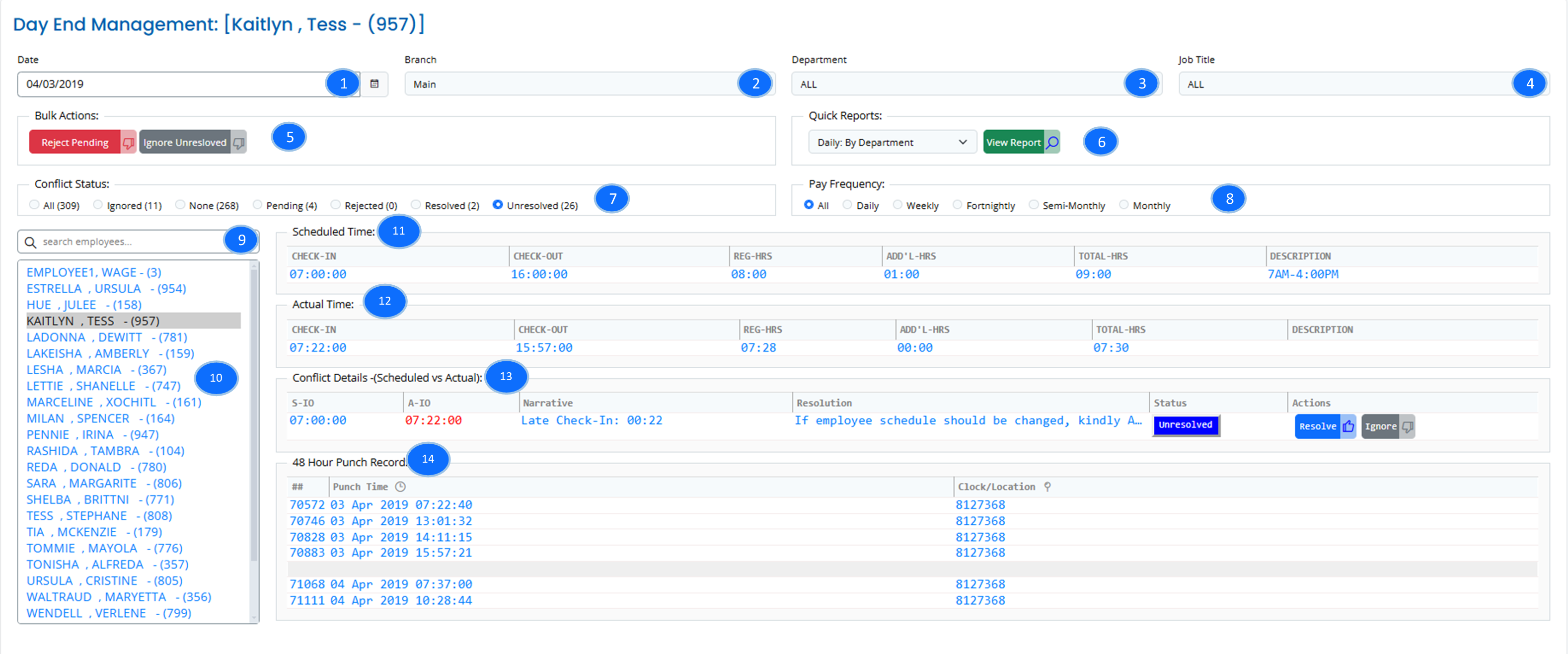
- Select a specific date to review attendance records.
- Changing the date refreshes the displayed conflicts and employee records.
2. Branch Selection
- Choose a branch to filter employees based on location.
3. Department Filter
- Select a department to focus on specific employee groups.
4. Job Title Filter
- Narrow down records by selecting a specific job title.
5. Bulk Actions
- Reject Pending: Marks all pending conflicts as rejected.
- Ignore Unresolved: Ignores all unresolved conflicts without resolution.
6. Quick Reports
- Generate department-based reports to analyze attendance issues.
- Click View Report to generate the selected report.
7. Conflict Status Overview
- Displays the count of resolved, unresolved, rejected, and pending conflicts.
- Filtering options:
- All: Shows all conflicts.
- Ignored: Displays conflicts that were ignored.
- None: Employees without conflicts.
- Pending: Conflicts awaiting resolution.
- Rejected: Denied conflicts.
- Resolved: Successfully handled conflicts.
- Unresolved: Outstanding conflicts requiring attention.
8. Pay Frequency Filter
- Select the pay frequency applicable to employees:
- Daily
- Weekly
- Fortnightly
- Semi-Monthly
- Monthly
9. Employee Search
- Quickly locate an employee by typing their name or ID.
10. Employee List
- Displays employees with attendance records for the selected date.
- Employees with conflicts are highlighted for easy identification.
11. Scheduled Time
- Displays the expected check-in and check-out times for the employee.
- Shows the total scheduled hours.
12. Actual Time
- Displays the actual check-in and check-out times recorded.
- Shows the total actual hours worked.
13. Conflict Details (Scheduled vs Actual)
- Highlights discrepancies between scheduled and actual attendance.
- Shows late arrivals, early departures, and missing punches.
- Provides a resolution option for each conflict.
14. 48-Hour Punch Records
- Displays raw punch data captured for the employee over the last 48 hours.
- Useful for verifying attendance and resolving discrepancies.
Best Practices
✔ Review Unresolved Conflicts – Address pending attendance issues before payroll processing.
✔ Use Filters – Focus on relevant branches, departments, or job titles.
✔ Analyze Reports – Use reports to monitor attendance patterns.
✔ Verify Punch Records – Ensure work-hour calculations are accurate.
✔ Resolve or Ignore Conflicts – Maintain clean and payroll-ready records.
Try the Day End (Compact) Interface 🚀
For enhanced navigation and a more streamlined conflict resolution process, users can try the Day End (Compact) interface. This version provides: ✔ Multi-day conflict visibility – View attendance discrepancies across multiple days.
✔ Advanced filtering options – Quickly refine records based on various criteria.
✔ Faster navigation – Move between conflicts efficiently for quicker resolutions.
To access it, navigate to Time & Attendance → Day End (Compact).
This tutorial provides a structured guide for using Day End Management in XandaPay Enterprise, ensuring attendance accuracy and smooth payroll processing. 🚀