
How to Create or Edit Payroll
The Create or Edit Payroll feature in XandaPay allows payroll administrators to set up new payroll periods or modify existing ones. This guide will walk you through creating a new payroll and editing an existing payroll.
Accessing Payroll Management
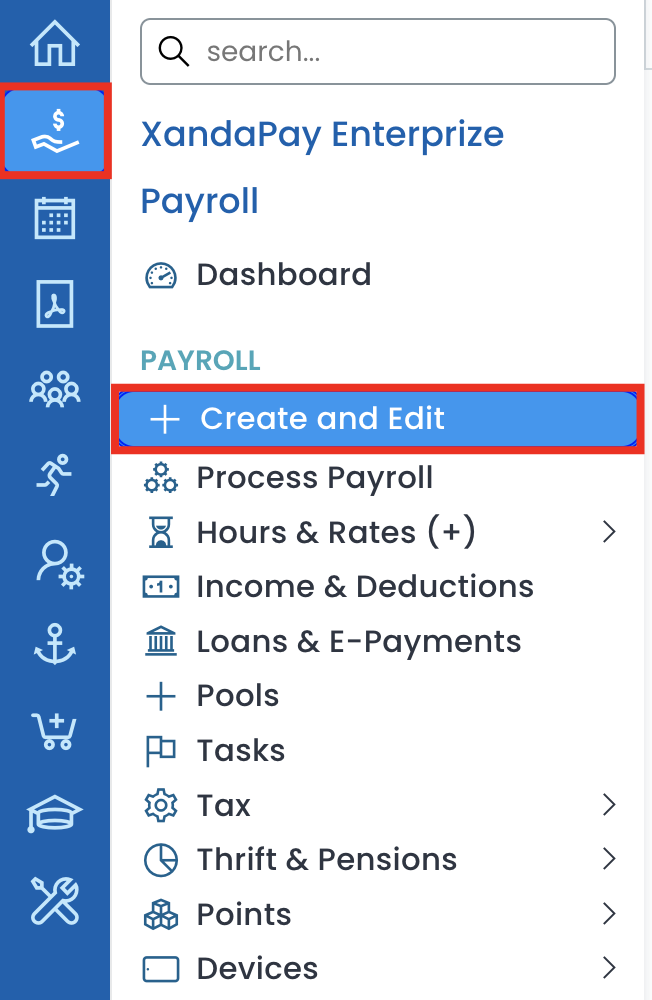
- Navigate to the Payroll module from the left menu.
- Click Create and Edit under the Payroll section.
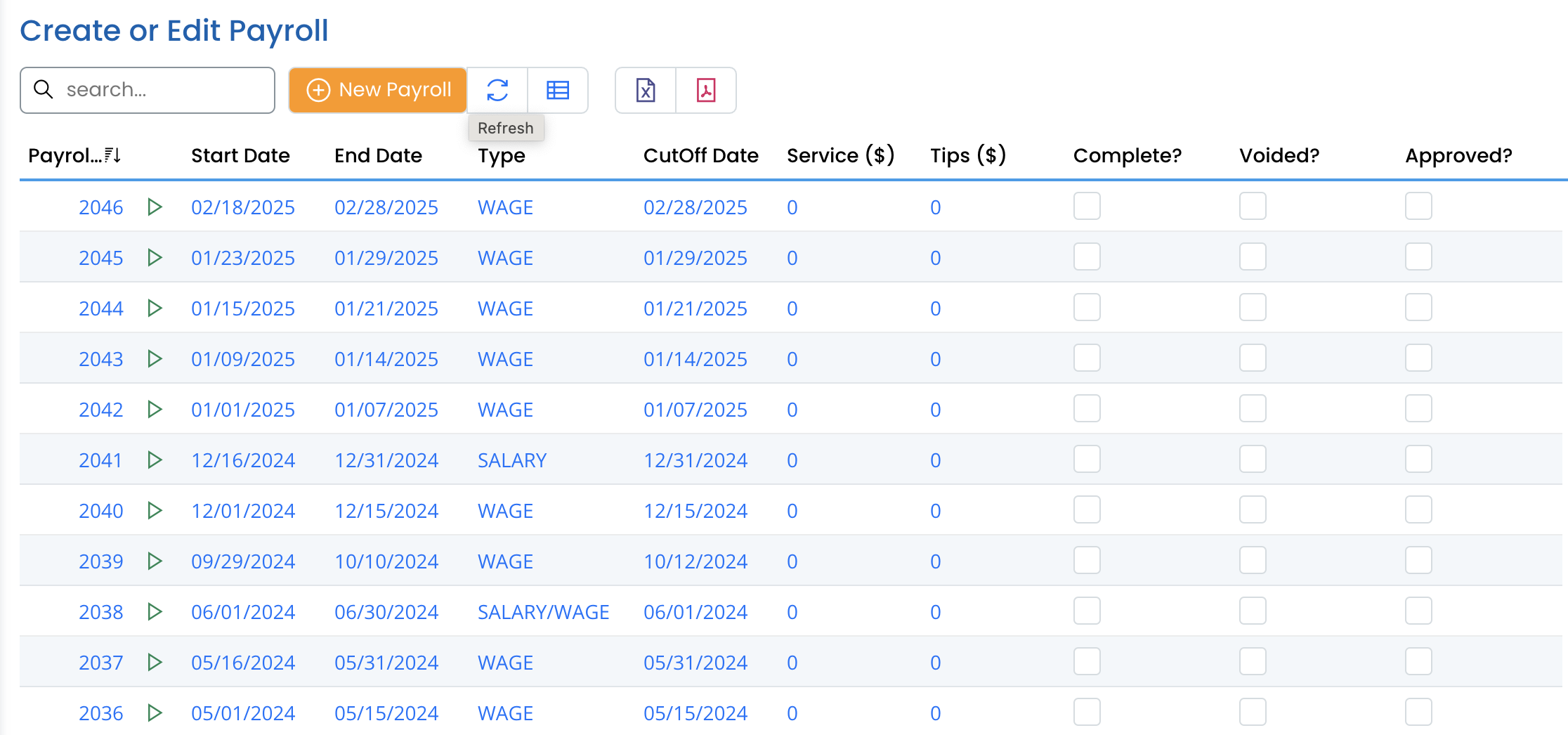
- This will bring up a list of payroll periods.
Creating a New Payroll
- Click the New Payroll button at the top.
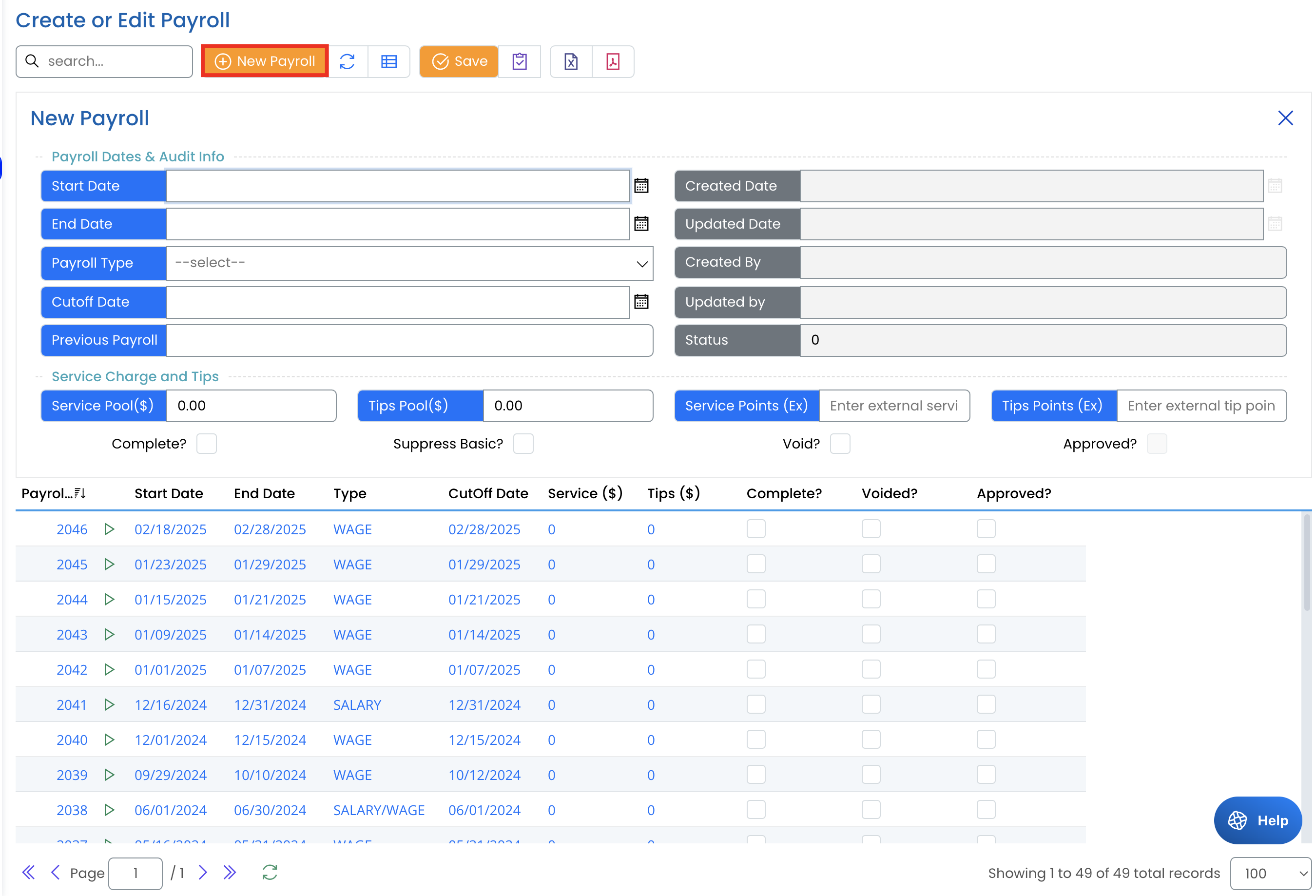
- A form will appear where you need to enter payroll details.
Enter Payroll Information
- Start Date: Select the start date of the payroll period.
- End Date: Select the end date of the payroll period.
- Payroll Type: Choose from WAGE, SALARY, or SALARY/WAGE based on your needs.
- Cutoff Date: Enter the payroll cutoff date for processing payments.
- Previous Payroll: If applicable, select the previous payroll to link to.
Service Charge and Tips (Optional)
- Service Pool ($): Enter the total amount of service charge to be distributed.
- Tips Pool ($): Enter the total amount of tips to be distributed.
- Service Points (Ex): If using external service points, enter them here.
- Tips Points (Ex): If using external tip points, enter them here.
- Suppress Basic? Check this box if you want to suppress basic pay for this payroll.
- Void? Check this box if this payroll is voided.
- Approved? Check this box to mark the payroll as approved.
- Click Save to finalize the payroll creation.

Editing an Existing Payroll
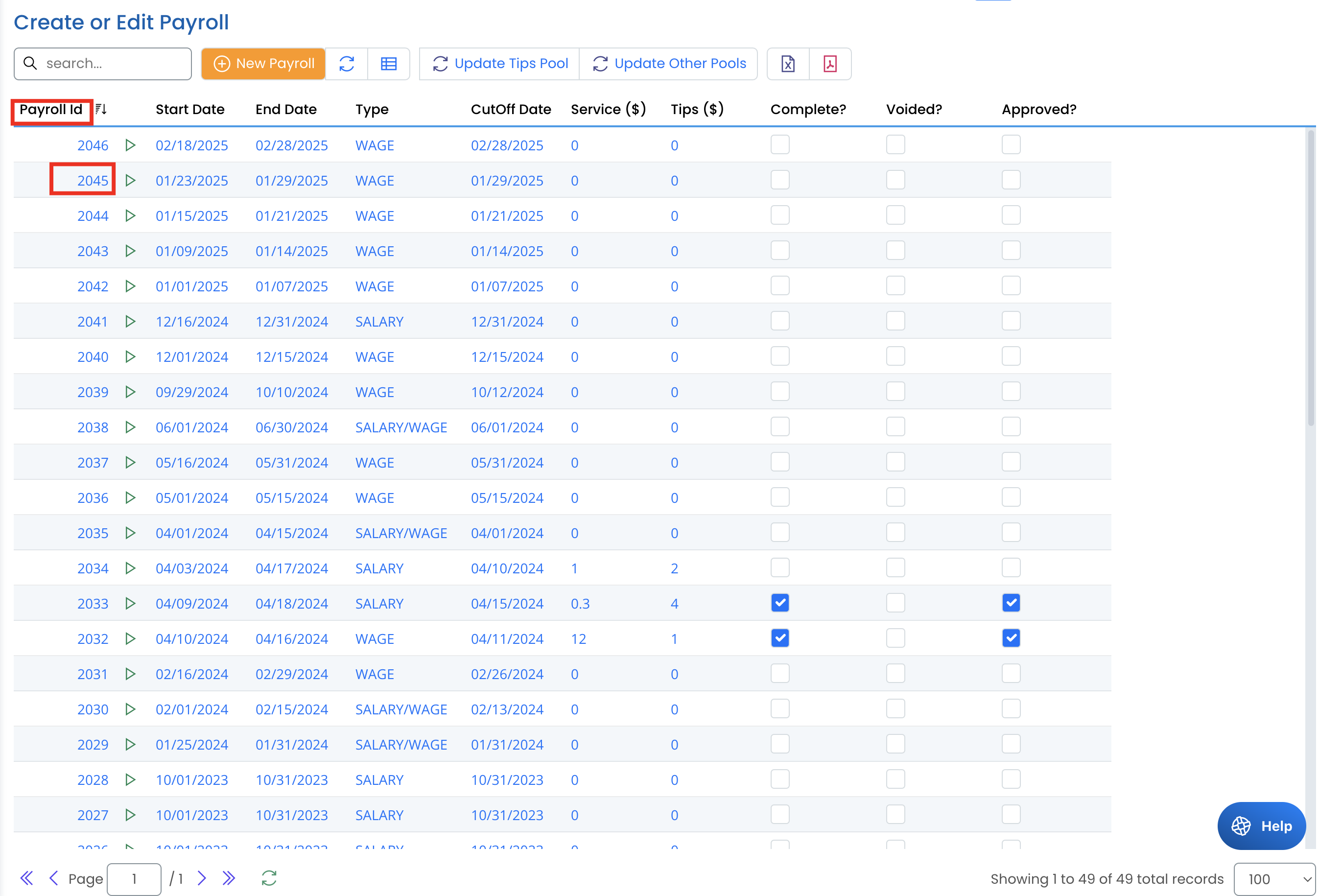
- In the payroll list, find the payroll you want to edit.
- Click on the Payroll ID to open the payroll details.
3. Modify any necessary fields, such as:
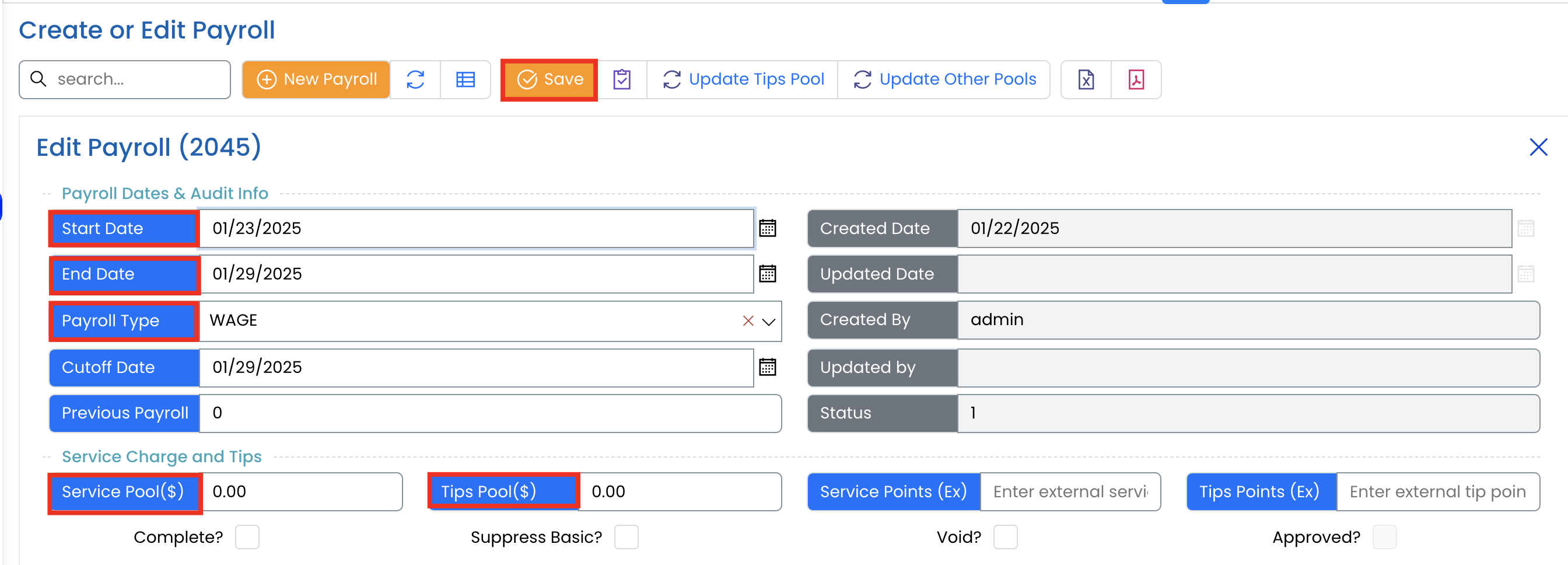
- Start/End Date
- Payroll Type
- Cutoff Date
- Service Charges or Tips
4.Click Save to update the payroll details.
Key Notes
✅ Ensure the correct payroll type is selected for accurate calculations.
✅ Payroll periods should not overlap unless required for adjustments.
.
Once saved, the payroll is ready for further processing in the Process Payroll workflow. 🚀