
How to Add Renewal Document
The Renewal Tracker tab in XandaPay helps track employee certifications, licenses, and other renewable documents. This feature ensures timely renewals and compliance with company policies.
Step 1: Navigate to the Renewal Tracker Tab
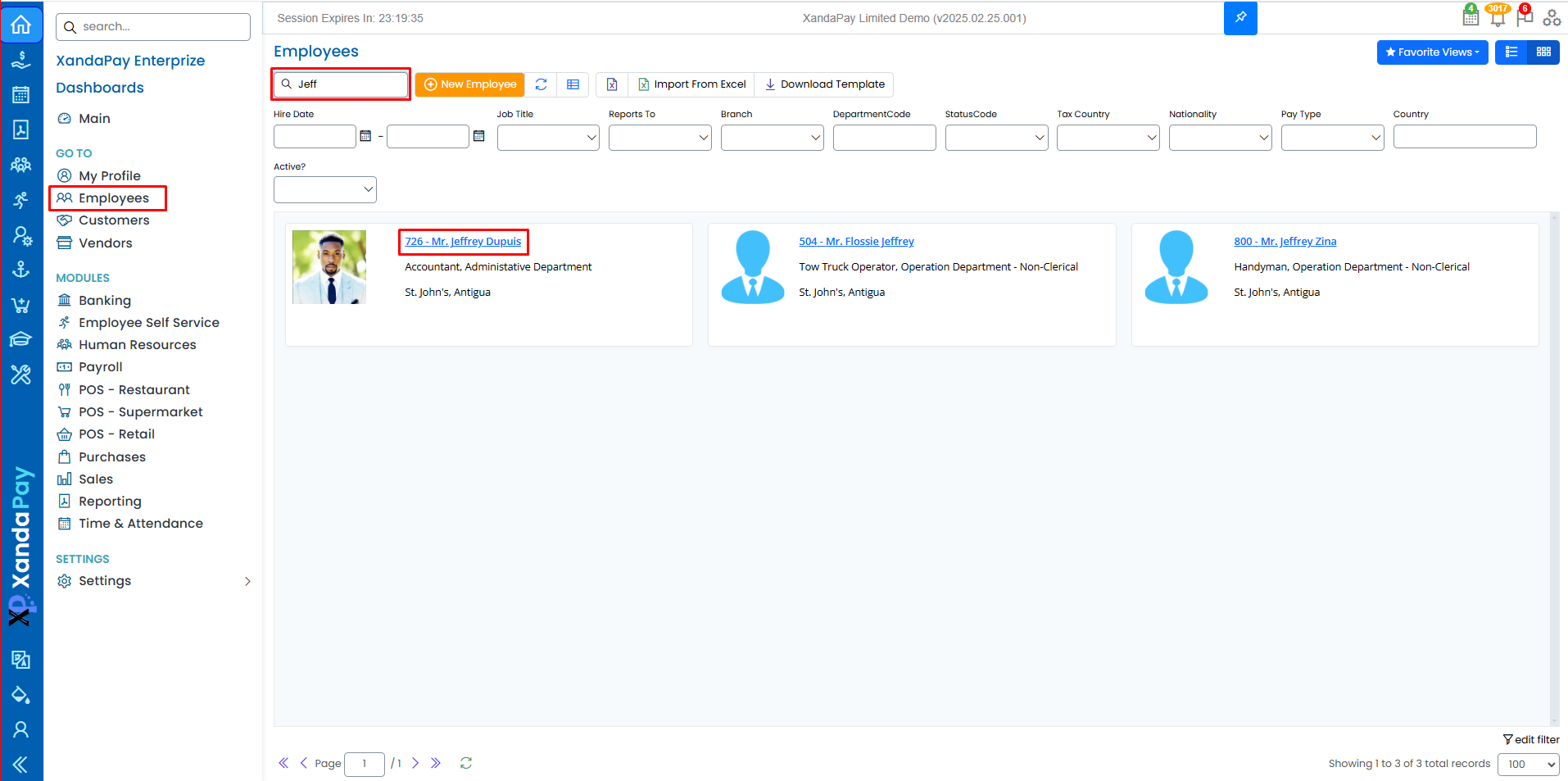
- Log in to your XandaPay portal.
- Open the Employees module.
- Select the employee whose renewals you want to track.
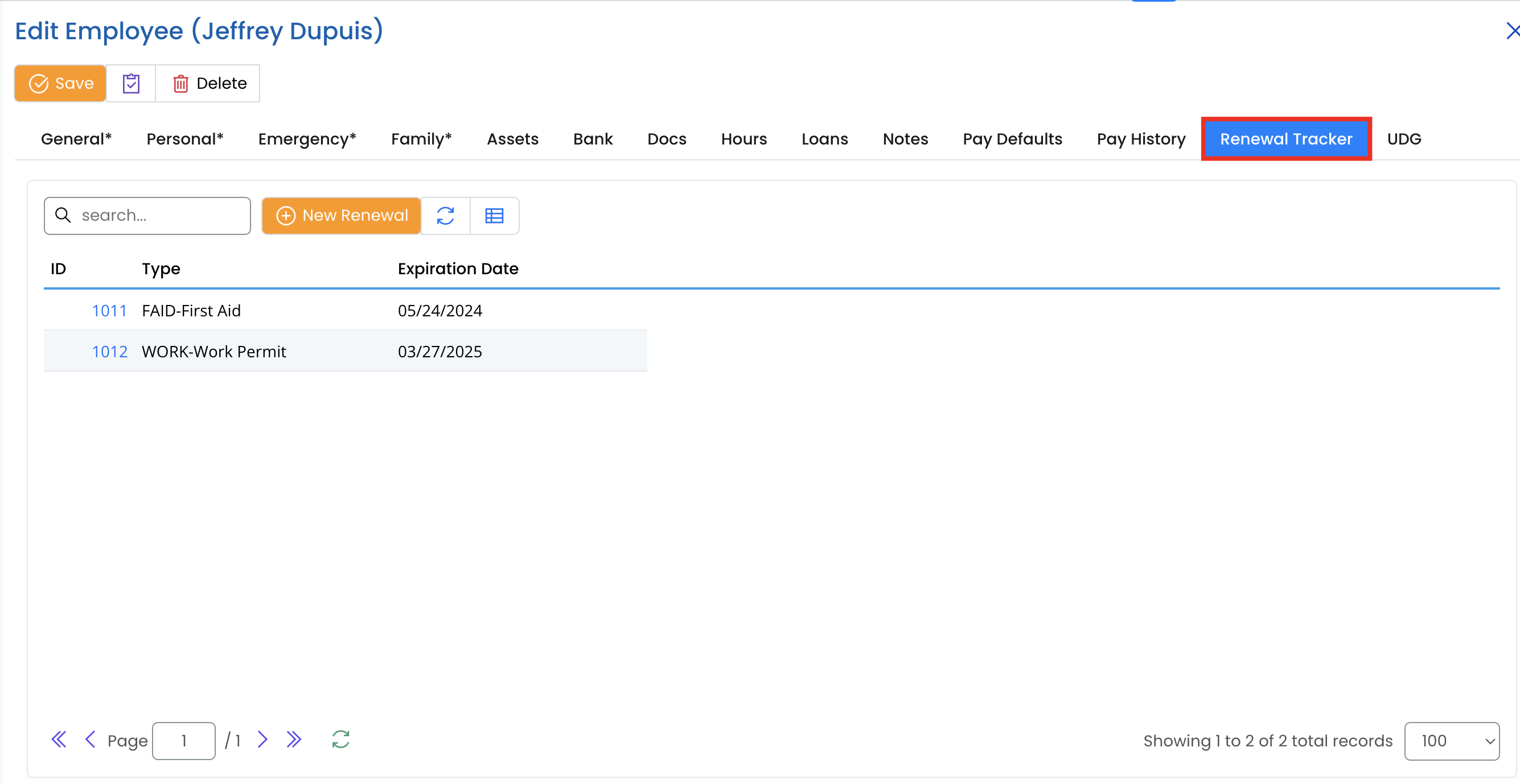
- Click on the Renewal Tracker tab at the top.
Step 2: Understanding the Renewal Tracker Table
The renewal tracker table consists of:
- ID: A unique identifier for the renewal entry.
- Type: The type of certification or document requiring renewal (e.g., Work Permit, Safety Training, Professional License).
- Expiration Date: The date when the document or certification will expire.
Step 3: Adding a New Renewal
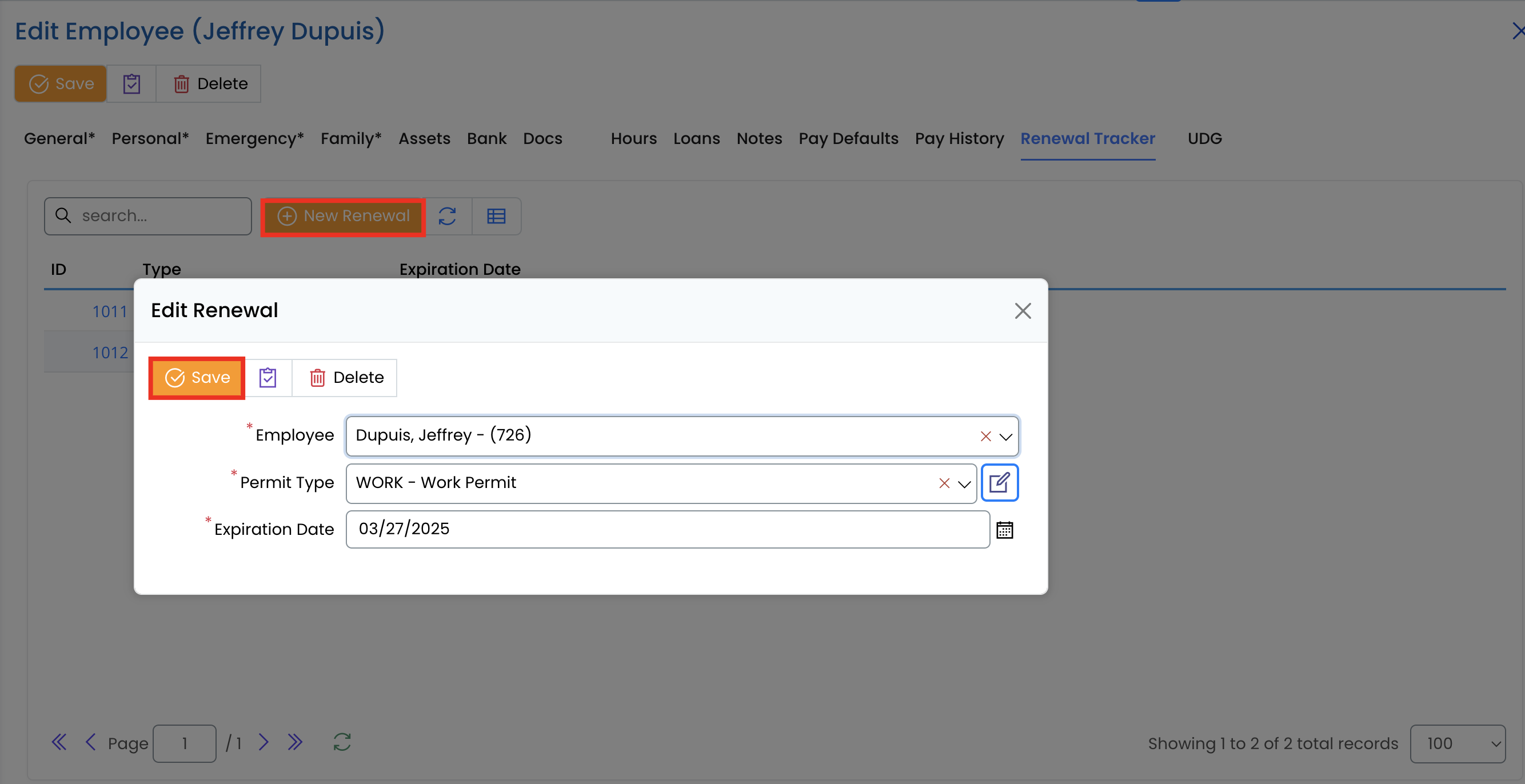
- Click the New Renewal button.
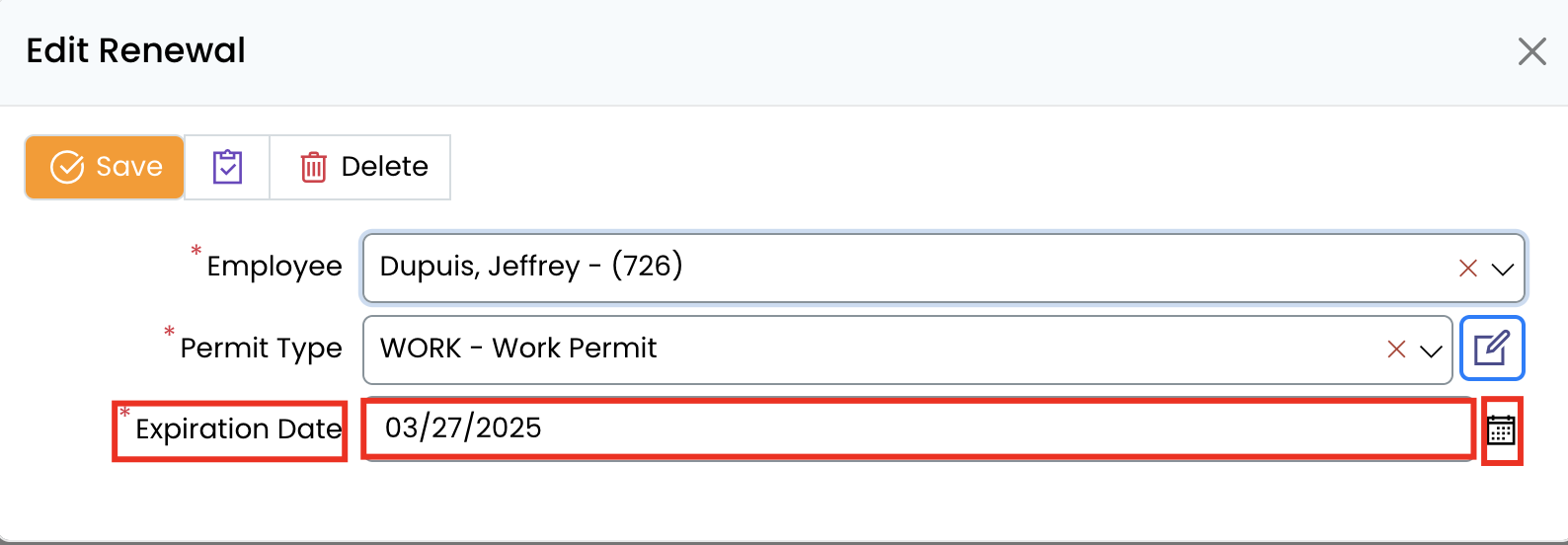
- Enter the necessary details:
- Type of renewal (e.g., WORK - Work Permit).
- Expiration Date (e.g., 03/27/2025).
- Click Save to add the new renewal record.
Step 4: Searching and Filtering Renewal Records
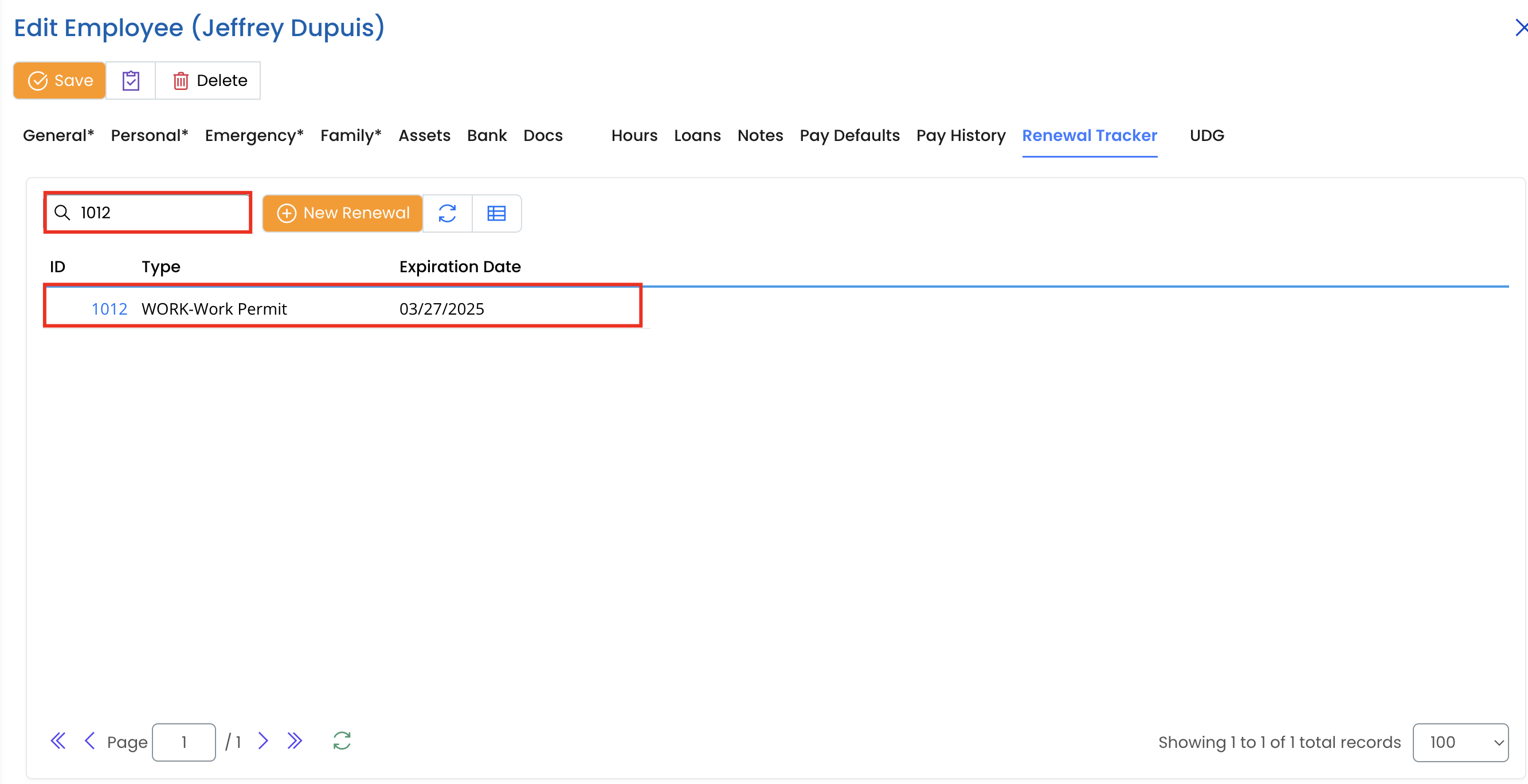
- Use the Search bar to find specific renewal records by entering keywords such as ID, type, or expiration date.
- Click the Refresh button 🔄 to update the list with any new records.
- Adjust the number of records displayed per page (default is 100).
Step 5: Managing Expired or Upcoming Renewals
- Regularly check the Renewal Tracker to identify upcoming expiration dates.
- If a certification is expiring soon, take the necessary steps to renew it and update the system.
- Ensure employees are aware of their renewal deadlines to avoid non-compliance issues.
Additional Notes
- Keeping renewals up to date ensures compliance with safety and regulatory requirements.
- HR or admin users should frequently review the renewal tracker to prevent expired certifications from affecting employee qualifications.
- Some renewals may require document uploads, which should be managed through the Docs tab.