
How to Reset Your Password
If you have forgotten your password for your XandaPay account, follow these steps to reset it
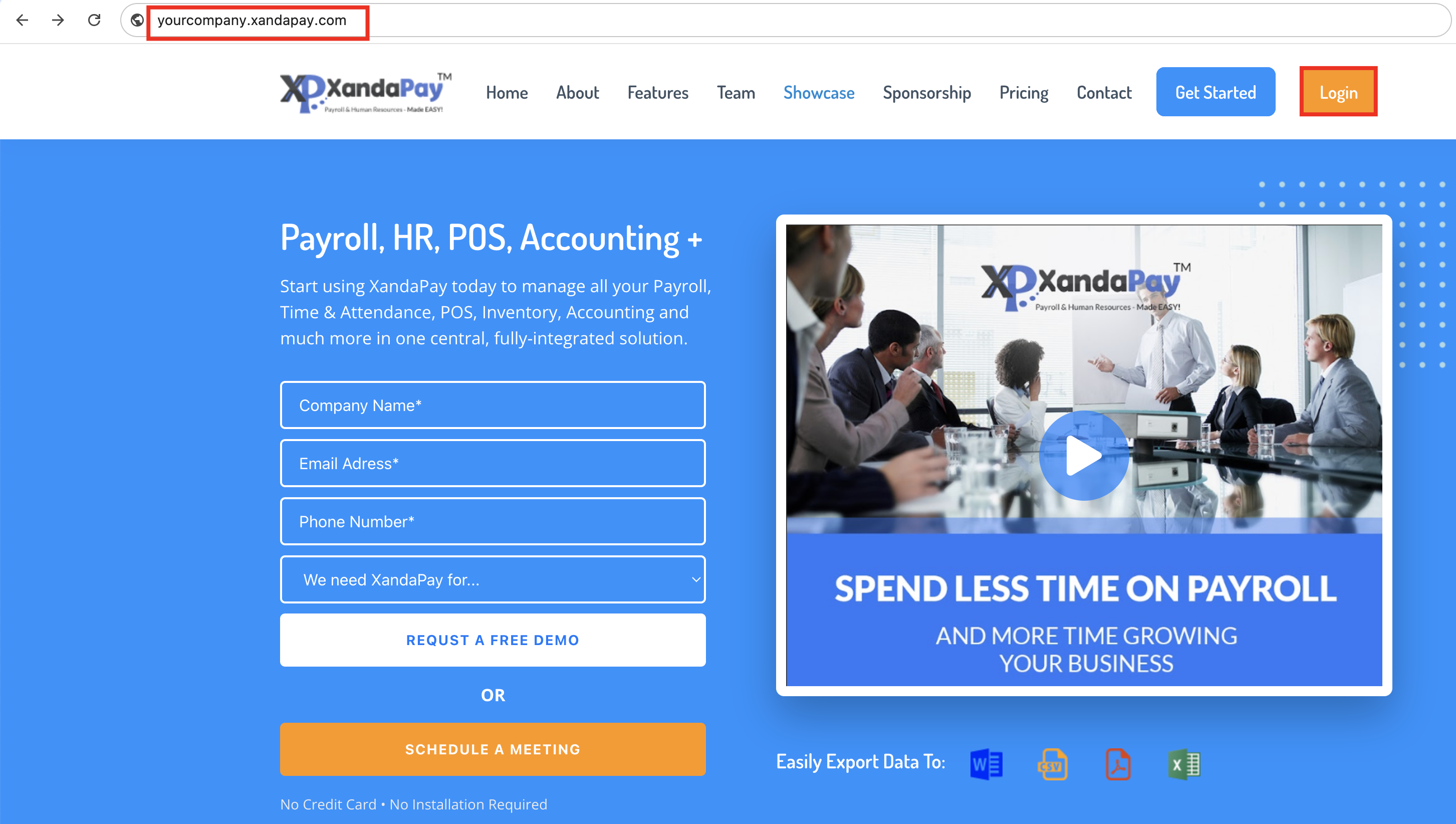
Step 1: Open Your XandaPay Portal
- Open your web browser and go to your company's XandaPay login page.
Example: yourcompany.xandapay.com - Click on the "Login" button.
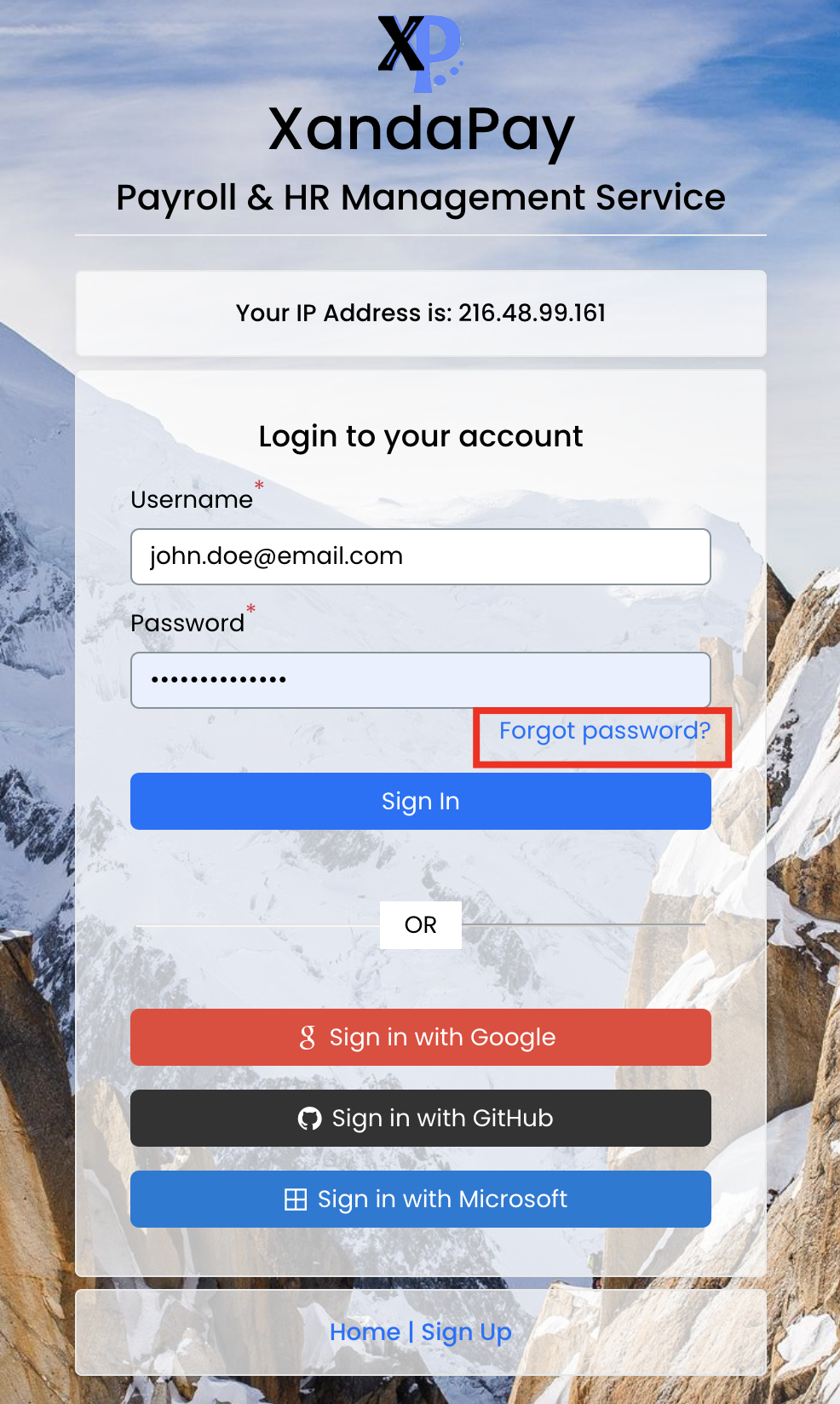
Step 2: Click on "Forgot My Password"
- On the login page, look for the "Forgot Password?" or "Forgot My Password" link.
- Click it to proceed to the password reset page.
Step 3: Enter Your Registered Email Address
- You will see a form titled "Forgot My Password".
- In the "Email Address" field, enter the email address you used to sign up.
- Double-check your email for typos.
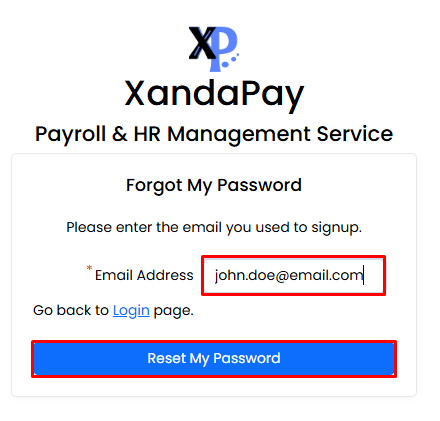
Step 4: Click "Reset My Password"
- After entering your email, click on the "Reset My Password" button.
- If your email is registered, XandaPay will send you a password reset link.
Step 5: Check Your Email for a Reset Link
- Open your email inbox and look for an email from XandaPay.
- If you don’t see it, check your Spam/Junk folder.
- Click on the password reset link provided in the email.
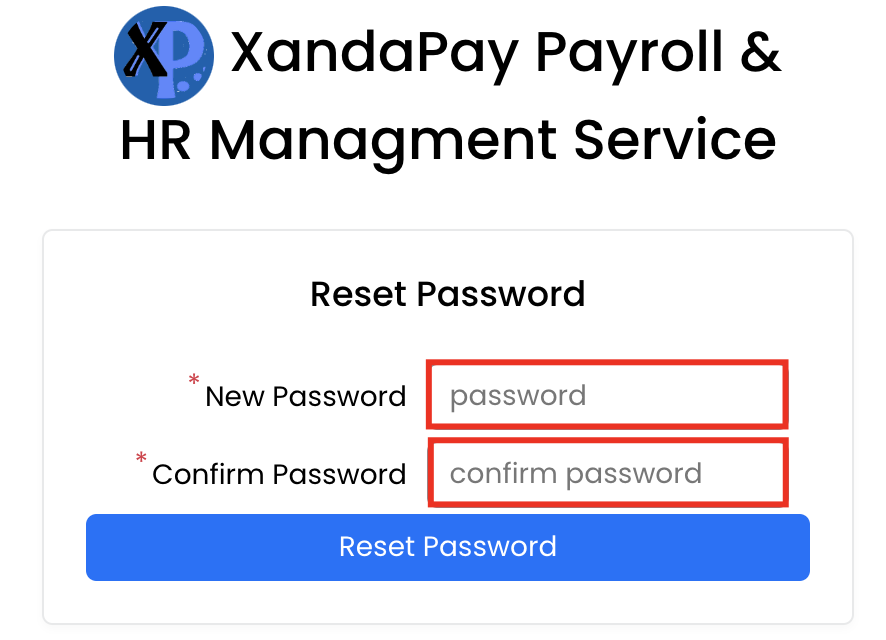
Step 6: Create a New Password
- The reset link will take you to a secure page.
- Enter a new strong password (at least 8 characters, including a mix of letters, numbers, and symbols).
- Confirm your new password by entering it again.
Step 7: Log In with Your New Password
- Once your password has been reset successfully, return to your XandaPay login page.
- Enter your email address and new password.
- Click "Login" to access your account.
Troubleshooting Tips
✅ Didn’t receive the email? Wait a few minutes or check your spam/junk folder.
✅ Entered the wrong email? Go back and enter the correct registered email address.
✅ Password reset link expired? Request a new reset link by following the same steps.
✅ Still having issues? Contact XandaPay Support for further assistance.
Now you can securely access your XandaPay account with your new password! 🚀